Import the RADIUS Server Certificate for the NPS
To import the RADIUS Server Certificate for the NPS, perform the following procedures,
which are described in the following sections.
Add a Certificates Snap-in
- From a command window, run
mmc to open a console window.
Tip: Do not use certngr to import the server certificate. The certmgr allows you to manage certificates for the Current User. However, you must import the server certificate into the NPS Computer certificate store.
- Go to .
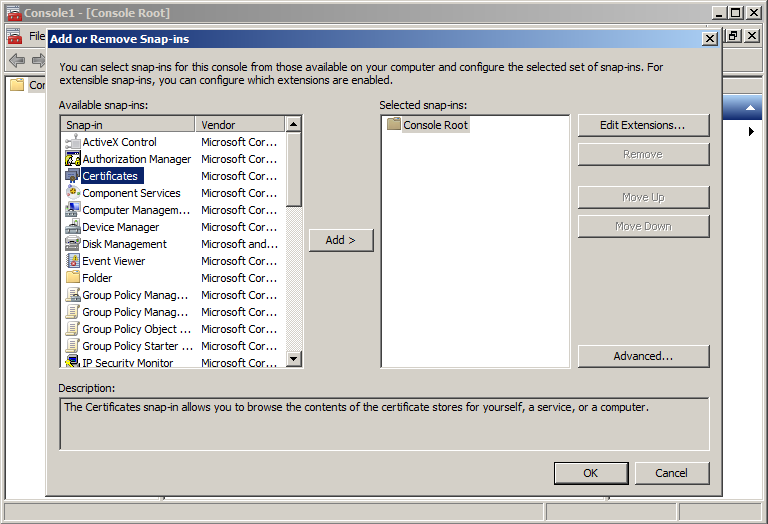
- On the Add or Remove Snap-ins page, select Certificates from the left pane (Available Snap-ins:) and click Add.
- In the Certificates snap-in window, select Computer Account and click Next.
- In the
Select Computer window, select
Local Computer and click
Finish.
Certificates (Local Computer) should be listed in the right pane (Selected Snap-ins:) of the Add or Remove Snap-ins window.
- Click OK.