Using the Tenant Portal
What the Tenant Portal Home Page Provides
The following is an example of a tenant portal home page.
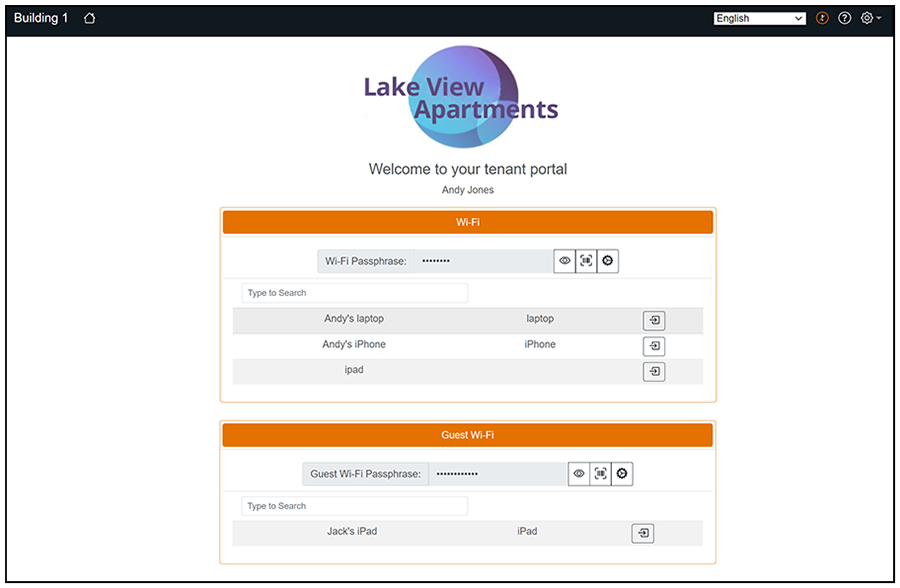
From anywhere in the portal, you
can return to the home page by clicking the Home icon ( ) in
the upper left portion of the portal.
) in
the upper left portion of the portal.
Actions You Can Take from Tenant Portal Home Page
| Actions | Instructions |
|---|---|
| Show/hide the Wi-fi or Guest Wi-fi Passphrase. | Click the Eye icon:  |
| View the Wi-fi or Guest Wi-fi Passphrase QRCode. | Click the QRCode icon  . .
Note: If the eDPSK pool
associated with the property contains more than one SSID, no
QRCode is displayed in the tenant portal.
added for
5.9R3.
|
| Change the Wi-fi or Guest Wi-fi Passphrase. |
updated for
5.9R3 Click the "gears wide connected icon"( ), then follow the screen instructions.
The "gears wide connected icon" is present if the field called
"Manual DPSK Secret Allowed" is enabled in the Edit Tenant Portal
Look & Feel screen in the Cloudpath UI (see Creating the Look and
Feel for the Tenant Portal ), then follow the screen instructions.
The "gears wide connected icon" is present if the field called
"Manual DPSK Secret Allowed" is enabled in the Edit Tenant Portal
Look & Feel screen in the Cloudpath UI (see Creating the Look and
Feel for the Tenant Portal
new screen for
5.9R3 to show new "Manual DPSK Secret Allowed"
field ). If that field has not been enabled, the Wi-fi
or Guest Wi-fi passphrase can be automatically reset by clicking on
the following icon, which is displayed in place of the gears icon:
 Note: If you change a
wi-fi pass phrase, all devices that used that pass phrase are
removed from the network and must reconnect using the new pass
phrase.When a pass phrase is changed, email and/or text messge
notifications are sent to the tenant with the new
information.
Note: Also, as the
property manager, if you view the DPSK Secret or Guest DPSK
Secret in the Cloudpath UI Unit Information screen (Viewing Information of a Configured Unit), you can observe any pass-phrase changes
there as well as in the tenant portal.
|
| Rename or remove a device. | Click the right-arrow icon ( ). On the ensuing screen, you can click
the same icon to edit the name or description of the device. You
also can click Remove Device From Network, but will not receive a warning. ). On the ensuing screen, you can click
the same icon to edit the name or description of the device. You
also can click Remove Device From Network, but will not receive a warning.
Note: Removing a
device does not remove the DPSK secret from the device.
Therefore, if the device is within access distance of the access
point, the device automatically reconnects to the network. If
you want to permanently remove a device from the network, you
need to also change the associated DPSK secret. This could be
useful if some old devices are being permanently replaced by new
devices.
|
| View any announcements from the property manager. | If any announcement(s) were configured in the Cloudpath UI in the
Look & Feel tab for the property (see Creating the Look and
Feel for the Tenant Portal
new screen for
5.9R3 to show new "Manual DPSK Secret Allowed"
field ), the Information icon in the upper-right
portion of the portal appears as:  . Clicking the icon will display the
annoucement(s), such as the one shown below: . Clicking the icon will display the
annoucement(s), such as the one shown below:
|
| View any help text from the property manager. | Click the Help icon ( ) in the upper-right portion of the
portal. Any help text configured in the UI in the Look & Feel
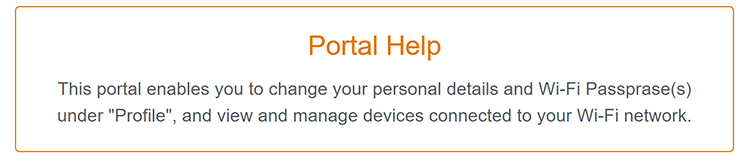
tab for the property will pop up, such as the one shown below: If no help text was configured in the UI, the default help
text pops up: ) in the upper-right portion of the
portal. Any help text configured in the UI in the Look & Feel
tab for the property will pop up, such as the one shown below: If no help text was configured in the UI, the default help
text pops up:
|
| Use the Settings drop-downlist. | The settings dropdown in the upper-right provides the following
options: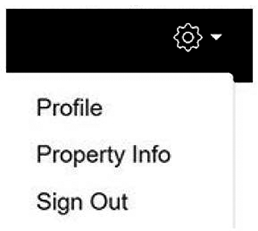 The Profile Page and Property Info are described below. |

 :
: 
Profile Page
If you click on Profile from the Settings drop-down list, a page such as the one in the following example is displayed.
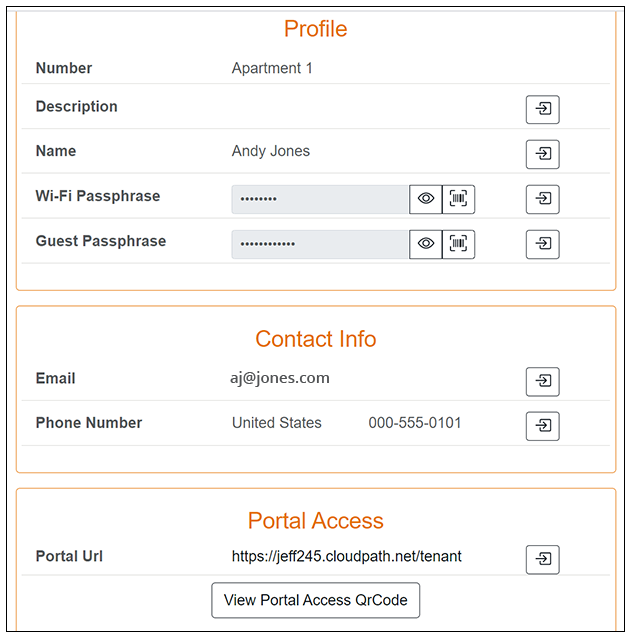
The following table lists some actions you can perform from the Profile page:
Actions You Can Take from Tenant Portal Profile Page
| Actions | Instructions |
|---|---|
| Change the Number, Description, or Name in the "Profile" section, and Email and Phone Number in the "Contact Info" section. Each of these items pertain to the unit resident, not to the property manager. | Click the right-arrow icon: . enter the text you want, then click Change. |
| Show/hide the Wi-fi or Guest Wi-fi Passphrase. | Click the Eye icon: |
| View the Wi-fi or Guest Wi-fi Passphrase QRCode. | Click the QRCode icon:
|
| Change the Wi-fi or Guest Wi-fi Passphrase. | Click the right-arrow icon (), then follow the screen instructions.
Note: If you
change a wi-fi pass phrase, all devices that used that pass
phrase are removed from the network and must reconnect using the
new pass phrase. When a pass phrase is changed, email and/or
text messge notifications are sent to the tenant with the new
information.
Note: Also, as the
property manager, if you view the DPSK Secret or Guest DPSK
Secret in the Cloudpath UI Unit Information screen (Viewing Information of a Configured Unit), you can observe any pass-phrase changes
there as well as in the tenant portal.
|
| View the tenant portal access QRCode. | In the "Portal Access" section of the screen, click View Portal Access QRCode. |
| Change the portal authentication token. | The portal access code can be reset here as well as in the
Cloudpath UI. Re-setting it here would typically be done by the
tenant if he or she believes that the current code may have been
compromised. Click
the right-arrow icon: |
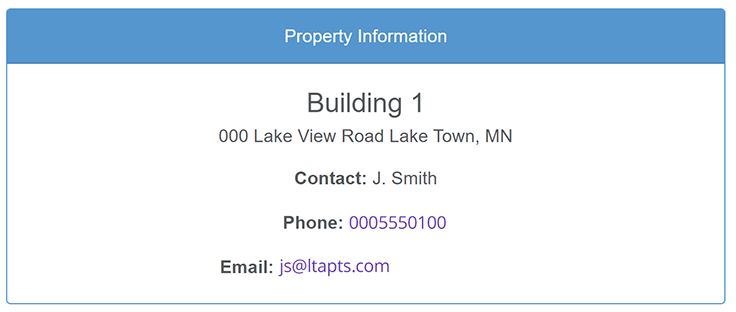
Property Information
If you click on Property Info from the Settings drop-down list, a page such as the one in the following example is displayed, and this page provides the contact information of the property manager as configured in the Cloudpath UI.