Using the Management Portal
Once a resistered user successfully logs in to a management portal, the user can perform actions that have been "enabled" in the Portal Controls areas of the portal management configuration screen (see Newly Created Management Portal - Access Details Tab).
You can click the right-pointing arrow ( ) on a property in the management portal
to view details of that property, as shown in the example below:
) on a property in the management portal
to view details of that property, as shown in the example below:
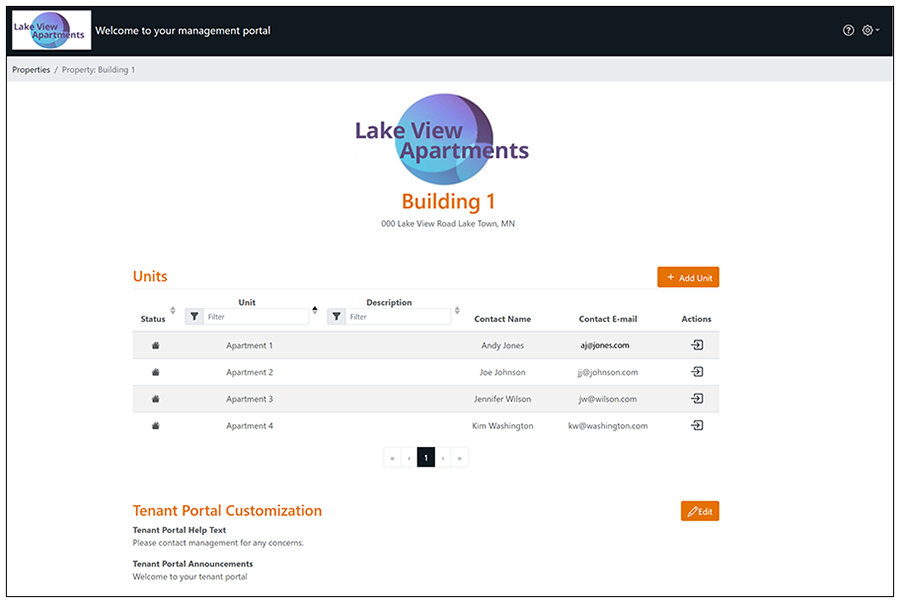
Actions you can take include:
To make changes to an existing unit, click the
right-pointing arrow () for the unit. The Unit Details screen is
displayed, as shown in the example below:
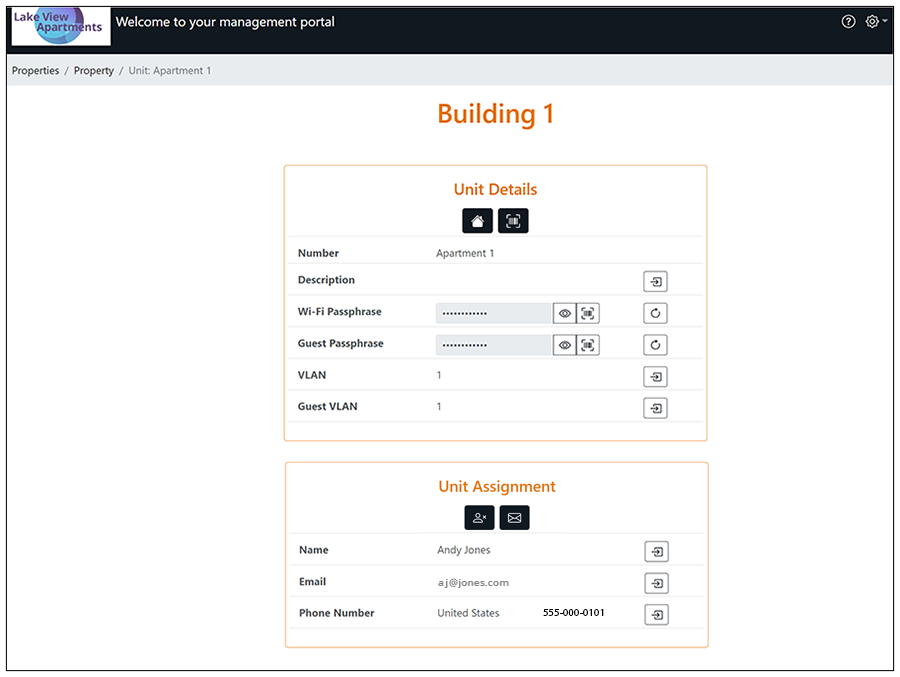
You can perform a number of actions on a unit, provided the access controls configured in the Management Portal configuration screen in the Cloudpath UI allow them:
Actions That Can Be Performed on a Unit
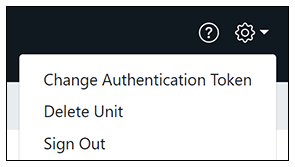

 , then follow the
instructions. Unassigning the unit clears the contact information and changes the
passphrase(s).
, then follow the
instructions. Unassigning the unit clears the contact information and changes the
passphrase(s). to resend the assignment SMS/Email to the phone number
and/or email defined for this unit.
to resend the assignment SMS/Email to the phone number
and/or email defined for this unit.

From the property page in the management portal UI (see Property Called "Building 1" in Management Portal), click Add Unit, then enter the information in the ensuing screen and click Create. The newly created unit should then appear in the list of units for the corresponding property.
Editing Tenant Portal Information
From the property page in the management portal UI (see Property Called "Building 1" in Management Portal), to change the help text or announcements that appear on the tenant portal, click Edit, make the desired changes, then click Submit.