Editing or Deleting the Access Control Policy
You can edit or delete an Access Control
Policy profile to update its configuration or remove it when it is no longer
needed.
- Note:
- If an Access Control policy is already assigned to a User Role or Wi-Fi network, any changes you make will apply only to new user connections. Users who are already connected will not be affected.
- You cannot delete an Access
Control policy if it is currently in use. Remove it from User Roles or Wi-Fi
networks before deleting it.
ACX-97403 - UG - RBAC Dot1x Group Attribute Mapping
Complete the following steps to edit or delete the Access Control policy:
- From the navigation bar, select
.The My Services page is displayed.
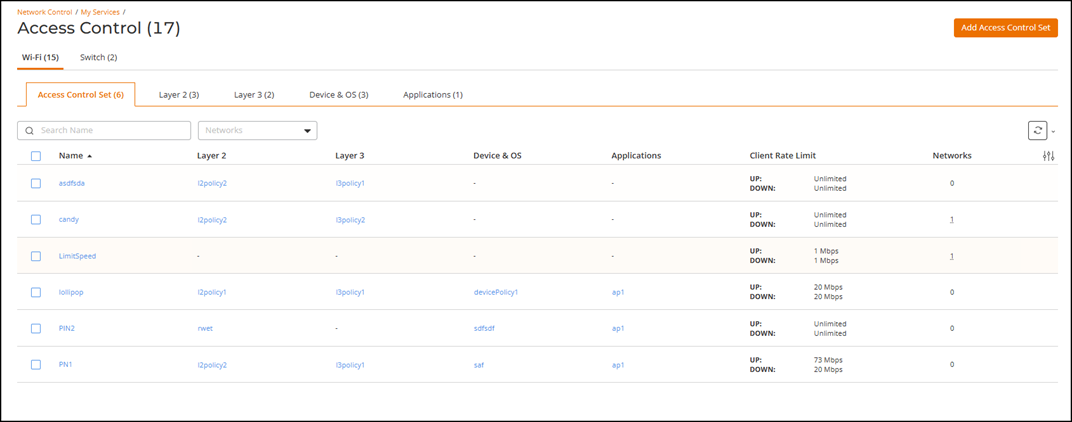
- In the My Services page, click Access Control.
- (Optional) Edit Wi-Fi-related
Access Control policies; click the Wi-Fi tab.
- Click the Access Control Set sub-tab.
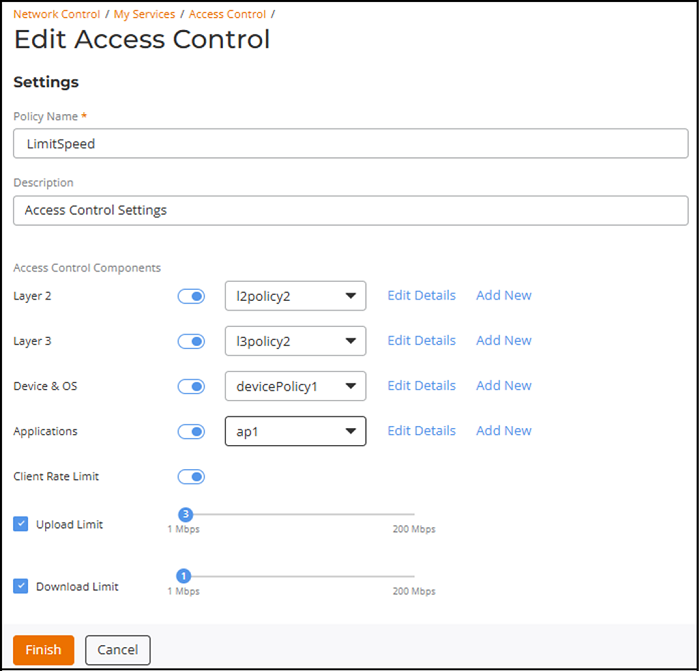
- Click the checkbox alongside the specific policy name and click Edit. Alternatively, click the name in the Name column, and click Configure on the Access Control Details page.
- Update the required fields: Policy Name, Description, or Access Control Components.
- Click Finish.
- On the Layer 2, Layer 3, Device & OS, or Applications sub-tab, click the checkbox alongside the specific policy name and click Edit, or click the name in the Name column. A corresponding settings sidebar is displayed. Update the required information and click Save.
- (Optional) Edit switch-related
Access Control policies; click the Switch tab. Complete
the following to edit the configuration and click Apply.
- On the Access Control Set sub-tab, click the checkbox alongside the specific policy name and click Edit to open the Edit Switch Access Control page. Alternatively, click the name in the Name column and click Configure on the Details page.
- On the Layer 2 sub-tab, click the checkbox alongside the specific policy name and click Edit to open the Edit Layer 2 Settings page. Alternatively, click the name in the Name column and click Configure on the Details page.
- (Optional) Delete an Access Control Policy. Select the required tab, click the checkbox alongside the specific policy name, and click Delete.