Performing Client Connectivity Diagnostics
Client Connectivity Diagnostics helps
troubleshoot network and wireless client connectivity issues by providing visibility
into
connection stages, timeline events, and encryption behavior to identify potential
problem
areas.
- On the navigation bar, select .
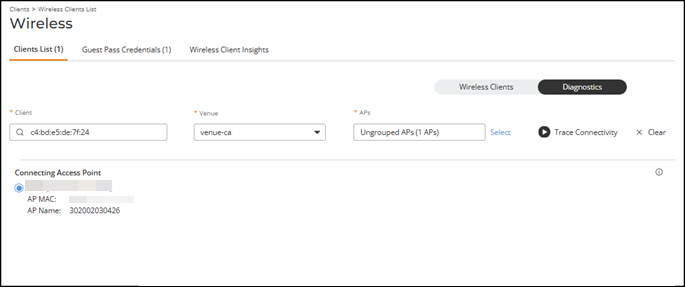
- Click Diagnostics to switch from Wireless Clients to Diagnostics view.
- Enter the client MAC address in the Client field.
- Select a Venue from the drop‑down list.
- Click Select to open the Select Available APs sidebar.
- Click Trace Connectivity to run the diagnostics.
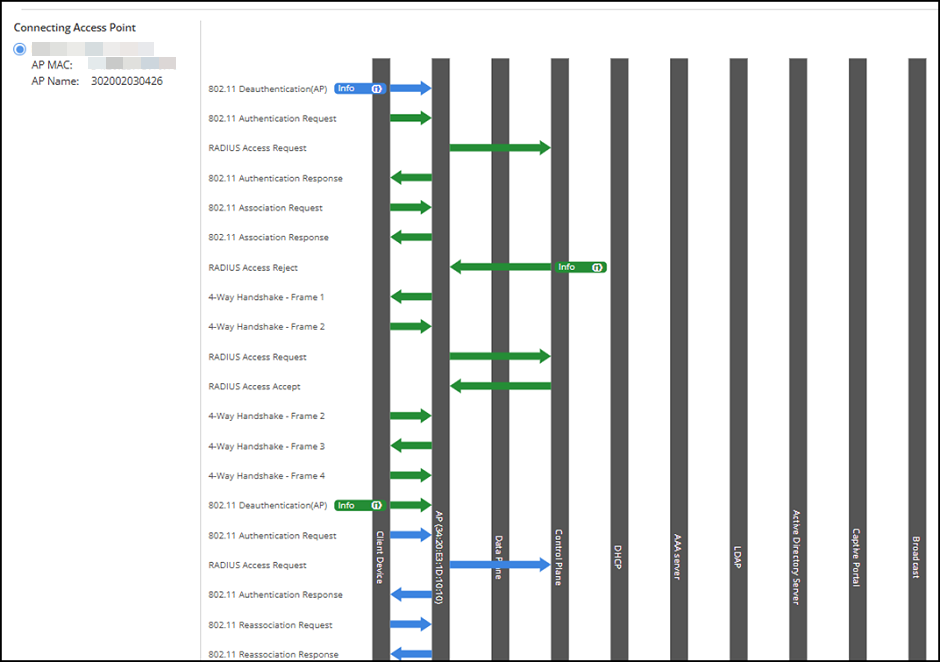
- Review the diagnostics timeline
to identify connection steps, failures, or delays using visual indicators.The diagnostics display a visual trace of the client connection process, including sequential events, connection stages, and status indicators to help isolate issues. You can view WLAN encryption types using color indicators in the diagnostics graph. Each color represents the encryption method used during the client connection. The color indicators represent the following encryption types:
- Hover your cursor over the
 icon to view a tooltip that explains each
encryption color.
icon to view a tooltip that explains each
encryption color.
- (Optional) Click Stop to stop an ongoing trace.
- (Optional) Click Clear to reset the selected client, venue, and access points.