Disabling a Guest User
If you want to prevent a guest user from accessing the network temporarily, you can
disable the guest user account.
Note: If you want to permanently delete
the guest user account, refer to Deleting a Guest User.
To
disable a guest user, complete the following steps . - On the navigation bar, click
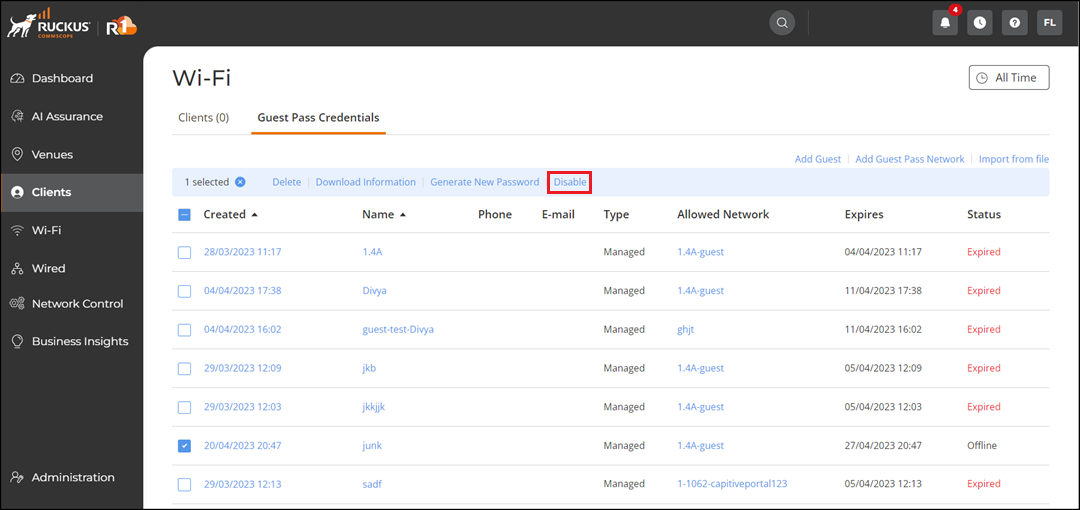
. The Guest Pass Credentials page is displayed. A table with a summary of all guest users that have been created is displayed.
- Click the check box for a
specific guest user, then click the Disable option that
appears above the table. Alternatively, click the name of the guest user and
in
the Guest Details sidebar, click . The Disable option appears.
You have successfully disabled the guest user account when you see this message displayed: Guest "name" was disabled.
To enable the guest user account again, click the check box for a specific guest user, then click the Enable option that appears above the table. Alternatively, click the name of the guest user and in the Guest Details sidebar, click .