Generating a New Guest User Password
If you want a guest user to use a
different password (for example, if the password has been compromised) to access
the
network, you can generate a new guest user password.
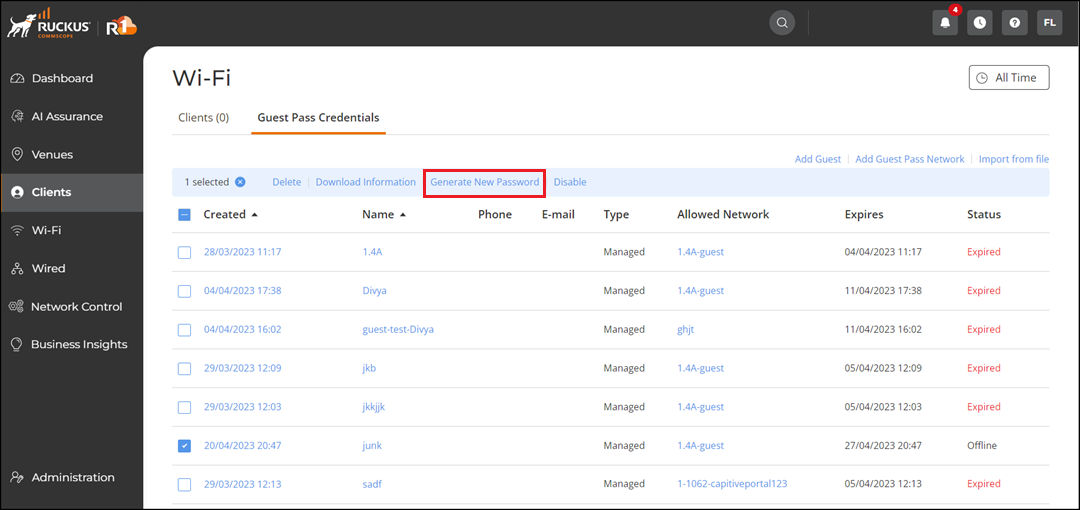
To generate a new guest user password, complete the following steps.
- From the navigation bar, select .
- Click the check box for a specific guest user, then click the Generate New Password option that appears above the table. Alternatively, click the name of the guest user and in the Guest Details sidebar, click .
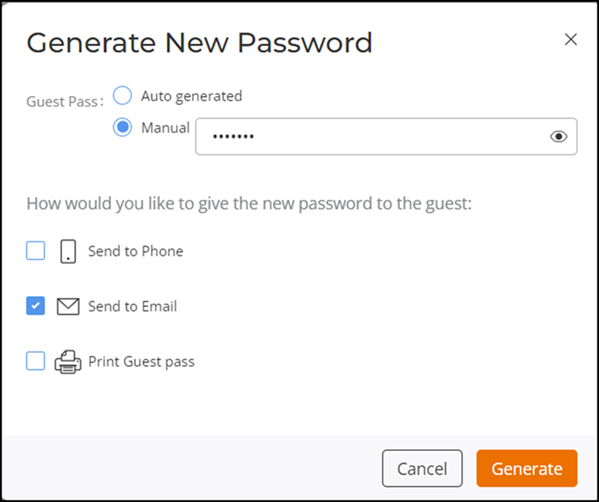
- Choose one of the following options:
- Specify how you want to send the new password to the guest user by selecting one or
more of the following check boxes:
Note: The Send to Phone and Send by Email options are selectable only if the guest user's applicable contact information is configured. For example, if no email address is configured, then the Send by Email option is grayed out and not selectable.
- Click Generate.