Uploading the RUCKUS IoT Controller License
To obtain and activate the license, refer
to "Activating a License" in the RUCKUS IoT
Controller Software Installation Guide.
- From the main menu, click Admin.
- In the left navigation pane, click License.
- Click Upload License to
upload the license. The License check-out means consuming a device capacity
license, and License check-in means forfeiting a device capacity license. The
License check-out happens when Device gets added. The License check-in happens
when Device is deleted.Note: In N+1 configuration, for the secondary controller the license capacity is unlimited for 30 days.The Upload License page displays the following information:
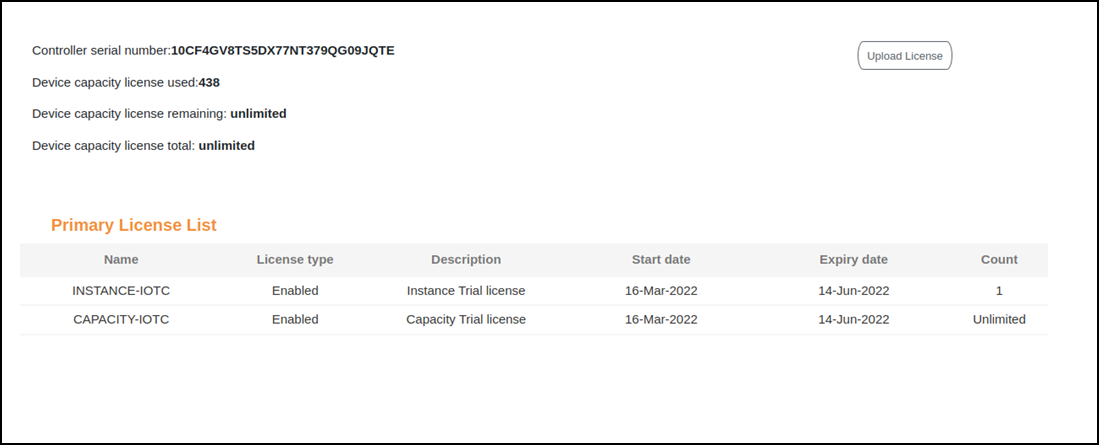
- Controller serial number : Displays the number of the RUCKUS IoT Controller serial number which can be used to activate the license.
- Device capacity
license used: Displays the number of licenses used by Devices.
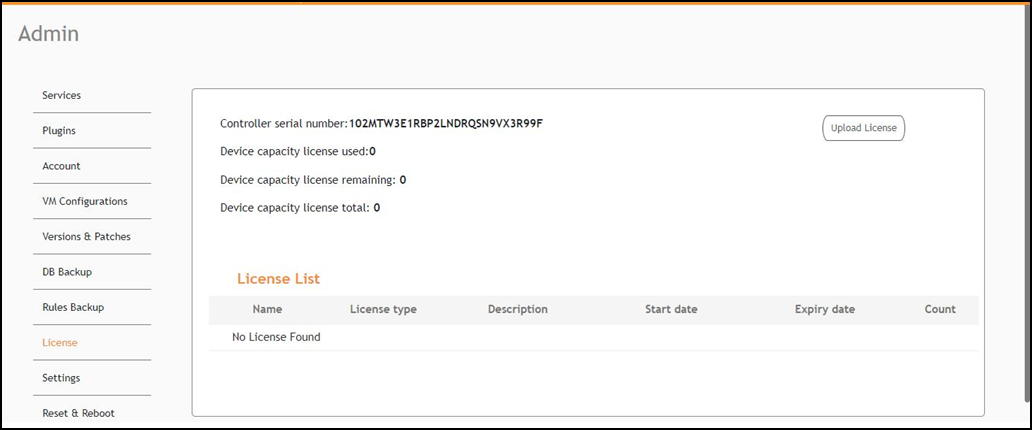
Note: If no core license is uploaded after expiry of trial then the GUI is redirected to a warning message as below, and access to the controller comes to a halt until you upload the new license.
- Device capacity licenses remaining: Displays the number of unused licenses by Devices.
- Device capacity license total : It is the total capacity available for the device. It will appear only when the user uploads the device capacity license. To generate a license, refer to "Activating a License" in the RUCKUS IoT Controller Software Installation Guide.
- License List: Lists the details of the license, such as Name, License Type, Description, Start date, Expiry date and count.