Activating and Editing the Soter Plugin

The RUCKUS IoT Controller provides support for the Soter plugin. The Soter Sensor must have IoT Controller MQTT Broker details for the Soter Sensor MQTT Client to connect and transmit data.
To establish a connection to a vendor infrastructure, the administrator must perform the following steps.
  1. From the main menu, click Admin.
  2. In the left navigation pane, click Plugins.
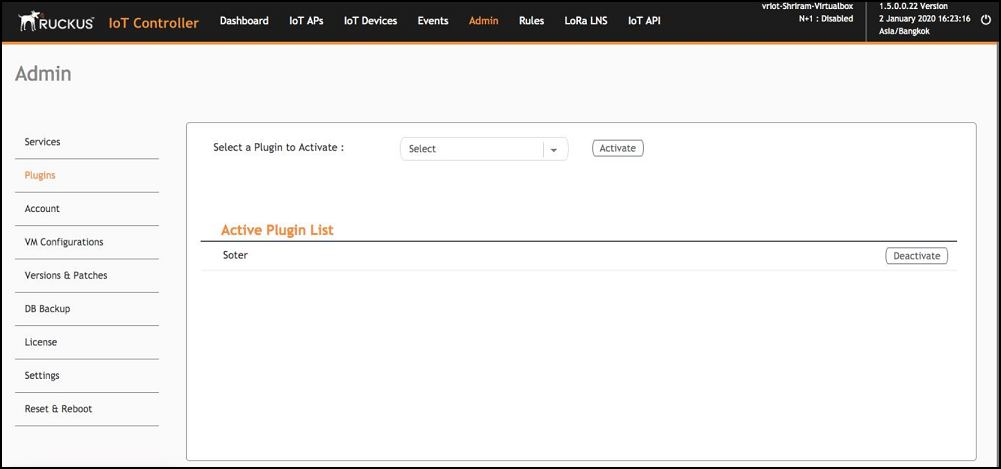
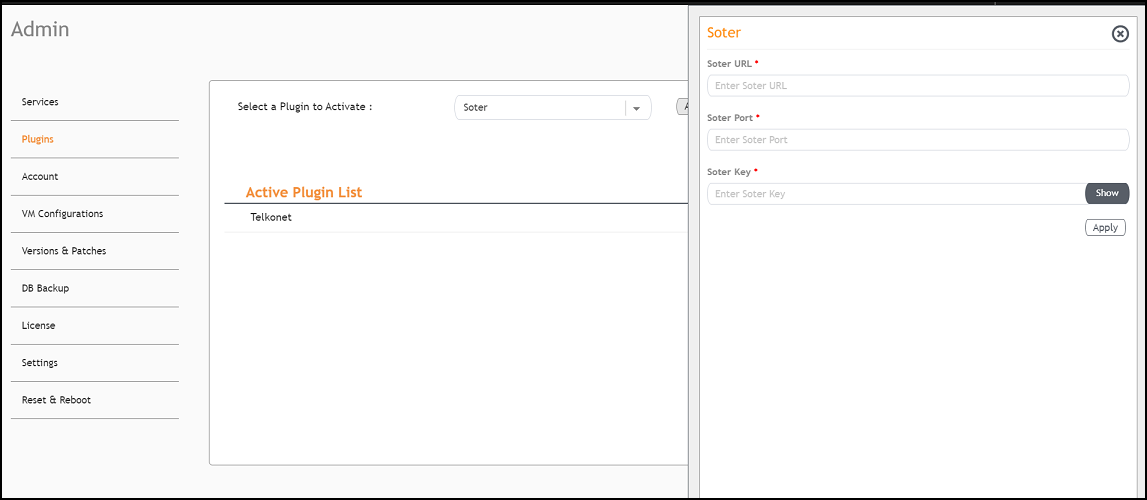
  3. In the Select a Plugin to Activate list, select the Soter plugin and click Activate.

    Activating the Soter Plugin

  4. After the Soter plugin is activated, enter the following configuration parameters.
    1. Enter the Soter URL.

      This URL is used to establish the MQTT connection between the controller and the Soter server.

    2. Enter the Port number.

      This is the port number on which the MQTT server is running.

      Note: The default MQTT port is 8883.

    3. Enter the Key.

      The Vendor application is responsible for authenticating the Keys.

  5. Click Apply.
    The Soter plugin is added in the Active Plugin List.
  6. To deactivate the Soter plugin, select it and click Deactivate.

    Deactivating the Soter Plugin

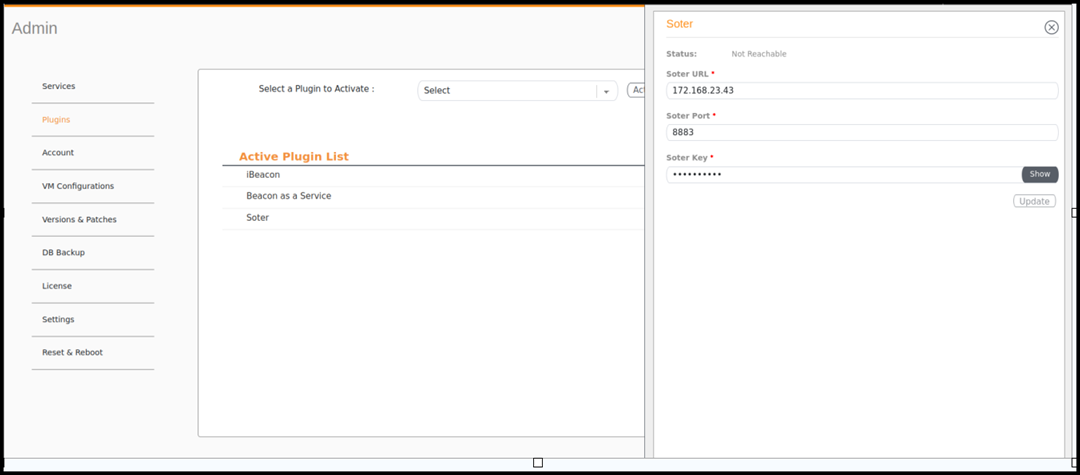
  7. To edit the configuration of the Soter plugin, select it and click Update.
    Updating the Configuration Parameters

    Updating the Configuration Parameters