Activating and Editing the Dormakaba Plugin
The RUCKUS IoT Controller provides
support for for the Dormakaba Door Locks. The RUCKUS IoT Controller reads the packet from the IoT AP and routes the packets to the Ambiance
Server.
To establish a connection to a vendor infrastructure, the administrator must perform the following steps.
- From the main menu, click Admin.
- In the left navigation pane, click Plugins.
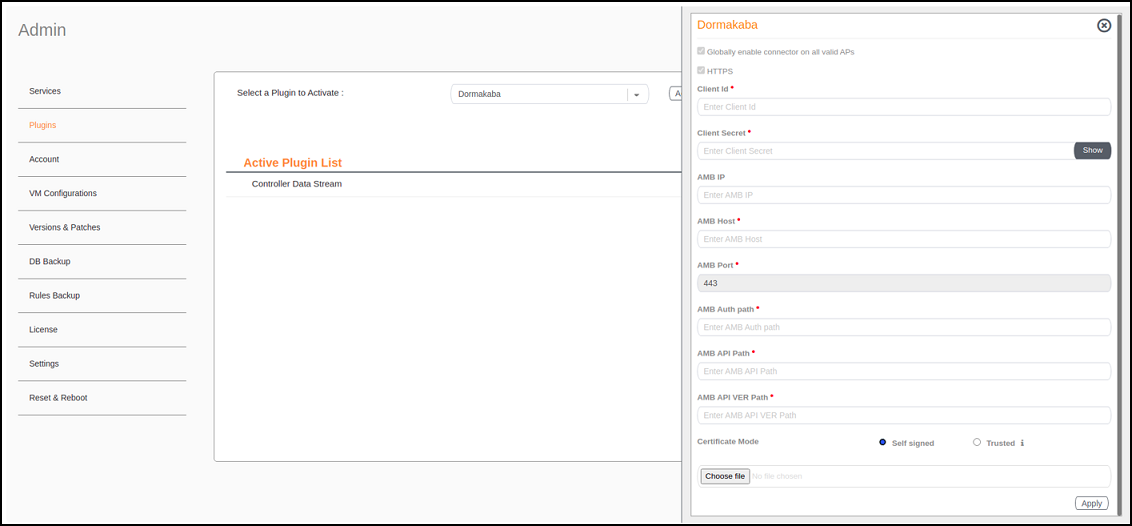
- In the Select a Plugin to Activate list, select the Dormakaba plugin and click Activate.
- After the Dormakaba plugin is
activated, enter the following configuration parameters.
- Enter the Client Id
used for connecting to Ambiance Server.Note: The Client ID must not be configured as "admin" while activating the Dormakaba plugin.
- Enter the Client Secret used for connecting to Ambiance Server.
- Enter the Ambiance IP Address .
- Enter the
Ambiance Host.Note: The URL for Host is https://exmaple.test.net.
- Enter the Ambiance Port.
- Enter the Ambiance Auth Path.
- Enter the Ambiance API Path.
- Enter the Ambiance API VER Path.
- Select the Certificate Mode.
- Click Choose file.
- Enter the Client Id
used for connecting to Ambiance Server.
- Click Apply.
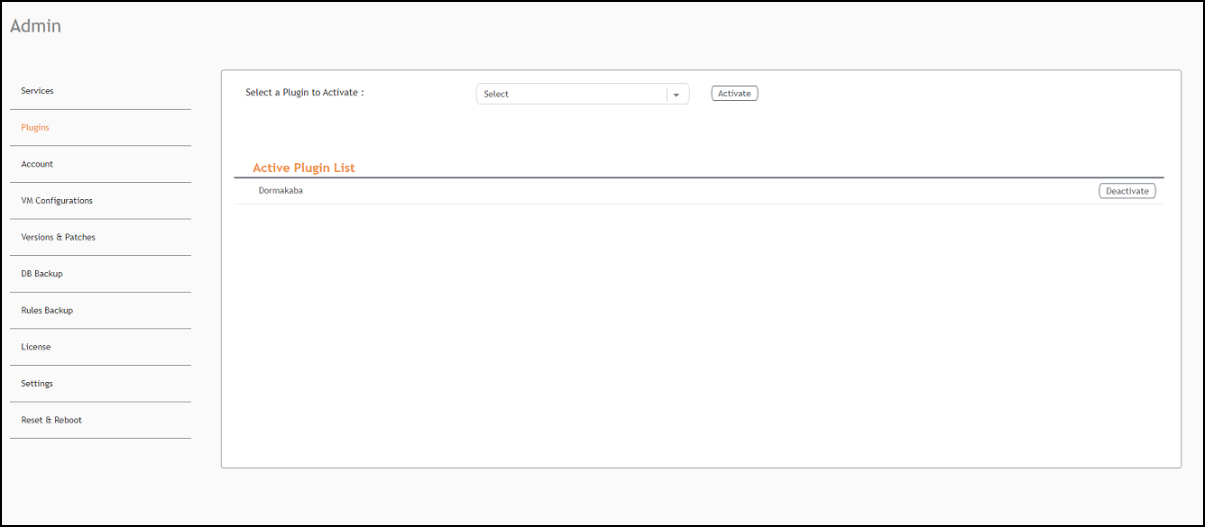
- To deactivate the Dormakaba plugin, select it and click Deactivate.
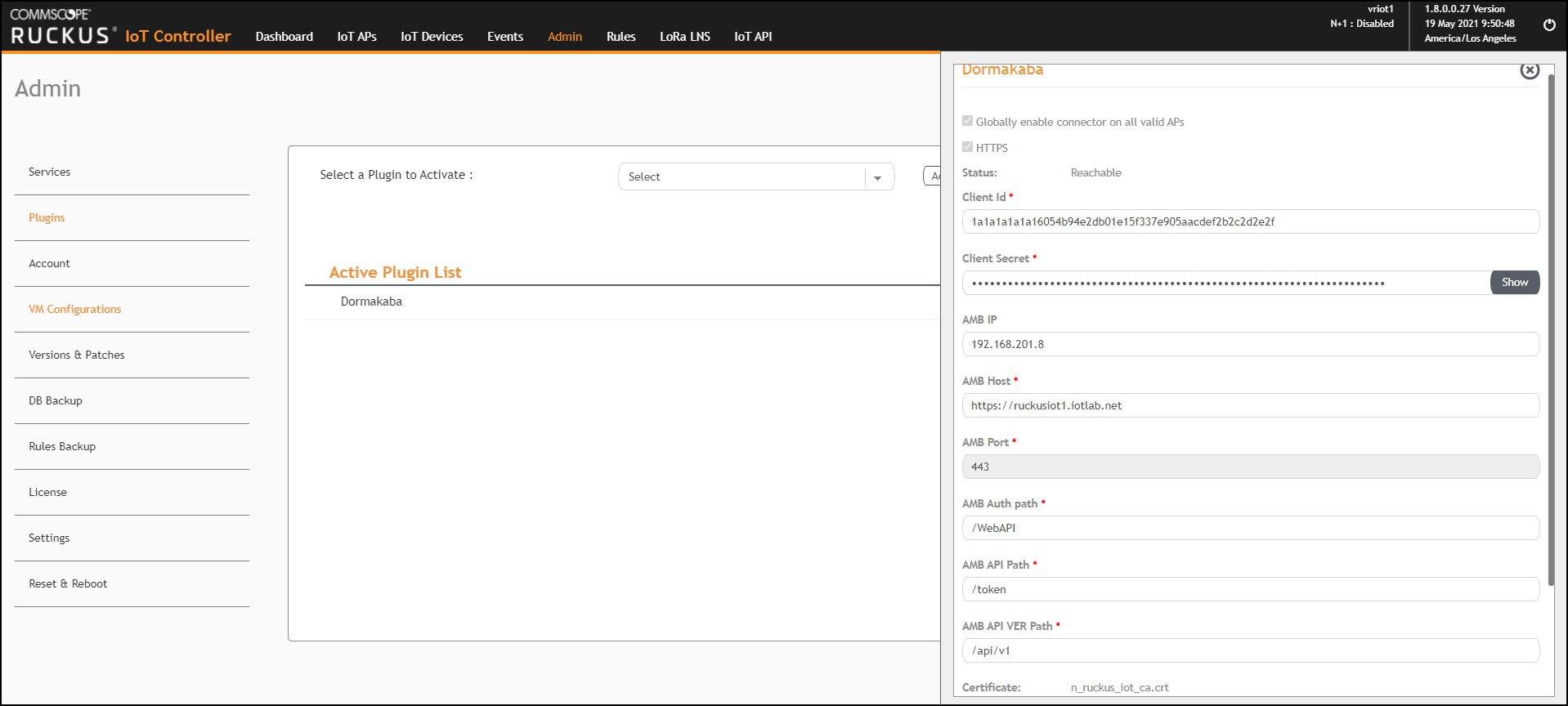
- To edit the configuration of the Dormakaba plugin, select it and click Update.