Creating WLAN for Network Segmentation

Note: Refer to the RUCKUS SmartZone and Cloudpath Network Segmentation Configuration Guide for details regarding the SmartZone and cloudpath connection establishment.

  • Select the ControllerNetwork> Wireless LAN System>AP Group.
  • Click Create.

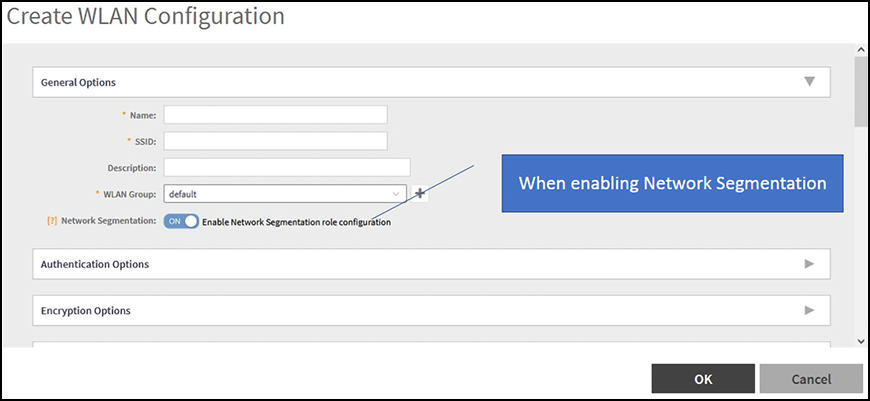
    Creating WLAN Configuration

    .
  • Under General Options, enter the "Name" and SSID in general options.
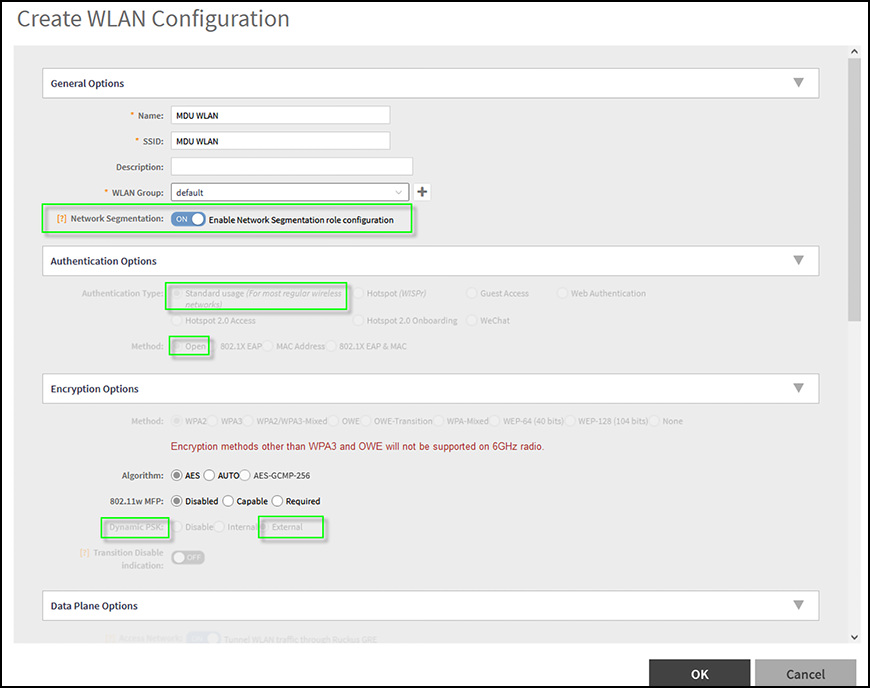
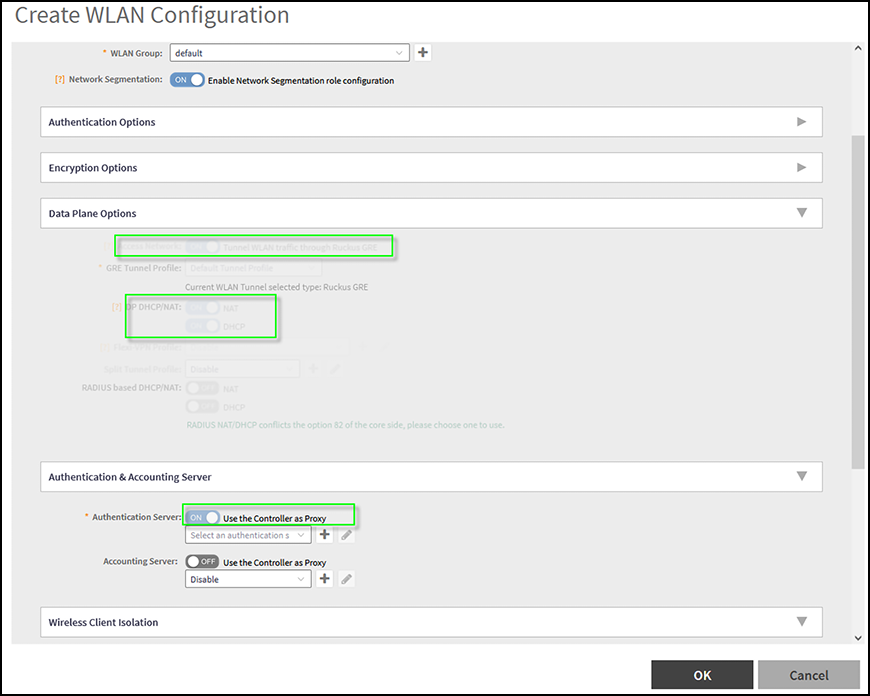
    Note: When "Enable Network Segmentation role Configuration" is set to "ON", Authentication Options, Encryptions Options, Data Plane Options, and Authentication Server will be grayed-out with required settings as shown in the figure below.

    Enabling Network Segmentation Role Configuration

    Data Plane Options

    Note: For Authentication Server and Accounting from SmartZone, the Authentication Service should match Cloudpath RADIUS Server settings,

    Note: Refer to RUCKUS Traffic Management Guide and navigate to Tunnels and Ports > Working with Tunnels and Ports.

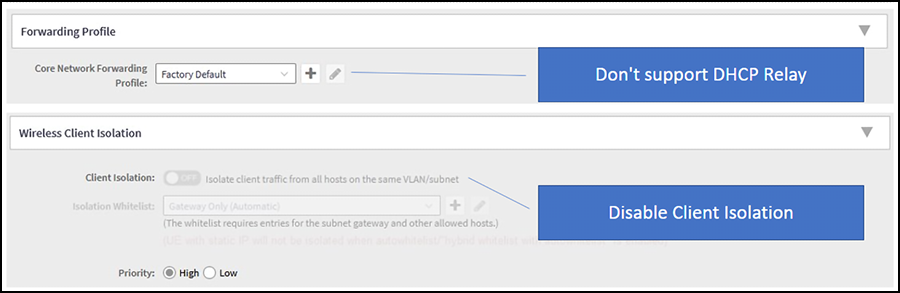
  • The forwarding profile is set to "Factory default" and Wireless client Isolation is disabled as in the image below.

    Forwarding Profile and Client Isolation

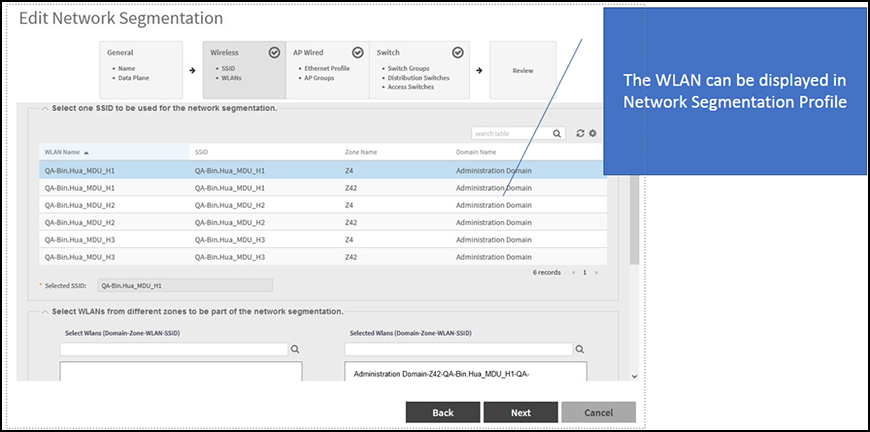
  • The WLAN will be displayed in the Network Segmentation profile.

    Editing network Segmentation

  • Note: WLAN will not be displayed if Network Segmentation option is disabled.