How to Create a Filter in the Workflow for MAC-Registered Devices
 on the MAC Registration tab indicates that this option only applies to devices matching
the filter criteria. A filter option does not display as a prompt to users during
enrollment.
on the MAC Registration tab indicates that this option only applies to devices matching
the filter criteria. A filter option does not display as a prompt to users during
enrollment.
- On the
workflow page, select the
MAC Registration tab, created in the previous section, and click the
Edit List icon
 .
.
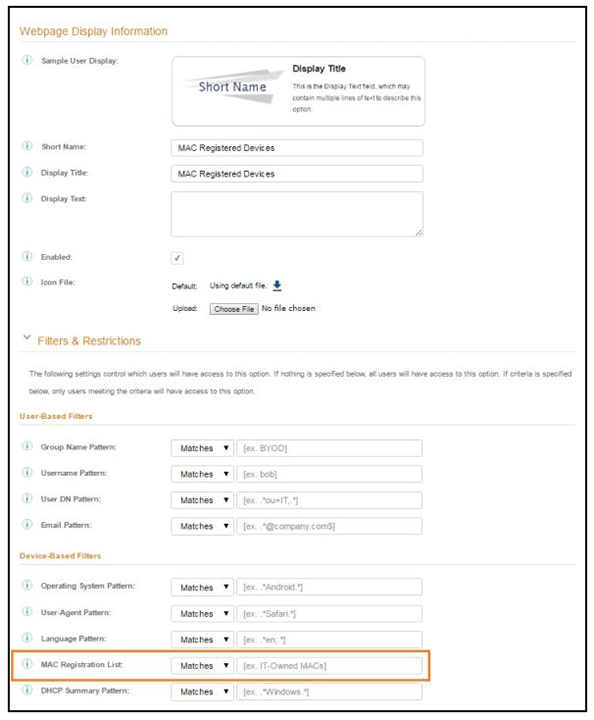
- Edit the MAC Registration option.
- On the Modify Option page, open the Filters and Restrictions section. in the MAC Registration List field, leave the default, Matches, and enter the Name of the MAC Registration list to use for this workflow. This moves all devices in the specified MAC Registration list to the MAC Registered workflow branch.
- Save the changes to the option filter.
- Click Done to return to the workflow.