Creating the Onboarding SSID
New screen shots for all three controllers. Instructions updated for Auth Type and
Enable Bypass CNA.
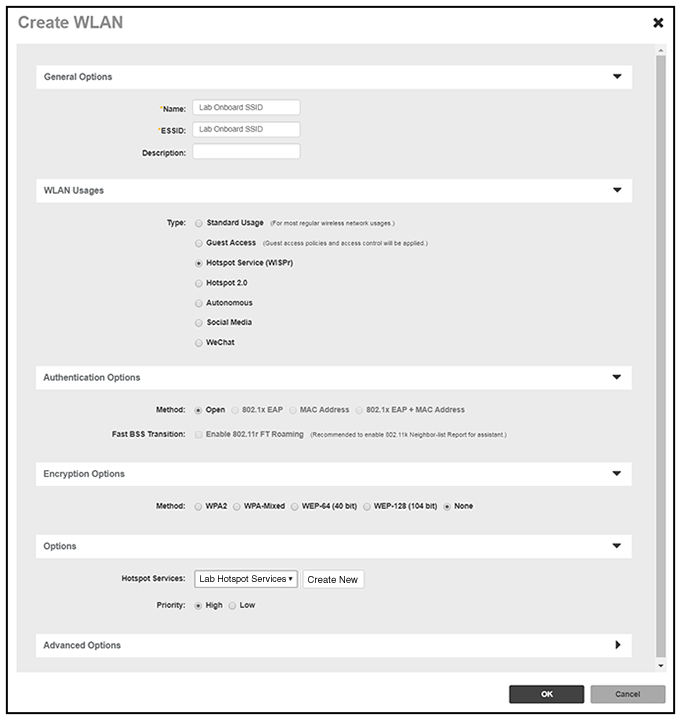
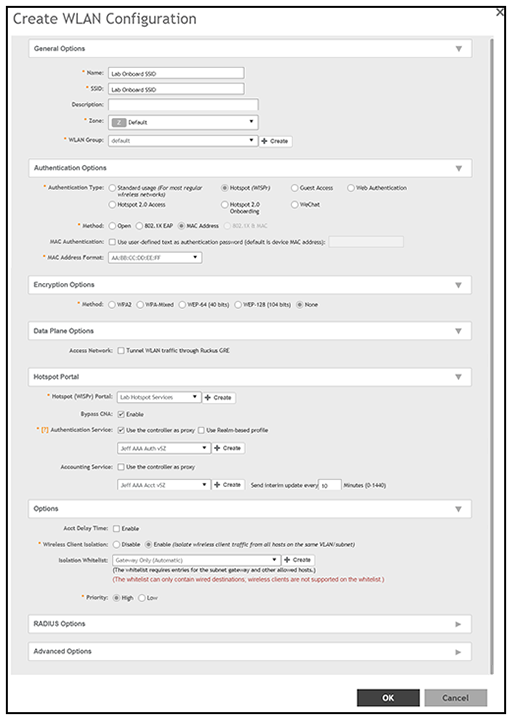
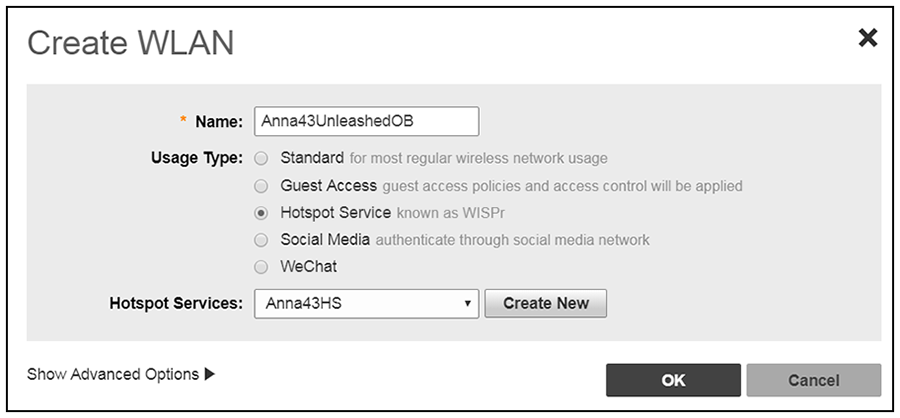
- Name the SSID.
- Type=Hotspot Service (WISPr).
- Authentication Options Method=Open for ZoneDirector, MAC Address for SmartZone. (Not applicable for Unleashed.)
- The checkbox next to MAC Authentication (SmartZone only) called "Use user defined text as authentication password (default is device MAC address):" can be left unchecked.
- The MAC Address Format (SmartZone only) recommended selection is: AA:BB:CC:DD:EE:FF. This is the default for most RADIUS servers.
- Encryption Options Method=None (ZoneDirector and SmartZone).
- Select the Hotspot Service from the drop-down list that you should already have created in a previous step procedure.
- Enable the
Bypass CNA feature as follows, depending on the controller:
Added info on how to enable "Bypass CNA" on ZoneDirector and Unleashed.
- For SmartZone: Check the box to enable "Bypass CNA," as shown in Onboarding SSID Configuration on SmartZone.
- For ZoneDirector, after you finish configuring the onboarding SSID, refer to Enabling the Bypass Apple CNA Feature Globally on ZoneDirector.
- For Unleashed, after you finish configuring the onboarding SSID, refer to Enabling the Bypass Apple CNA Feature Globally on Unleashed.
- Select the Cloudpath RADIUS Authentication Server (SmartZone only).
- Select the Cloudpath RADIUS Accounting Server (SmartZone only).
- Leave the defaults for the remaining settings and click OK (or Apply).
Enabling Bypass CNA on ZoneDirector
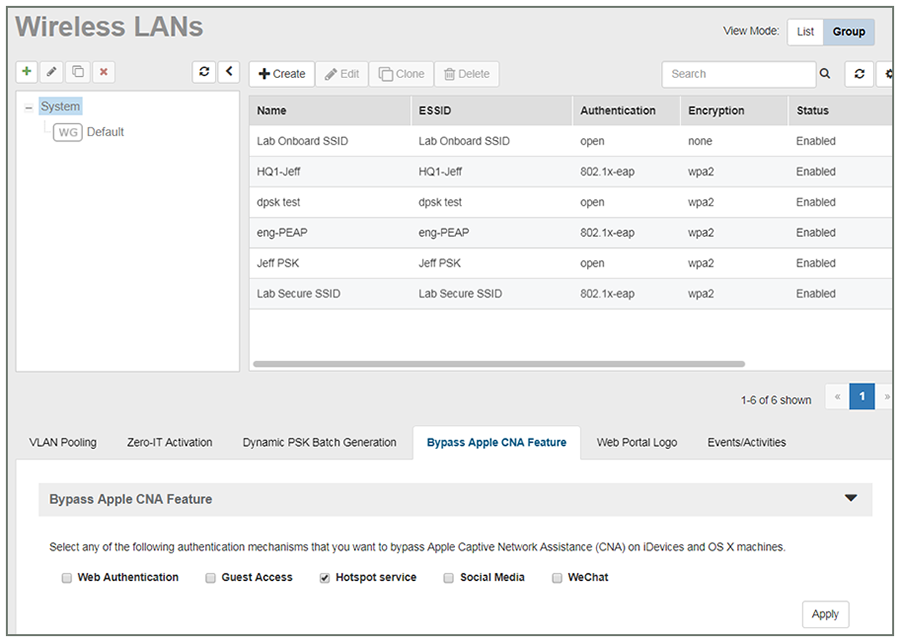
It is recommended to enable the "Bypass Apple CNA Feature," which you can do globally for wireless LANs in ZoneDirector.
- In the Wireless LANs main screen, click on Bypass Apple CNA Feature, as shown in the following figure:
- In the "Bypass Apple CNA Feature" area of the screen, check the "Hotspot service" box.
- Click Apply to enable the "Bypass Apple CNA Feature" globally on all Wireless LANs that are configured as type "Hotspot Service (WISPr)."
Enabling Bypass CNA on Unleashed
It is recommended to enable the "Bypass Apple CNA Feature," which you can do globally for wireless LANs in Unleashed.
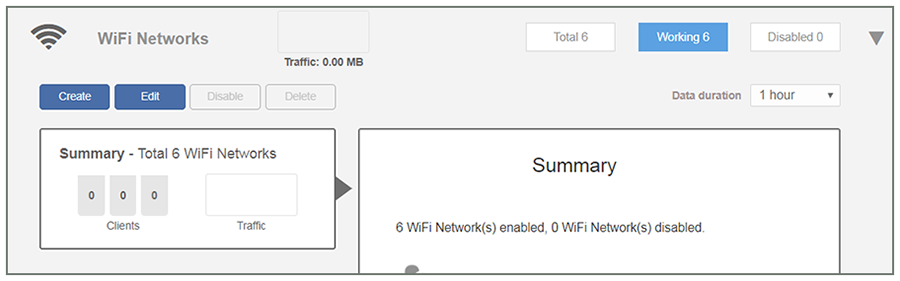
- In the WiFi Networks main screen (see figure below), click Edit.
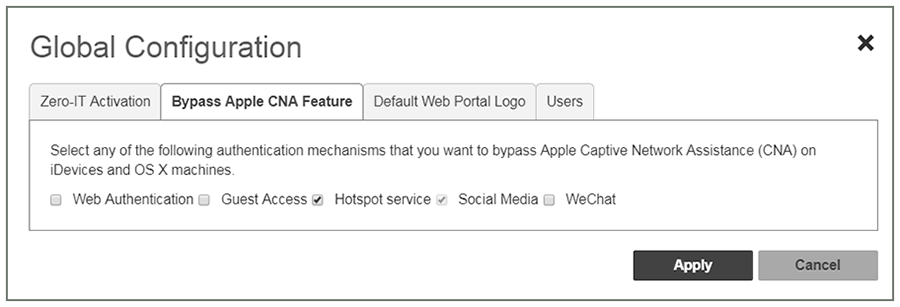
- In the Global Configuration screen that pops up, click Bypass Apple CNA Feature.
- In the "Bypass Apple CNA Feature" area of the screen, check the "Hotspot service" box.
- Click Apply to enable the "Bypass Apple CNA Feature" globally on all Wireless LANs that are configured as type "Hotspot Service (WISPr)."