How to Add a Message to Users
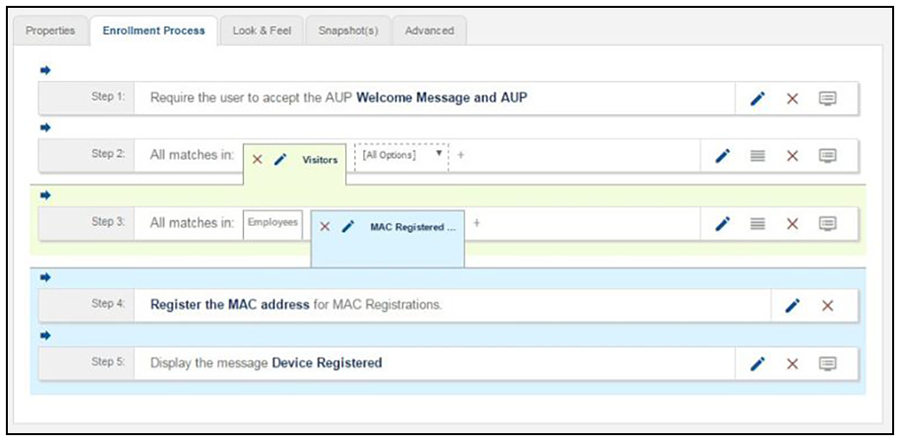
- On the workflow page, click the Insert arrow to create a step in the enrollment workflow.
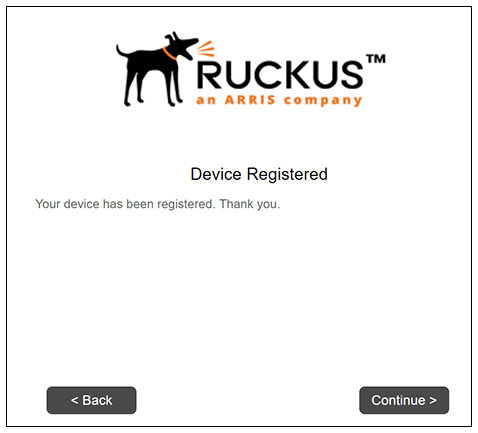
- Select Display a message.
- Create a new message from a standard template. On the Create New Message page, enter an appropriate Title and Message.
- Uncheck the Show Continue Button box. After the message is displayed, the device should be moved to the specified SSID. No user action is required.
- Save the configuration.