Setting GPS Coordinates Using Unleashed Mobile App
The US FCC mandates Automated Frequency
Coordination (AFC) geolocation to determine the permissibility of transitioning to
substitution-permutation in specific channels. To support AFC, geolocation information
of an
Unleashed AP (or AP Group) is required. For APs without a GPS module (such as R670),
you
must use the RUCKUS
Unleashed mobile app (UMA) to obtain the GPS coordinates of the AP.
Note: For APs with a GPS module (such as
R770), the GPS coordinates are obtained automatically. Navigate to and then click on the AP name. In the Overview
tab, locate the AP Properties tile and click More to see the GPS
coordinates of the AP.
Note: Location data configured through
the Unleashed mobile app (UMA) for a RUCKUS Unleashed Wi-Fi 6E or
7 AP takes precedence over the GPS location detected by the AP.
Ensure the following prerequisites are met before you start this procedure:
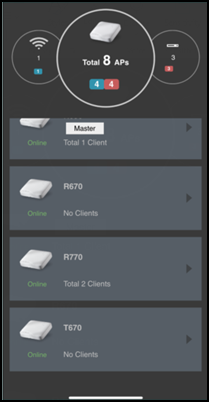
- Log in to the UMA and navigate to Access Points.
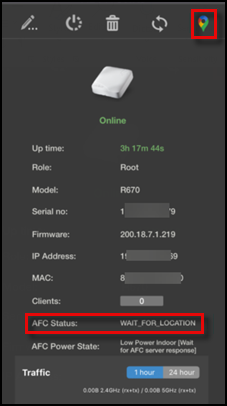
- Tap on the AP for which you want to set the GPS coordinates.
- In the AP
Details page, you can see the AFC Status is
waiting for the location to be set. Tap on the
 icon to set the AFC location. Note that the icon may look different depending on
which OS your mobile device is running.
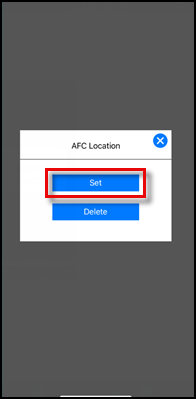
- Tap Set.
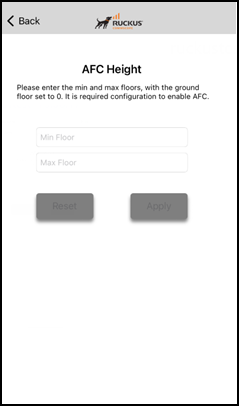
- If prompted, set the floor numbers for Minimum Floor and Maximum Floor, then tap Apply (value must be from -999 through 999). The value 0 is considered the ground floor.
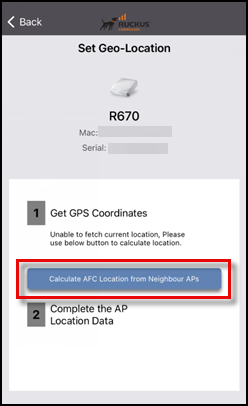
- Tap Calculate AFC Location from Neighbour APs if your mobile device is unable to obtain the GPS data; it can calculate the AFC location if the AP has a neighbor AP that has set its location successfully.
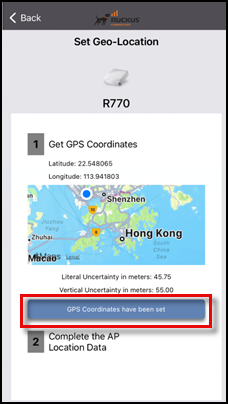
- Tap GPS coordinates have been set to confirm on the GPS
coordinates data.Wizard step displays a green checkbox to indicate completion.
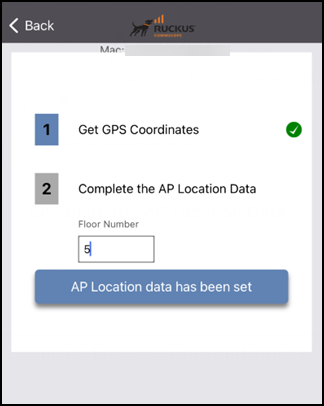
- Tap Complete the AP Location Data, enter the specific floor number (from -999 through 999) on which the AP is installed,, and tap AP Location data has been set.
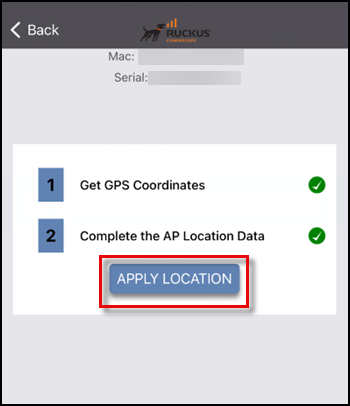
- Tap Apply Location.