Enabling Automated Frequency Coordination from RUCKUS One
Download and install the RUCKUS One app on your mobile phone. iOS users can download the app from the Apple App Store, and Android users can download the app from the Google Play Store.
Note: Ensure you have a valid
RUCKUS Cloud account and log in to access your account.
You can turn on the AFC feature on a per-venue or per-AP basis.
Please confirm if the following
statemnet holds good.
Both procedures are documented, but if you
enable AFC at the venue level, you do not have to enable AFC for each individual AP
associated with that venue.
Note: Ensure
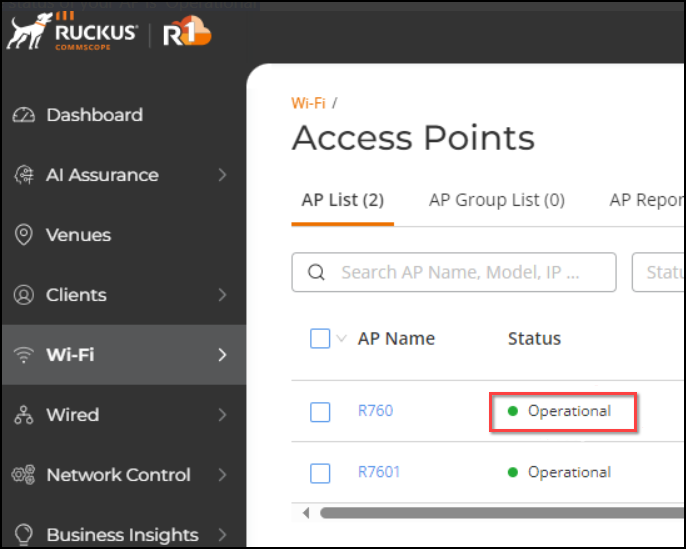
that the tri-radio APs are onboarded and operational in the RUCKUS One
controller.
The AFC feature is disabled by default. The AFC feature is
available only if the country of the selected zone allows AFC or RUCKUS
obtains the AFC certificate from the prevailing government authority, such as the
US
Federal Communications Commission (FCC). For any other locations, the Enable AFC option is
grayed out. Enabling AFC in a Venue
Complete the following steps to enable the AFC feature in a venue.
- On the navigation bar, click
Venues. The Venues page is displayed.
Note: Currently, AFC feature is supported only in the venues that are located in the USA. RUCKUS One supports the AFC feature on all tri-radio APs.
- Click the check box for the Venue Name and click Edit; alternatively, click on the name of the venue to access the venue Overview tab and click Configure.
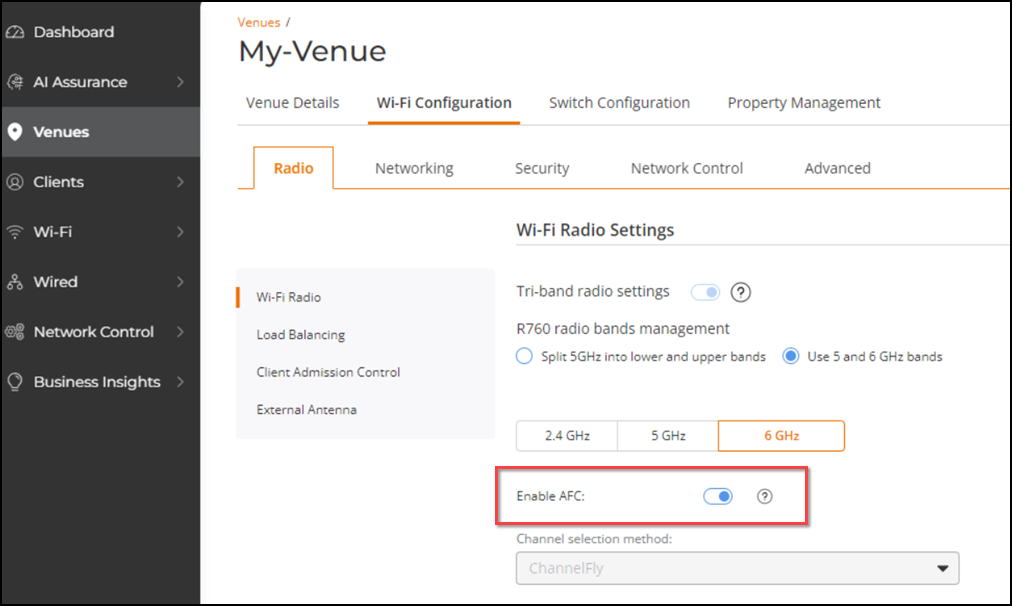
- Select the Wi-Fi Configuration tab. By default, the Wi-Fi Radio sub-tab is displayed.
- On the Wi-Fi Radio Settings page, select the 6 GHz sub-tab.
- Toggle the Enable AFC switch to ON.
Enabling AFC on an AP
Complete the following steps to enable the AFC feature on an AP.
- On the navigation bar, click
.
The Access Point page is displayed.
- Select the name of the AP.
- Click Edit. The General page is displayed. By default, General tab is displayed.
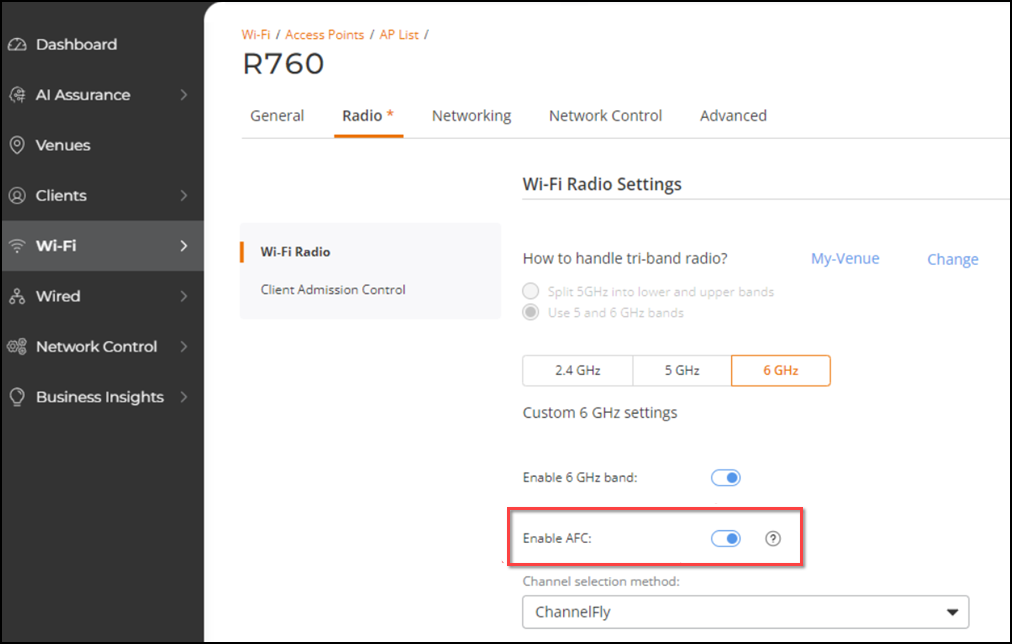
- Select the Radio tab. The Wi-Fi Radio Settings page is displayed.
- On the Wi-Fi Radio Settings page, select the 6 GHz sub tab.
- Toggle the Enable AFC switch to ON.