Activating and Editing the Vostio Plugin

Activate this plugin to manage Vostio door locks. The RUCKUS IoT Controller securely routes data to the configured Assa Abloy Vostio cloud.

To establish a connection between the RUCKUS IoT Controller and Vostio, the administrator must perform the following steps.
  1. From the RUCKUS IoT Controller main menu, select Admin.
  2. Click Plugins.
    You can search for a plugin by its name in the Search plugins field to locate it.
  3. Click the Available Plugins tab.
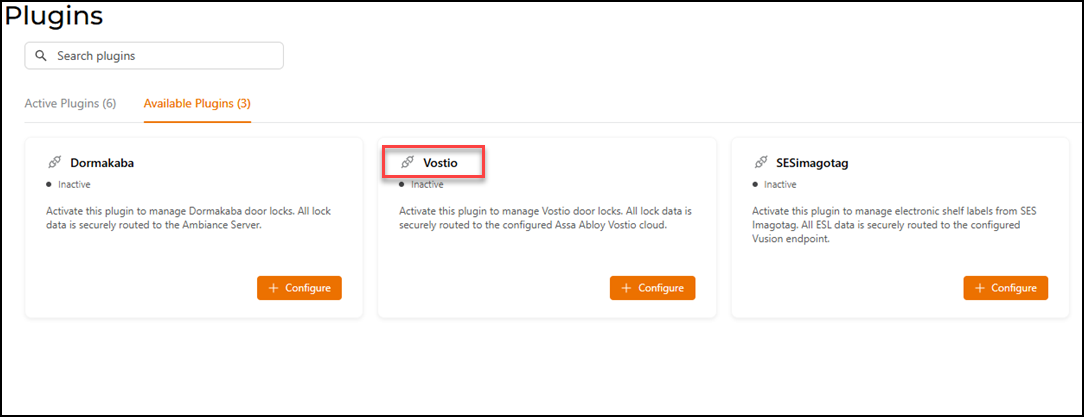
    You will see tiles with plugin names on them. Locate the Vostio tile.

    Selecting the Vostio Plugin

    Selecting the Vostio Plugin
  4. In the Vostio tile, click + Configure to activate the plugin.
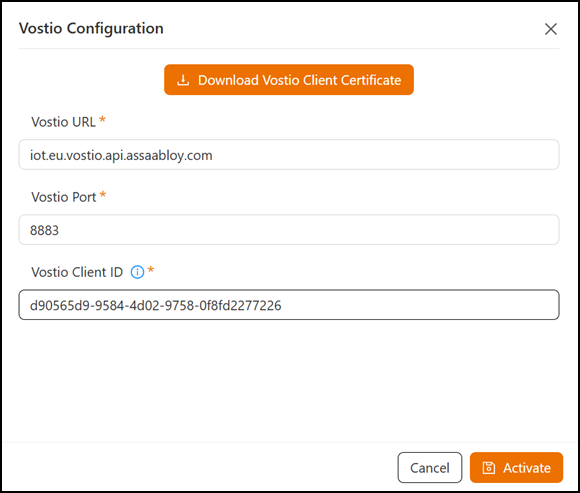
    The Vostio Configuration sidebar is displayed.

    Activating the Vostio Plugin

    Activating the Vostio Plugin
  5. Enter the following configuration parameters.
    1. Click Download Vostio Client Certificate to generate and download the Vostio client certificate.
    2. In the Vostio URL field, enter the URL for Vostio.
      Note: By default, the Vostio URL is set to the Vostio URL endpoint.
    3. In the Vostio Port field, enter the port number.
      Note: By default, the port number is 8883.
    4. In the Vostio Client Id field, enter the Vostio Network ID.
      Note: Refer to Getting the Network ID from the Vostio Cloud Platform to retrieve the Network ID.
  6. Click Activate to save the changes.
    After saving the changes, the Vostio plugin is added to the Active Plugins tab and is removed from the Available Plugins tab. Under the Active Plugins tab, locate the Vostio tile. To modify the configurations, click Configure. To deactivate the plugin, click Deactivate.
  7. (Optional) Click Configure to edit the existing configuration.
    The Vostio Configuration sidebar is displayed. You can view the connection status of the plugin in the Status field. Make the required changes and click Update.
    Note: The Vostio Client Id field cannot be edited. You can edit the Vostio URL and the Vostio Port fields.
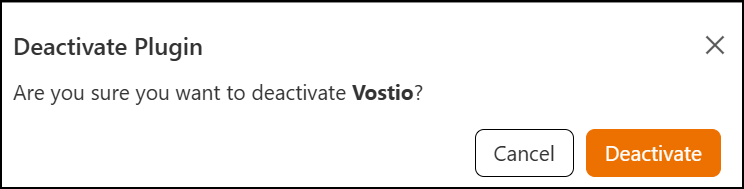
  8. (Optional) Click Deactivate to deactivate the plugin.
    Deactivating the Vostio Plugin

    Deactivating the Vostio Plugin