Assigning Gateways
- From the main menu, go to .
- Gateway: From the
Gateway list, select the name of the gateway.Note: If the gateways are not displayed in the Gateway list, the IoT Controller settings, (such as the IP address or MQTT) may be wrong, or the username or password credentials are incorrect, or the gateway has not been onboarded or approved for use in the IoT Controller during this time.
- Model: In the
Model field, enter the name of the AP if it is not already displayed.You can rename the AP. However, LoRa or other gateways do not have a unique name and are identified by UUID value.
- Type: In the Type field, enter the name of the AP manufacturer if it is not already displayed.
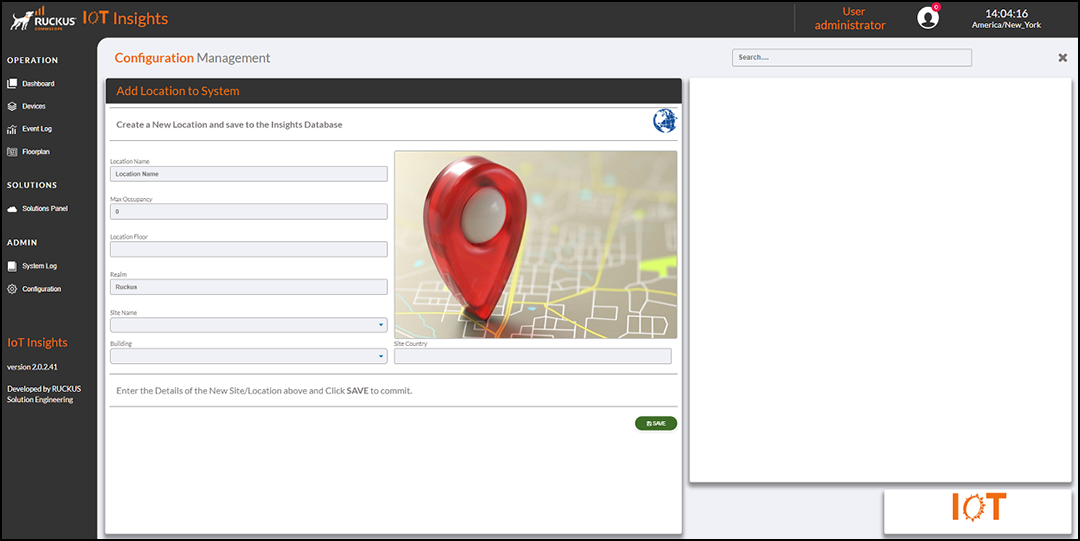
- Location: From the Location list, select the location of the gateway.
- Site: In the Site field, enter the name of the site if it is not already displayed.
- Building: In the Building field, enter the number of the building if it is not already displayed.
- Floor: In the Floor field, enter the number of the floor if it is not already displayed.
- Latitude: In the Latitude field, enter the latitude of the location if it is not already displayed.
- Longitude: In the Longitude field, enter the latitude of the location if it is not already displayed.
- Altitude: In the Altitude field, enter the altitude of the location if it is not already displayed.
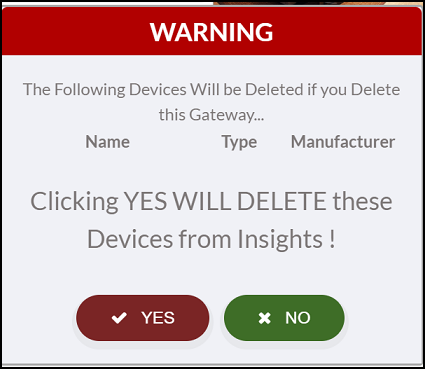
- Click Save to store the gateway details or click Delete to remove the gateway details. If you click Delete, a warning message is displayed.
- To remove the gateway details, click Delete. A warning message appears as below.
- Click Yes to delete the gateway details.
The IOT Gateways table lists the site details, including the name, type, model, site, building number, and location.
You can enter search criteria in the Search field to search the IOT Gateways table for information.