Adding an Insights Users
- From the main menu, go to .
- Username: In the User Name field, enter the name of the user.
- E-Mail Address: In the E-Mail Address field, enter the email address of the user
- User Role: From the User Role list, select the role of the user..
- Password: In the Password field, enter a password for the user. Ensure the password strength is strong.
- Site: From the Site list, select the site of the user.
- Click Save to store the user details.
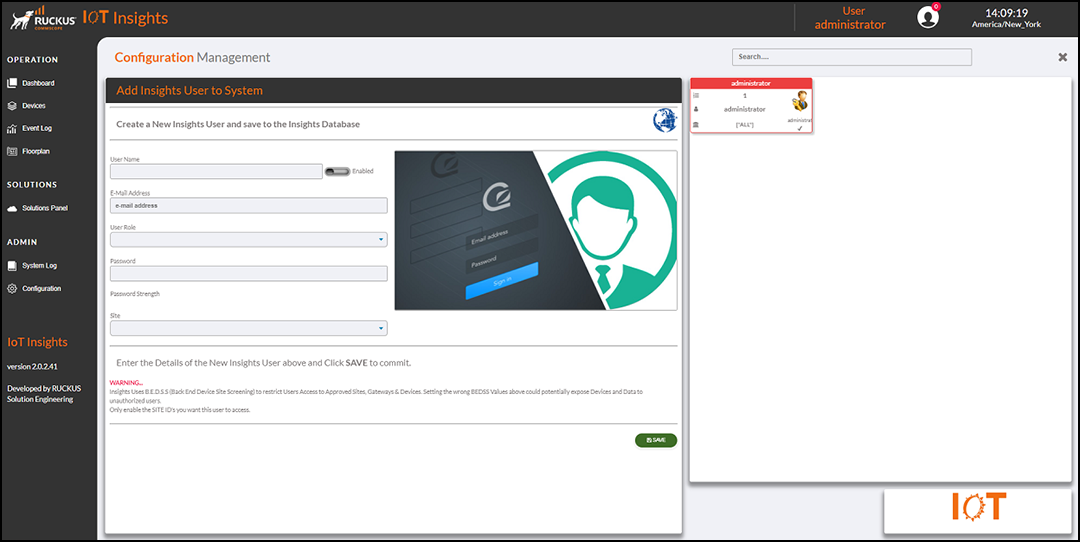
The Current Users table lists the user details, including the ID, role, name, sites, and whether the user is enabled.
You can enter search criteria in the Search field to search the Current Users table for information.