Configuring Time Ranges
You can add one or more time ranges
(called time specs in the UI) to your TACACS+ configuration. Time specs allow you
to further
manage control of the various devices that can use the TACACS+ server by applying
time specs
to access control lists (ACLs).
Configuration Steps
Follow these steps to add a time spec:
- In the Cloudpath UI, go to TACACS+ > Access Control .
- Highlight the Time Specs tab.
- Click Add Time Spec.
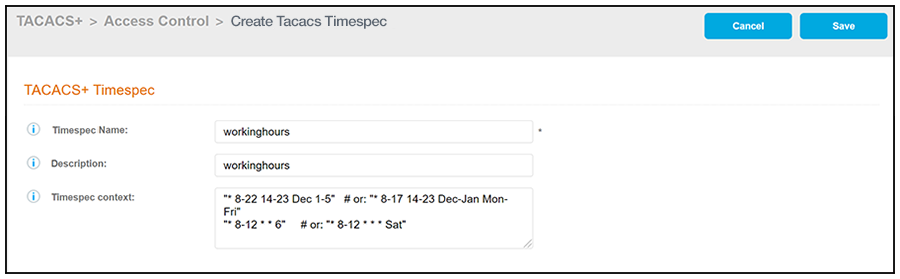
- Configure the values to create a
the time spec, as shown in the following example.
- Timespec Name: A descriptive name for the time spec; this is used for reference when building the configuration profile or an access control list. No spaces are allowed in the name.
- Description: (Optional) Description of the time spec.
- Timespec Context:
Declaration that may be used for time-based profile assignments.
Note: Both cron and Taylor-UUCP syntax are supported. Refer to publicly available documentation for more information on how to use these formats.
- Click Save.
- Add and configure any additional
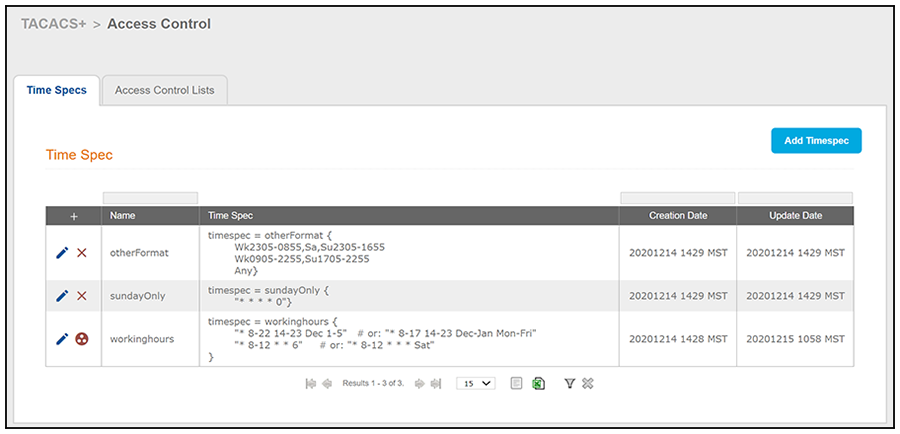
time specs. The following screen is an example of the main Timespec
configuration screen and its information after several time specs have been
configured.
Note: You can reference one or more configured time specs when you configure access control lists.
Other Actions You Can Perform From Main Timespec Configuration Screen
Some of the actions you can take from the main Time Spec Configuration screen (Time Specs Screen Example After Adding Several Time Specs) include:
- Deleting a time spec
configuration: Click the X
in the column to the left of the name of the configuration, then confirm the
deletion when prompted.
Note: A minus sign (not shown in the above example screen) indicates that the configuration cannot be deleted because it is being referenced by a configuration profile. You would have to first remove the time spec from the configuration profile (and remove any corresponding ACLs from the profile as well) if you want to be able to delete the time spec from the main Time Spec Configuration screen.Note: The
 icon denotes that the
time spec configuration is being referenced with the use of a time statement by an
ACL configuration. You would have to first remove the corresponding time statement from
the ACL configuration if you want to be able to delete the time spec
configuration from the main Time Spec Configuration screen.
- Editing a time spec configuration: Click the pencil icon in the column to the left of the name of the configuration, then make and save any edits in the ensuing screen.