Configuring TACACS+ Groups
You can add one or more user groups to
your TACACS+ configuration.
A group that you configure for TACACS+ must also be configured in LDAP. Any users that belong to that group in LDAP will then be granted the permissions that you assign to the group during TACACS+ group configuration. Therefore, you do not need to define users in the TACACS+ configuration that are part of an LDAP group.
Configuration Steps
Follow these steps to add a group:
- In the Cloudpath UI, go to TACACS+ > TACACS+ Users.
- Highlight the Groups tab.
- Click Add Group.
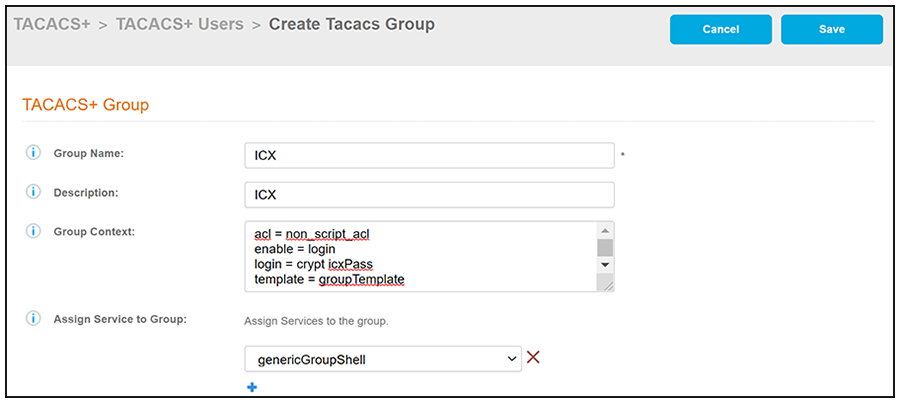
- Configure the values to add a
TACACS+ group, as shown in the following example.
- Group Name: A descriptive name for the group. No white spaces are allowed in the group. If an LDAP authentication backend is specified and used for external authentication in the configuration, the group name must match the name of the group configured in the LDAP active directory. Restricted characters in the group name include # + ” < > [ ] * ,
- Description: (Optional) Description of the group.
- Group Context: Configure
the values to create a TACACS+ group. The following list describes the
entries that are shown in the example screen above:
- acl: You can use an acl statement to pull an already-configured ACL into the group. In the example, an ACL called non_script_acl is being referenced.
- enable = login: Users will need to re-enter their AD password for the enable password.
- login: You can use a login statement to set and enable a group password. A login statement is needed only if an LDAP authentication backend is not being used for external authentication. In this example (see screen above), users in the group are enabled to log in to the devices with the group password icxPass. If an LDAP authentication backend is specified and is being used for external authentication, users in the group are enabled to log in to the devices and be authenticated with their own LDAP credentials.
- template: You can use a template statement to call in another group configuration that was created with the intention of being used as a template. In this example, a group configuration called "groupTemplate" is beingn referenced and will therefore be called into the configuration at the exact point in which it is being referenced.
- Assign Service to Group: A drop-down list from which you select one of the configured services to be associated with this group. You can add additional services to the group by clicking the + button and selecting another service.
- Click Save.
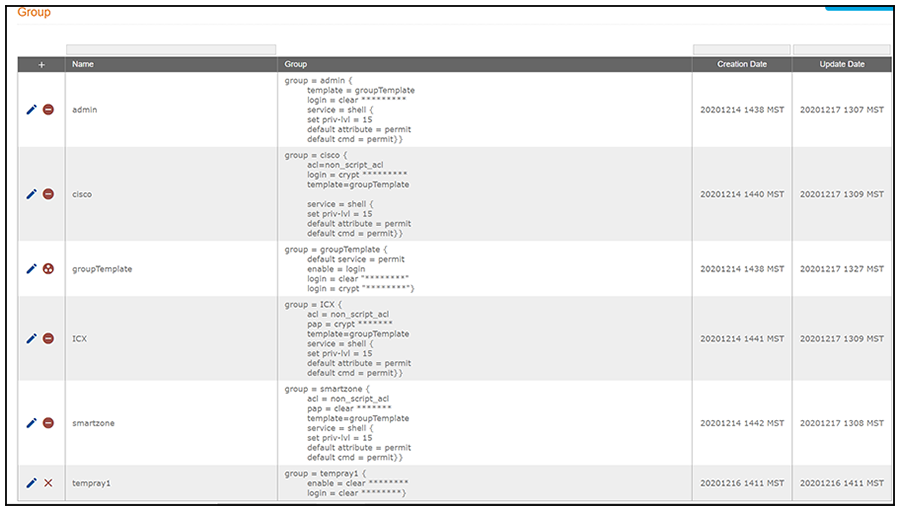
- Add and configure any additional
groups. The following screen is an example of the main Group configuration
screen and its information after several groups have been configured.
Note: When you add your configuration profiles, you will be able to select any or all of the groups you have configured to be part of a specific profile.
Other Actions You Can Perform From Main Group Configuration Screen
Some of the actions you can take from the main Group Configuration screen (Group Screen Example After Adding Several Groups) include:
- Deleting a group configuration:
Click the X in the column
to the left of the name of the configuration, then confirm the deletion when
prompted.
Note: A minus sign indicates that the group configuration cannot be deleted because it is being referenced by a configuration profile. You would have to first remove the configuration from the configuration profile if you want to be able to delete it from the main Group Configuration screen.Note: The
 icon denotes that the
configuration is being referenced by a template statement from
another group configuration. You would have to first remove the
template statement from the applicable group configuration if you
want to be able to delete the configuration from the main Group
Configuration screen.
- Editing a group configuration: Click the pencil icon in the column to the left of the name of the configuration, then make and save any edits in the ensuing screen.