Using the MAC Registrations Main Page
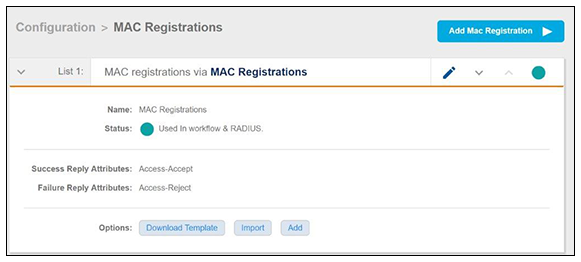
Navigate to Configuration > MAC Registrations. The figure below shows the page as it would appear if you already were using a configuration called "MAC Registrations" in a workflow, as the green status circle indicates.
Adding a New MAC Registration Configuration
Follow these steps to create a new MAC Registration configuration which you can then use to import MAC addresses.
- Click Add MAC Registration in the upper right of the screen shown above.
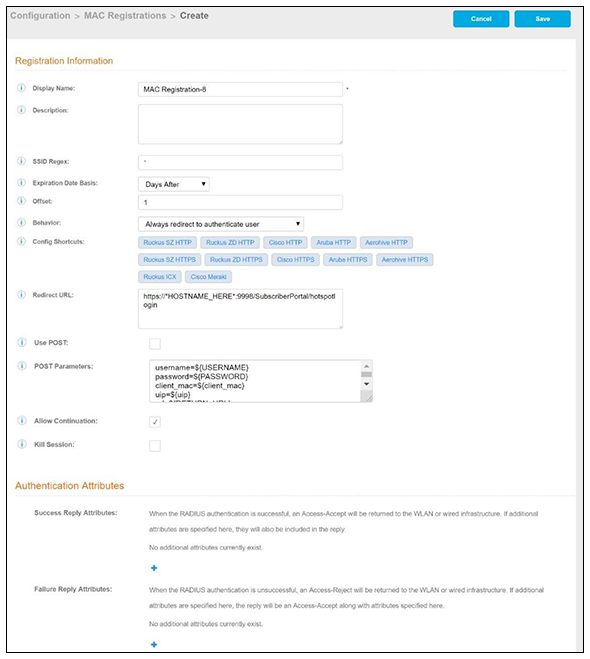
- In the Create MAC Registrations screen (see the example screen below), configure the
values (described after the example screen), then click
Save.
- Display Name: Any descriptive name you want.
- Description: Optional description of this particular MAC registration configuration.
- SSID Regex: SSID to which MAC registered devices are assigned.
Note: This field is case sensitive. Separate multiple SSIDs by a vertical pipe (|). The default (*) is any SSID that is pointed at the RADIUS server.
- Expiration Date Basis: The basis for calculating the default validity period for MAC registration.
- Offset: The number of hours/days/months/etc to be offset from the event date when
calculating the registration validity period. If
Specified Date is selected, this should be the date in YYYY/MM/DD format.
Note: This field may be unnecessary and therefore disappear, depending on your selection for Expiration Date Basis.
- Behavior: Specifies the prompt and redirect settings for the MAC registration configuration. Use the Web Page Information section to configure the user prompt or redirect URL. Behavior settings include:
- Use the Config Shortcuts buttons to populate the Redirect URL and POST Parameters according to your controller vendor and preferred protocol.
- Allow Continuation - If checked, the submit-redirect call is processed, if unchecked, the submit- redirect call is ignored.
- Kill Session - If checked, the user's session will be killed as they are redirected and, if they return, they will be forced to start over.
- Authentication Attributes: Refer to Adding RADIUS Attributes
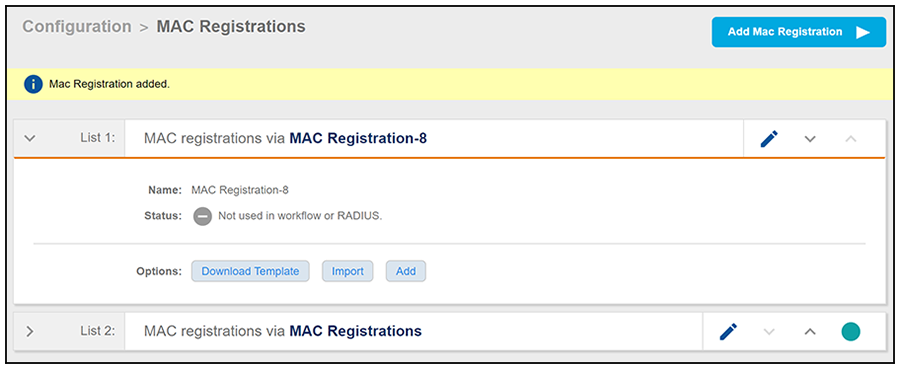
- After you click Save, you are returned to the main screen, with the new configuration (MAC Registration-8 in this example) appearing in the list, as shown below:
Importing a MAC Registration List
Follow these steps to import a MAC registration list into a MAC registration configuration.
- Open the MAC registration configuration in which you want to import a MAC address list. You may have to click the arrow to the left of the MAC registration list number to expand the list, thus displaying the option buttons of "Download Template," "Import," and "Add."
- If you first need a template for adding MAC addresses to an .xls file, click Download Template.
- Once you are ready to import the list of MAC addresses to the MAC registration list,
click
Import.
Note: If importing from a .csv file, the following date formats are supported: yyyyMMdd, HHmmss, yyyyMMdd HHmm, yyyyMMdd, MM/dd/yyyy HHmmss, MM/dd/yyyy HHmm, MM/dd/yyyy, yyyy-MM-dd HH:mm:ss, yyyy-MM-dd.
- Browse to select your MAC address list, then click Continue.
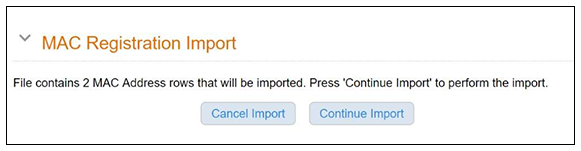
- A popup message appears, where you click Continue Import:
- The file is imported and the MAC addresses are added to the applicable MAC Registration list.
Importing Individual MAC Addresses
Follow these steps to import individual MAC addresses into a MAC registration configuration.
- Open the MAC registration configuration in which you want to import a MAC address list. You may have to click the arrow to the left of the MAC registration list number to expand the list, thus displaying the option buttons of "Download Template," "Import," and "Add."
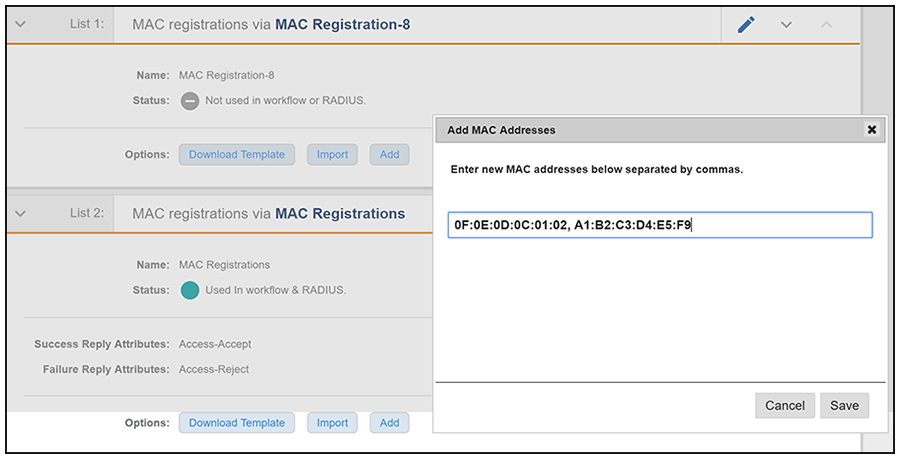
- Click Add.
- In the popup window, enter the MAC addresses, separated by commas, that you wish to add:
- Click Save.
- Confirm the import on the ensuing popup window.
You are returned to the main page, and there should be a confirmation message at the top, indicating that the MAC addresses have been successfully added.
Removing a MAC Registration Configuration List or Its MAC Addresses
Follow these steps to either remove the MAC addresses from a MAC registration configuration list or to remove both the MAC addresses and the list itself:
- Click the pencil icon to the right of the desired list.
- Scroll to the bottom of the screen until you get to the Cleanup area, and click Cleanup to display the options:
- Click on the desired option.
A Warning popup appears.
- If you wish to continue, be sure to check the box to indicate that you "understand
the warning," then click
Continue.
You are returned to the main screen, where you should see a message indicating that your action has taken effect.
