Set Up Client Certificate Template Settings for NPS
In Cloudpath, certificate templates are used to generate certificates.
To set up a client certificate template using an onboard CA, perform the following steps:
- From the Cloudpath left menu, select .
- Click Add Template to create a new certificate template.
- Choose Use an onboard certificate authority and select the onboard CA you created in the previous section.
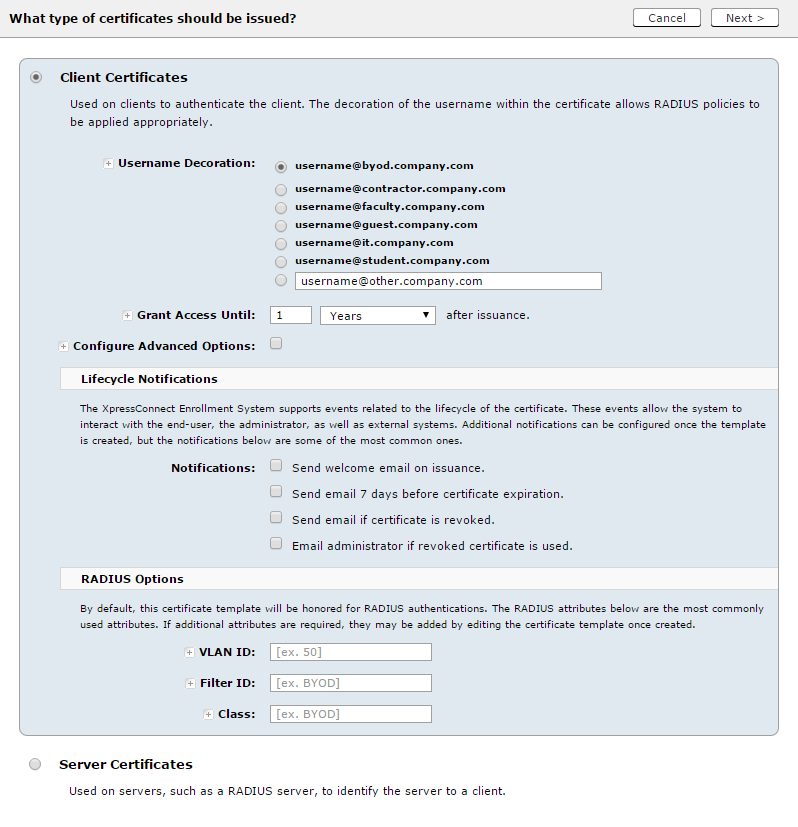
- Select Client Certificates.
- Select or enter a Username Decoration. The decoration of the username within the certificate allows RADIUS policies to be applied appropriately.
- Grant access for the appropriate amount of time.
For example, you might have client certificate template for a guest user that is valid for one, or a few days, another for a contractor that is valid for 6 months, and one for employees that is good for a year.
- Select any email notifications to be sent to the user related to the lifecycle of
the certificate.
Additional certificate notifications can be configured after the template is created.
- Enter data in the
RADIUS Options fields to assign a VLAN ID or Filter ID to certificates that use this template.
These settings only apply if you are using the onboard RADIUS server.