Configure a Connection Request Policy for RADIUS Proxy
Connection request policies allow you to designate whether connection requests are
processed locally or forwarded to remote RADIUS servers.
- On the NPS, expand Policies and select Connection Request Policy.
- From the Action menu, select New
- In the New Connection Request Policy window, enter a Policy name, and click Next.
- In the Specify Conditions window, click Add.
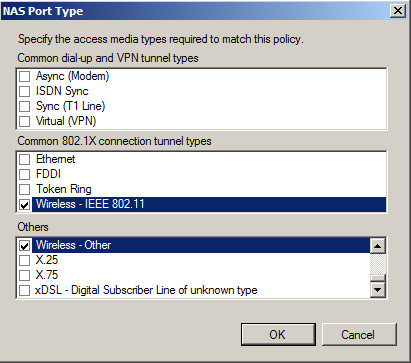
- In the Select Condition window, select NAS Port Type, and click Add.
- In the
NAS Port Type window, check the box for the following settings:
- Wireless IEEE 802.11 in the 802.1X connection tunnel types section.
- Wireless - Other in the Others section.
- In the Specify Conditions window, click Add.
- Select User name and click Add.
- In the User Name window, enter .*@guest. Click OK.
- In the Specify Conditions window, click Next.
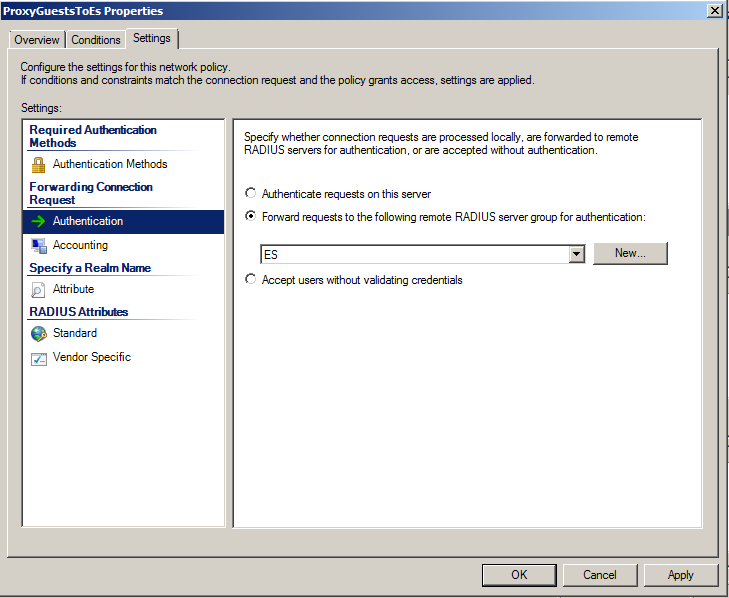
- In the
Specify Connection Request Forwarding window, perform the following steps:
- In the left pane, select Authentication.
- In the right pane, select Forward requests to the following remote RADIUS server group for authentication.
- Select the ES remote RADIUS server group you previously created.
- Click Next.
- In the Configure Settings window, perform the following steps:
- Review the connection request policy configuration in the Completing Connection Request Policy Wizard window, and click Finish.