Testing Policies
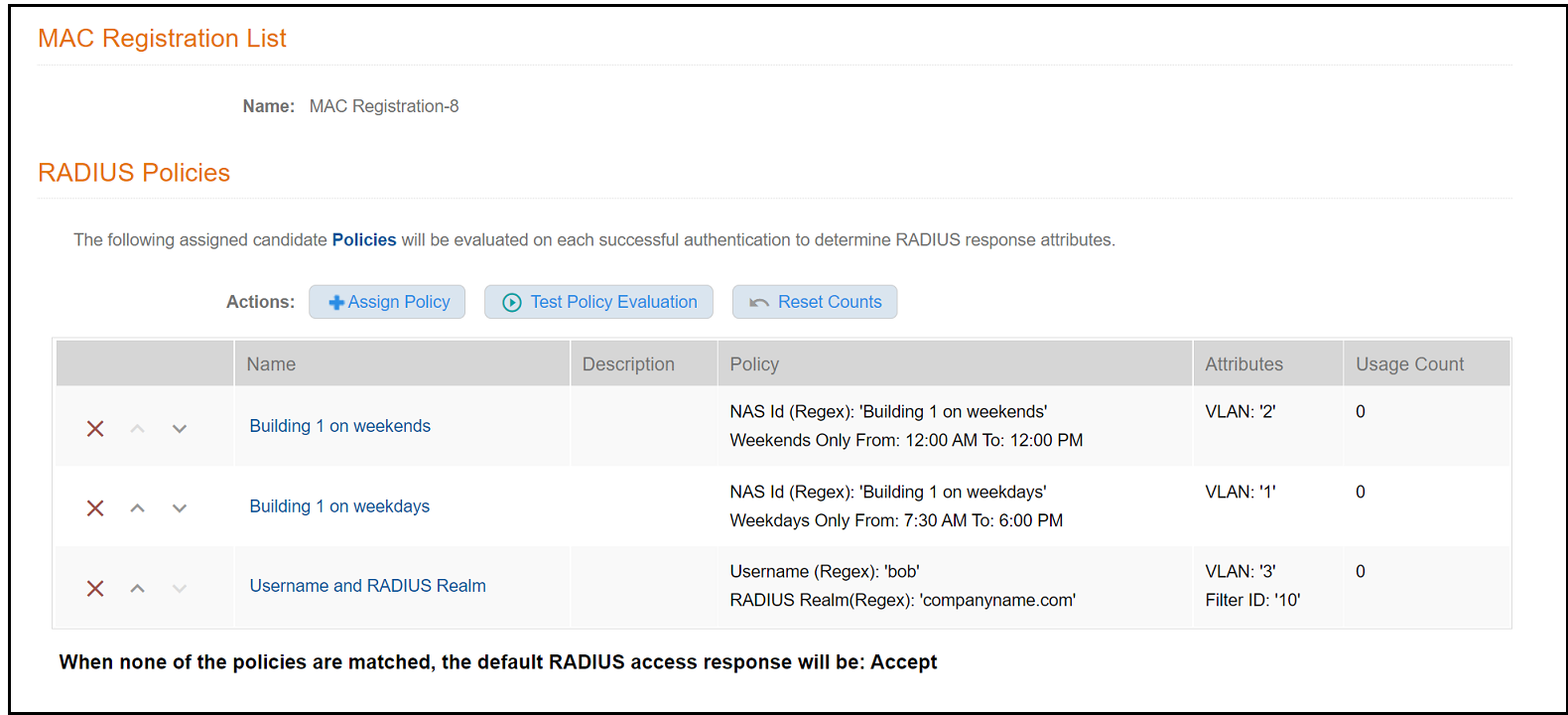
The following screen shows an example of three policies that have been added to a MAC registration list. To get to this screen, go to Configuration > MAC Registration Lists, click the Wrench icon next to the desired MAC registration list, then click the RADIUS Policies tab.
Test Policy Evaluation - Example 1
- Click the Test Policy Evaluation button (see the screen above).
- In the ensuing Test Policy Selection screen, enter the
values that would be provided during user enrollment to determine which policy,
if any, is a match. The screen below contains sample values, which are described
below the screen:
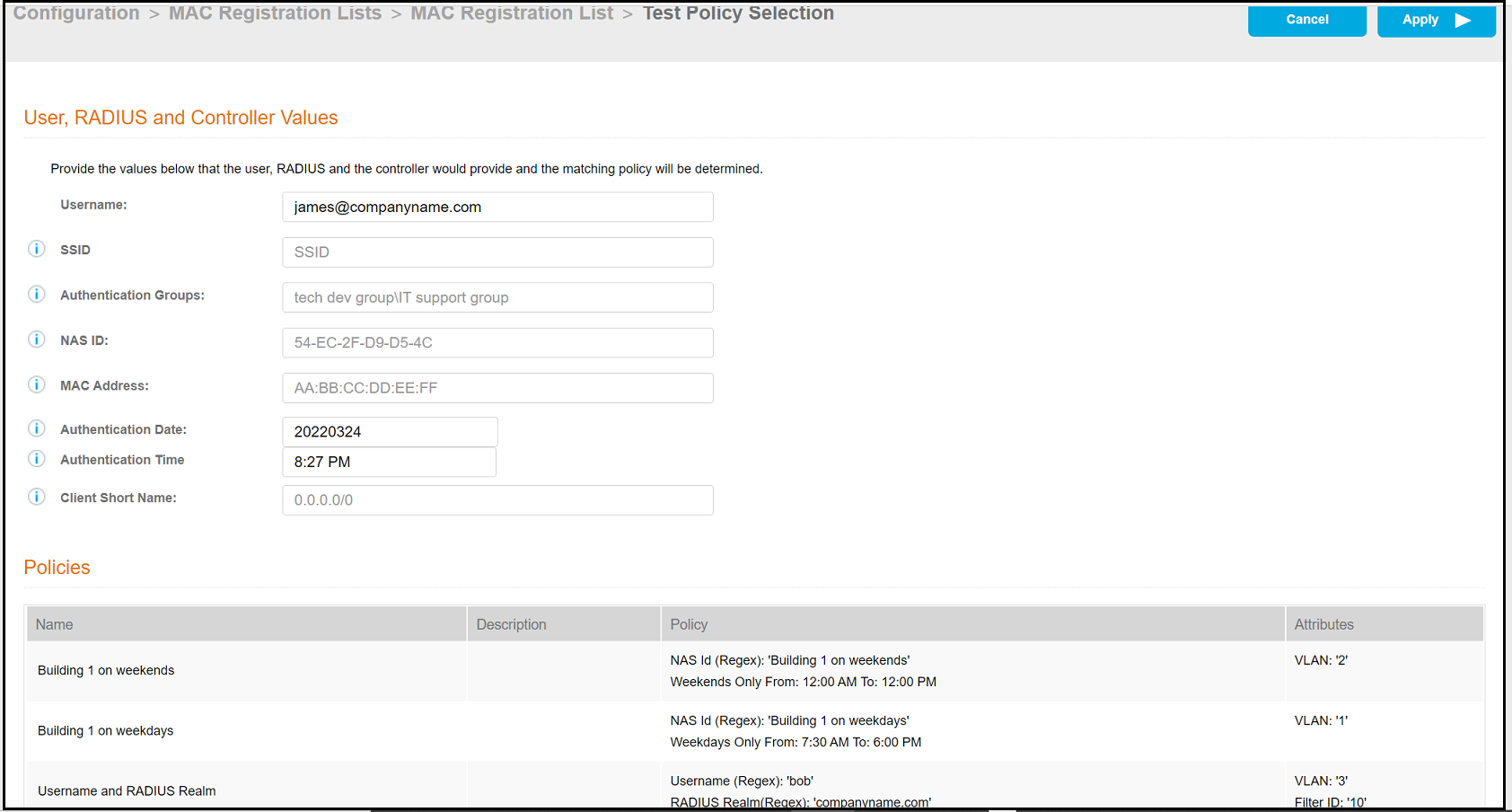
The sample values shown above have been entered to test that the "Building 1 on weekdays" policy will be applied to users who match the criteria defined by that policy (refer to the information in the "Policy" column in the figure above).
Note: The sample values can include fields that are not configured in a policy, and could still be a match for the policy. For example, there could be a value entered in the Client Short Name field in the example above, and it would have no impact on the results of the policy evaluation test because none of the three policies shown above show a value for Client Short Name (as evidenced by the values shown in the Policy column for each policy).- Username (required): Must be a valid username that your Cloudpath system will accept when this user attempts enrollment.
- SSID: Matches the Wi-Fi SSID name for the connecting device. If this field is populated, this will match only the Wi-Fi based connections.
- Authentication Groups (required): The list of groups returned from a user (as configured in your authorization server; you need a workflow step that requires authentication to an authorization server for the user to have groups).
- MAC Address: The address assigned to the MAC address list that is being evaluate by the policy.
- NAS ID: The NAS ID that is expected to be returned from the controller. In the example above, the value "Building 1 on weekdays" is entered because it matches the NAS ID of the "Building 1 on weekdays" policy.
- Authentication Date: The date on which the user would attempt to authenticate. In the example above, the date is on a weekday because the "Building 1 on weekdays" policy specifies weekdays only for authentication.
- Authentication Time: The time when the user would attempt to authenticate. In the example above, the time is 5:10 p.m., which falls in the range of 7:30 a.m. to 6 p.m. that the policy specifies for authentication.
- Client Short Name: RADIUS Client-Shortname expected to be returned from the controller.
- Before you click the
Apply button, check the values you have entered. In the above example, the expected behavior
is:
- The values entered in the upper portion of the screen are first compared to the policy named "Building 1 on weekends" because that is the policy listed first (see Policies section in the screen above). However, you can see that the values entered for testing do not match the conditions shown in the Policy column for the "Building 1 on weekends" policy.
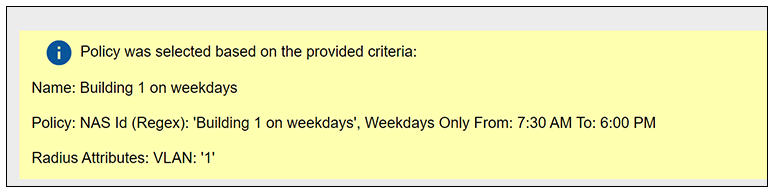
- The values entered are next compared to the second policy in the list, which is the "Building 1 on weekdays" policy. You can see that the values entered for testing all do match those listed for this policy. Therefore, the expected behavior is that, when you click the Apply button, the "Building 1 on weekdays" will indicate a successful match, and the corresponding attributes would be applied to the enrolling user.
- To confirm these results, now click the Apply button. The following response is received:
Test Policy Evaluation - Example 2
- Click the Test Policy Evaluation button.
- In the ensuing Test Policy Selection screen, enter the
values that would be provided during user enrollment to determine which policy,
if any, is a match. The screen below contains sample values, which are described
below the screen:
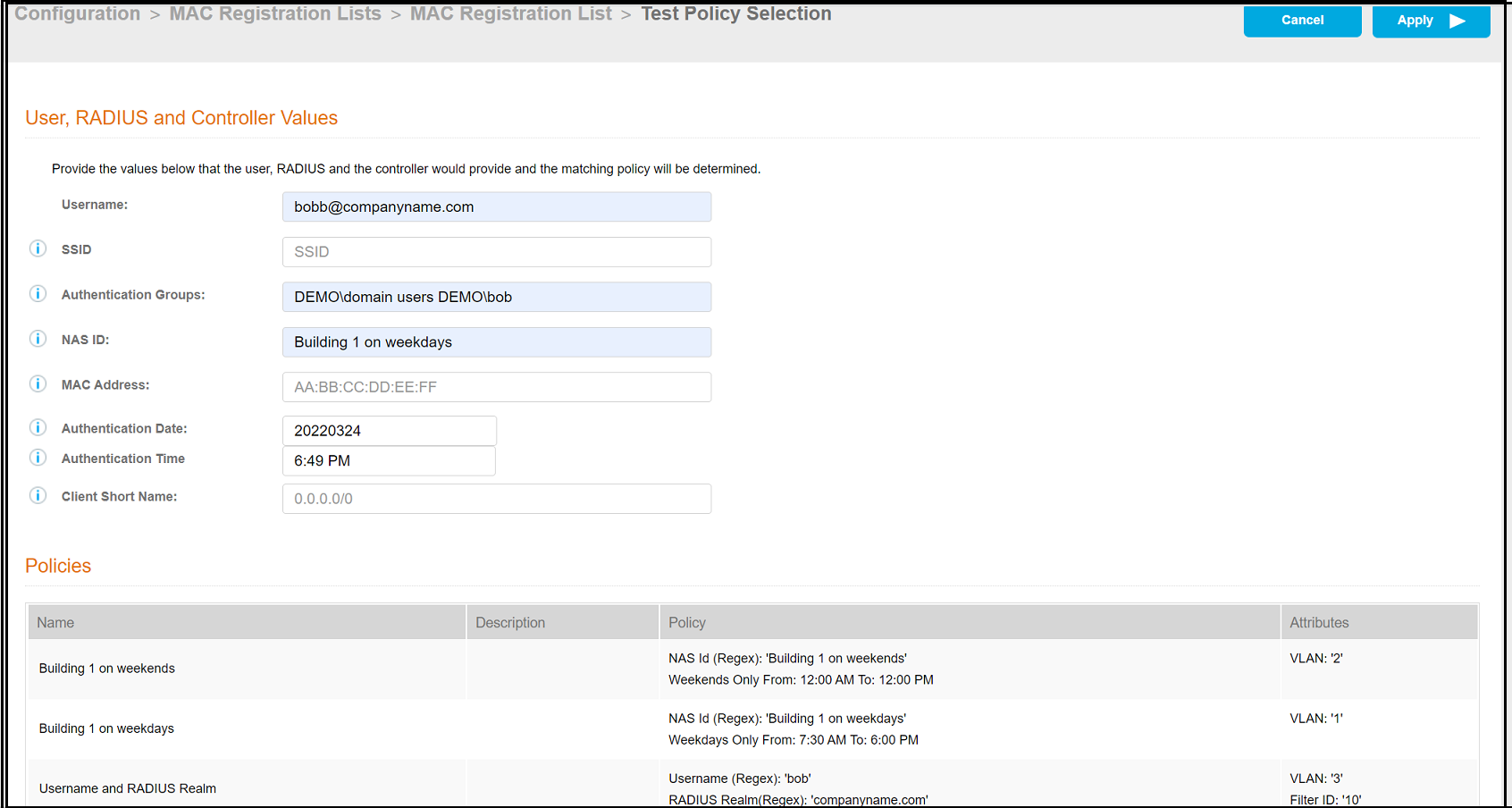
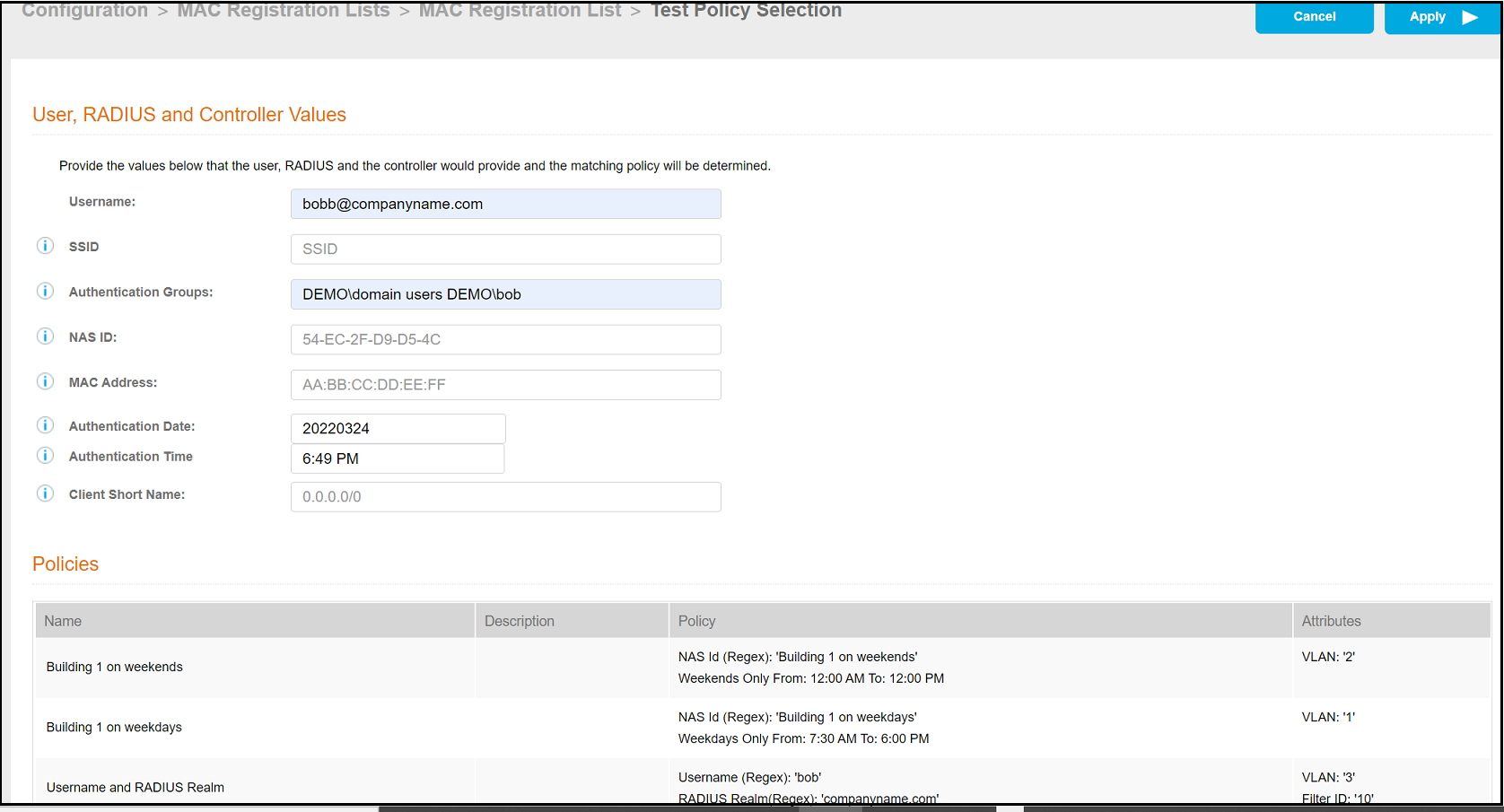
The sample values shown above have been entered to test that the "Username and RADIUS Realm" policy will be applied to users who match the criteria defined by that policy (refer to the information in the "Policy" column in the figure above).
- Before you click the
Apply button, check the values you have entered. In the above example, the expected behavior
is:
- The values you entered in the upper portion of the screen are first compared to the policy named "Building 1 on weekends" because that is the policy listed first (see Policies section in the screen above). However, you can see that the values entered for testing do not match the conditions shown in the Policy column for the "Building 1 on weekends" policy. For example, the "Building 1 on weekends" policy includes a Regex value of "Building 1 on weekends," but the sample test values entered in the screen above do not include any value for NAS ID, eliminating any chance of a match to this policy.
- The values entered in the upper portion of the screen are next compared to the policy named "Building 1 on weekdays" because that is the next policy listed (see Policies section in the screen above). However, you can see that the values entered for testing do not match the conditions shown in the Policy column for the "Building 1 on weekdays" policy either. For example, the "Building 1 on weekdays" policy includes a Regex value of "Building 1 on weekdays," but the sample test values entered in the screen above do not include any value for NAS ID, eliminating any chance of a match to this policy.
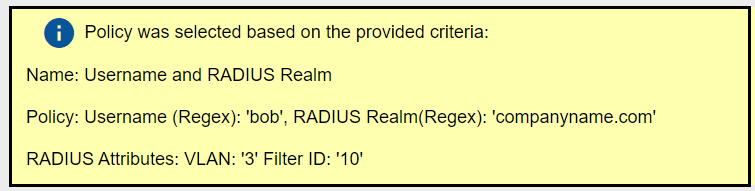
- The values entered are next compared to the third policy in the list, which is the "Username and RADIUS Realm" policy. You can see that the values entered for testing all do match the conditions listed for this policy: A username in the form of bob* (where the * can be replaced with any value) and a RADIUS realm (in the username field for the sample test values) in the form of companyname.com. Therefore, the expected behavior is that, when you click the Apply button, the "Username and RADIUS Realm" will indicate a successful match, and the corresponding attributes would be applied to the enrolling user.
- To confirm these results, now click the Apply button. The following response is received:
Test Policy Evaluation - Example 3
- Click the Test Policy Evaluation button.
- In the ensuing Test Policy Selection screen, enter the
values that would be provided during user enrollment to determine which policy,
if any, is a match. The screen below contains sample values, which are described
below the screen:
The sample values shown above have been entered to test that no policy will be applied to users who do not match the criteria defined by any of the policies belonging to the pool (refer to the information in the "Policy" column in the figure above).
- Before you click the
Apply button, check the values you have entered. In the above example, the expected behavior
is:
- The values you entered in the upper portion of the screen are first compared to the policy named "Building 1 on weekends" because that is the policy listed first (see Policies section in the screen above). However, you can see that the values entered for testing do not match the conditions shown in the Policy column for the "Building 1 on weekends" policy. For example, the "Building 1 on weekends" policy includes a Regex value of "Building 1 on weekends," but the sample test values entered in the screen above do not include any value for NAS ID, eliminating any chance of a match to this policy.
- The values entered in the upper portion of the screen are next compared to the policy named "Building 1 on weekdays" because that is the next policy listed (see Policies section in the screen above). However, you can see that the values entered for testing do not match the conditions shown in the Policy column for the "Building 1 on weekdays" policy either. For example, the "Building 1 on weekdays" policy includes a Regex value of "Building 1 on weekdays," but the sample test values entered in the screen above do not include any value for NAS ID, eliminating any chance of a match to this policy.
- The values entered are next compared to the third policy in the list, which is the "Username and RADIUS Realm" policy. You can see that the username does not match the conditions listed for this policy, eliminating any chance of a match to this policy. Therefore, the expected behavior is that, when you click the Apply button, you should receive a message indicating that no policies matched, but that the user is still accepted onto the network. provided that the " Default Access (No Match)" field was configured to "Accept" a user if there was no policy match.
- To confirm these results, now click the Apply button. The following response is received: