Wake-on-LAN support across VLANs
The WoL technology makes use of specially formatted network packets (often referred to as a "magic" packet generated through a software utility) that contains the target PC's MAC address to wake up the remote clients. The magic packet is mostly based on UDP and is sent to clients that are enabled to respond to these packets. The WOL technology allows administrators to remotely power on the PC and perform scheduled maintenance tasks even if the user has powered the system down. By remotely triggering the computer to wake up, the administrator does not have to be physically present to perform maintenance tasks on each computer on the network.
The WOL technology works based on the principle that when the PC shuts down, the NIC continues to receive power, and keeps listening on the network for the magic packet to arrive. The magic packet is mostly based on UDP. For example, the utility application software sends a UDP packet on port (7) echo to trigger the wake-up of the remote machine. The client PCs on different subnets/VLANs can be turned on remotely by a WOL server.
ICX devices natively support or switch the magic packets. However, by default, ICX
devices do not forward requests for UDP applications to different subnets or VLANs.
So, the ICX device must be configured to forward the directed broadcasts for the magic
packet to be sent over the sleepy ports using the
ip forward-protocol udp command.
You must also configure a helper address on the VLAN of the WOL server to join the
subnet of the desired clients using the
ip helper-address command. You must specify the broadcast address of each client network as this is
the only way to send a packet to a PC that is shut down. Because the PC is asleep,
the PC will not respond to ARP requests as it does not own its IP when the PC is down.
Prerequisites
The following checks must be done before deploying WOL across several subnets to wake up the target client PC:
- Check the BIOS settings and ensure that Wake-On-LAN is enabled.
- Check the NIC Advanced Settings and ensure that Magic & Directed Packets are accepted.
- Connect the WOL server and the desktop or laptop client to the same VLAN.
- Invoke Wake Up PC from Software utility
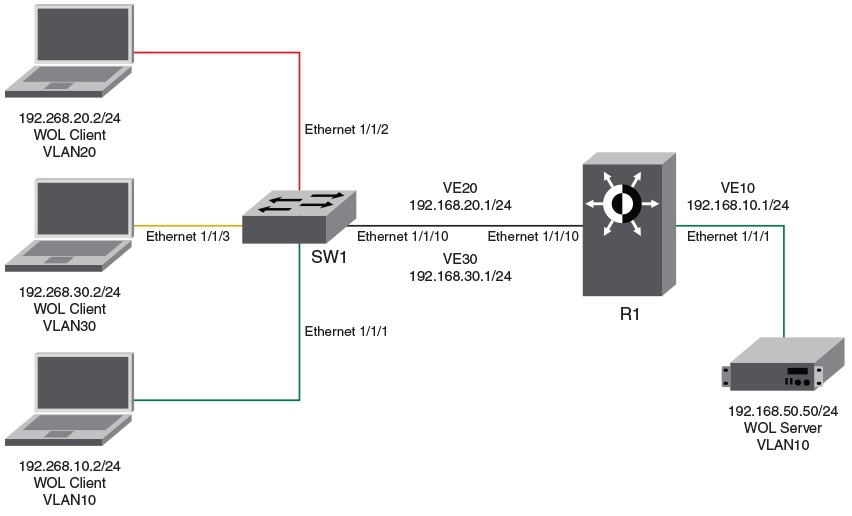
Following is a sample configuration for Wake-On-LAN (WOL) support across different VLANs:
Router R1 (inter-VLAN) configuration:
device(config)# vlan 10 name server_vlan  by port
device(config-vlan-10)# tagged ethernet 1/1/10
device(config-vlan-10)# untagged ethernet 1/1/1
device(config-vlan-10)# router-interface ve 10
device(config-vlan-10)# exit
device(config)# vlan 20 name user_vlan  by port
device(config-vlan-20)# tagged ethernet 1/1/10
device(config-vlan-20)# router-interface ve 20
device(config-vlan-20)# exit
device(config)# vlan 30 name user_vlan  by port
device(config-vlan-30)# tagged ethernet 1/1/10
device(config-vlan-30)# router-interface ve 30
device(config-vlan-30)# exit
device(config)# ip forward-protocol udp echo
device(config)# interface ve 10
device(config-vif-10)# ip address 192.168.10.1 255.255.255.0
device(config-vif-10)# ip helper-address 1 192.168.20.255
device(config-vif-10)# ip helper-address 2 192.168.30.255
device(config-vif-10)# interface ve 20
device(config-vif-20)# ip address 192.168.20.1 255.255.255.0
device(config-vif-20)# interface ve 30
device(config-vif-30)# ip address 192.168.30.1 255.255.255.0
device(config)# vlan 10 name server_vlan  by port
device(config-vlan-10)# tagged ethernet 1/1/10
device(config-vlan-10)# untagged ethernet 1/1/1
device(config-vlan-10)#  exit
device(config)# vlan 20 name user_vlan20 by port
device(config-vlan-20)# tagged ethe 1/1/10
device(config-vlan-20)# untagged ethe 1/1/2
device(config-vlan-20)# exit
device(config)# vlan 30 name user_vlan30 by port
device(config-vlan-30)# tagged ethernet 1/1/10
device(config-vlan-30)# untagged ethernet 1/1/3