Creating a Certificate Signing Request File
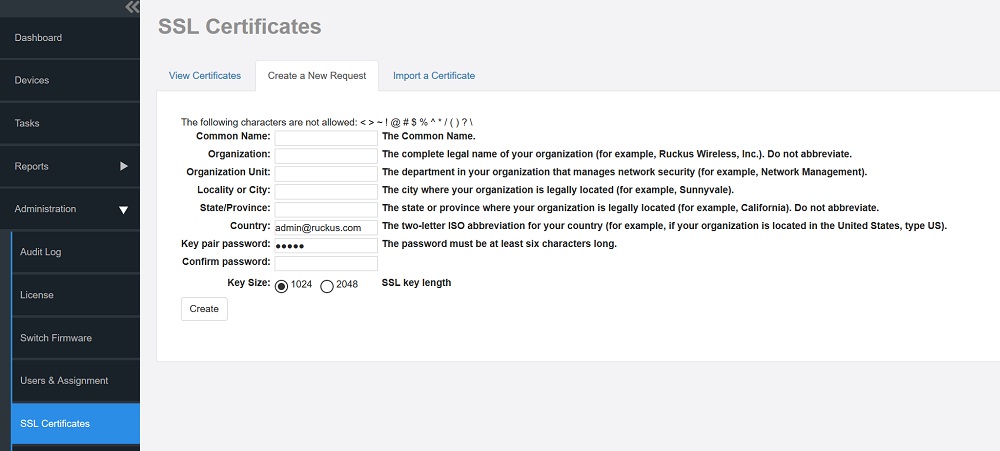
- On the SSL Certificates page, click the Create a New Request tab.
- In the text boxes provided, fill in the following information:
- Common Name: Type the fully qualified domain name of your Web server.
- Organization: Type the complete legal name of your
organization (for example,
RUCKUS Wireless, Inc.).Do not abbreviate your organization name. - Organization Unit: Type the name of the division, department, or section in your organization that
manages network security (for example,
Network Management). - Locality or City: Type the city where your organization is legally located (for example, ).
- State/Province: Type the state or province where your organization is legally located (for example, California). Do not abbreviate the state or province name.
- Country: Type the two-letter ISO abbreviation for your country (for example, if your organization
is located in the United States, type
US). - Key pair password: Type the password that you want to use for the SSL certificate.
The key pair password must consist of at least six characters.
- Confirm password: Retype the key pair password to confirm.
- Key Size: Select the required key size--1024 or 2048.
- Click
Create.
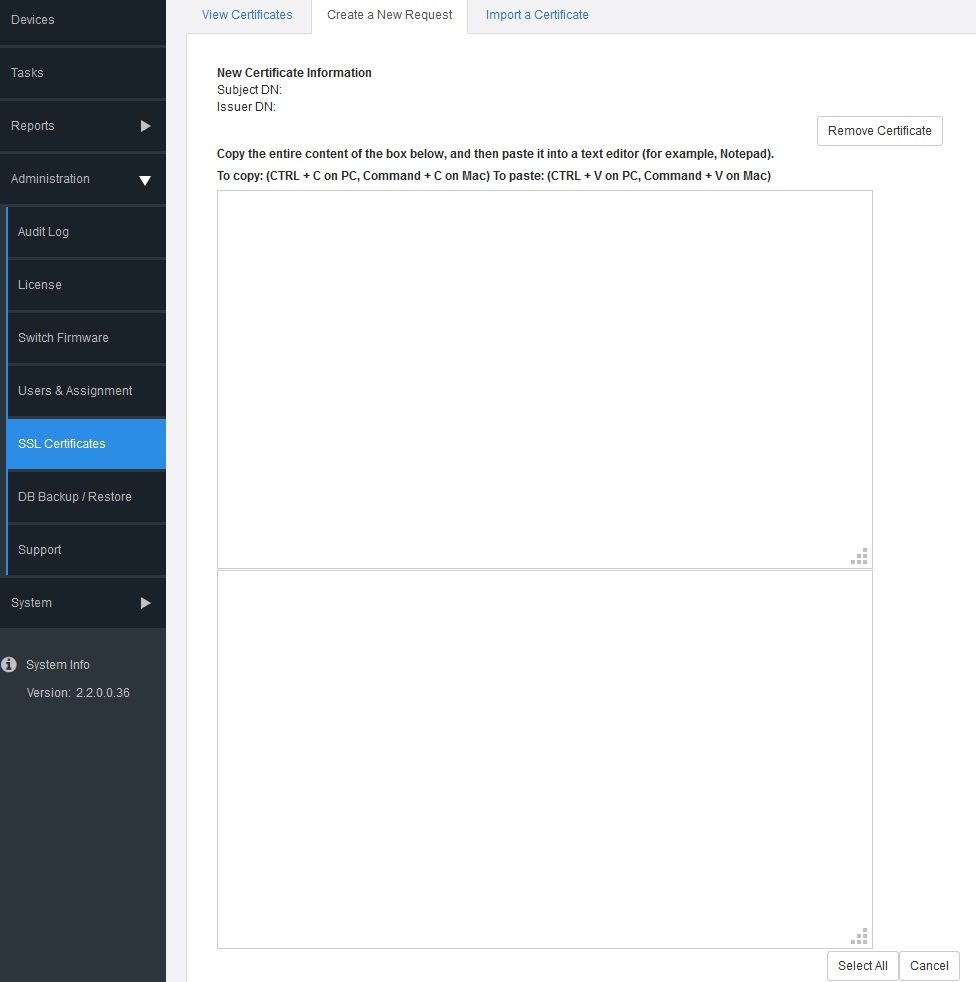
The New Certificate Information page appears, displaying a summary of the certificate information that you entered. If you find any incorrect information or if you want to edit the certificate information, then click Remove Certificate, and then start over with Step 1. If the certificate information is correct, then continue to Step 4.
- Click Generate CSR. The page refreshes, and then displays the content of the CSR.
- Copy the complete content of the CSR request, and then paste it into a text editor (for example, Notepad). Save the file.
- Go to the SSL Certificate provider website and follow the instructions for purchasing an SSL certificate.