Viewing the Network Segmentation Landing Page

After you have configured the integrated system in the Cloudpath UI, and you have configured the Network Segmentation profile in SmartZone, a Network Segmentation group gets automatically created in Cloudpath.

To view the Network Segmentation group, go to Managed Access > Network Segmentation. The screen below shows the Network Segmentation group that is based on the Network Segmentation profile created in SmartZone. The VNI Range shown is the range that was configured in the Data Plane configuration in SmartZone for the Network Segmentation profile.
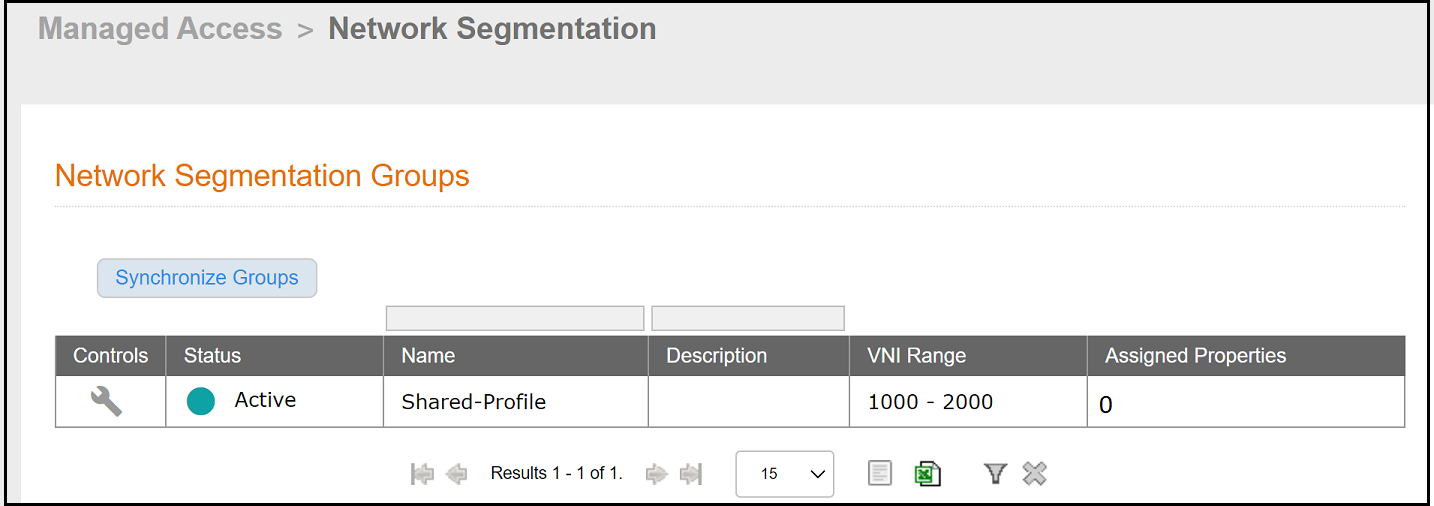
Network Segmentation Groups in Cloudpath UI

Sid/Ray/Phong - What should I say about the "Synchronize Groups" button? When should they use it?
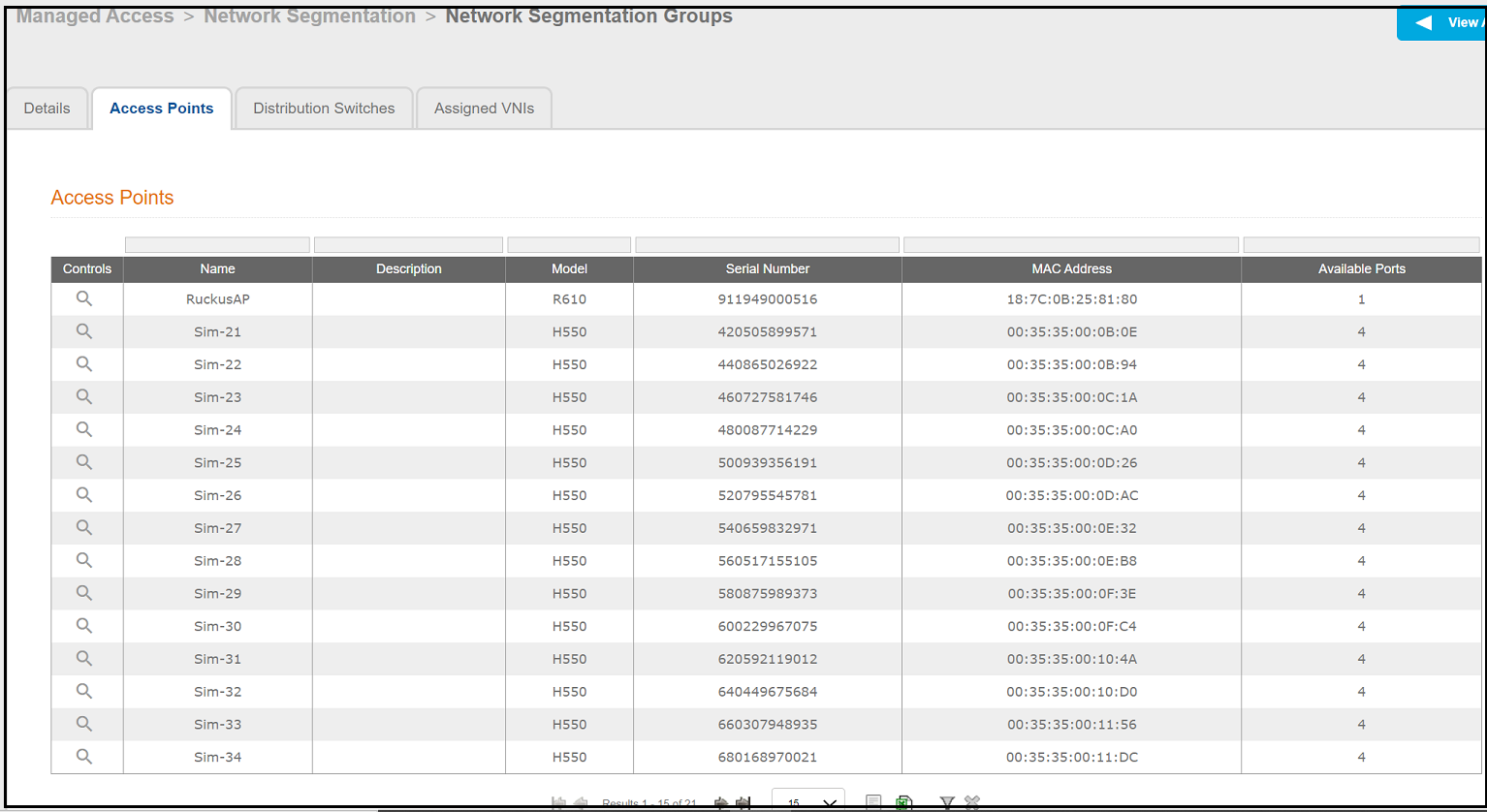
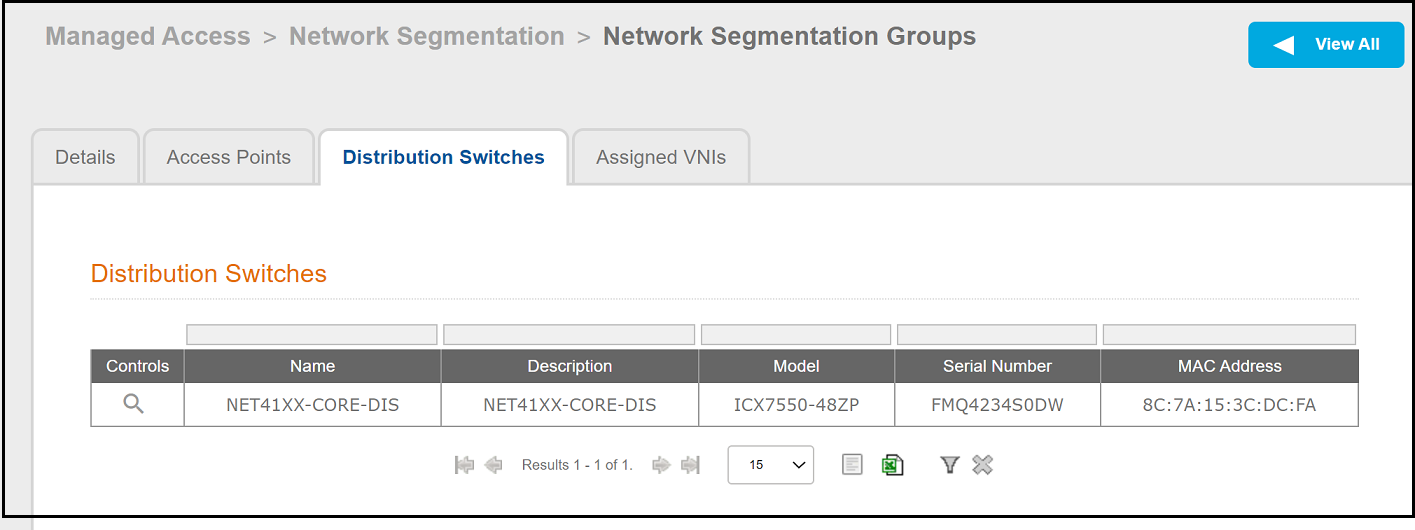
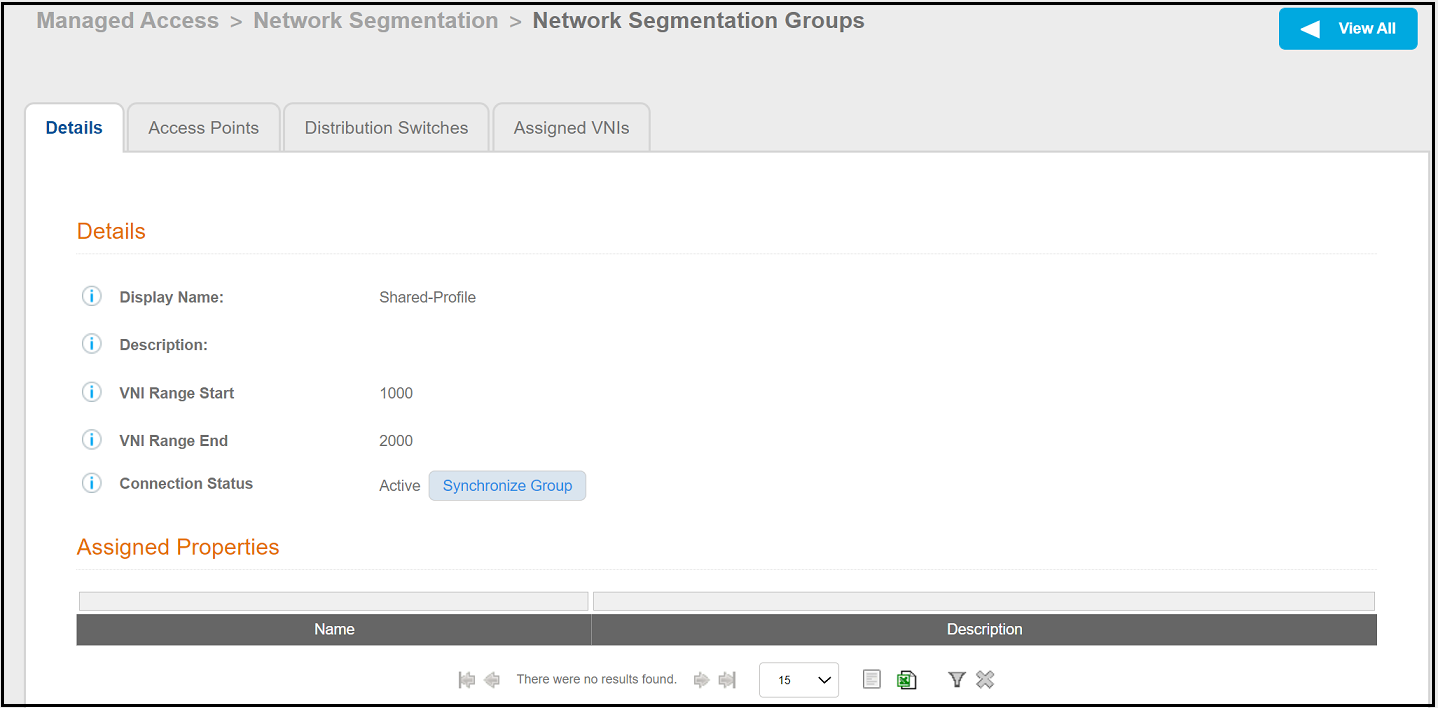
You can click on the wrench icon to invoke a four-tab view:
Note: The number of assigned porpoerties gets updated as properties are created and assigned to the network segmentation group.

Details-Tab-View of the Network Segmentation Group

Access-Points-Tab View of the Network Segmentation Group

Distribution-Switches-Tab View of the Network Segmentation Group

From the screen above, you can click the View icon under the Controls column to invoke a three-tab view, with the Details tab initially selected:
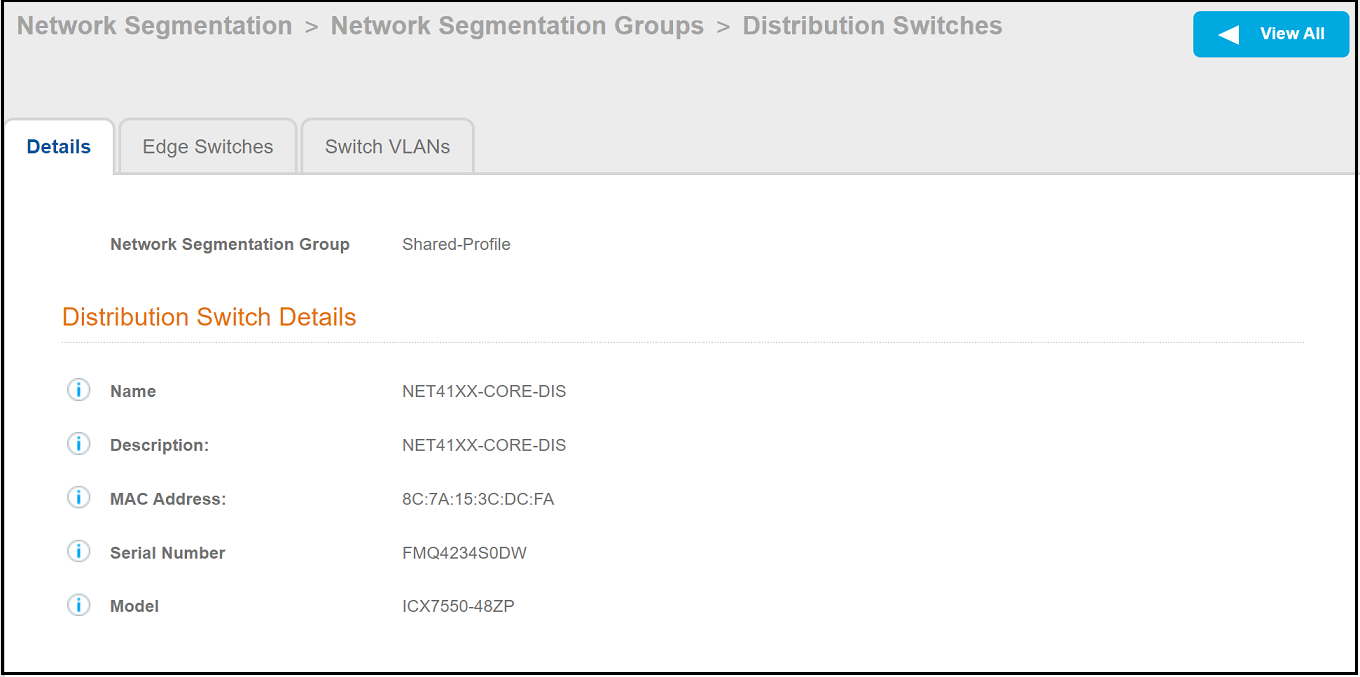
Network Segmentation Group Distribution Switch - Details Tab

From the screen above, you can click the Edge Switches tab to view the edge switches that are controlled by the distribution switch, as shown in the example screen below:
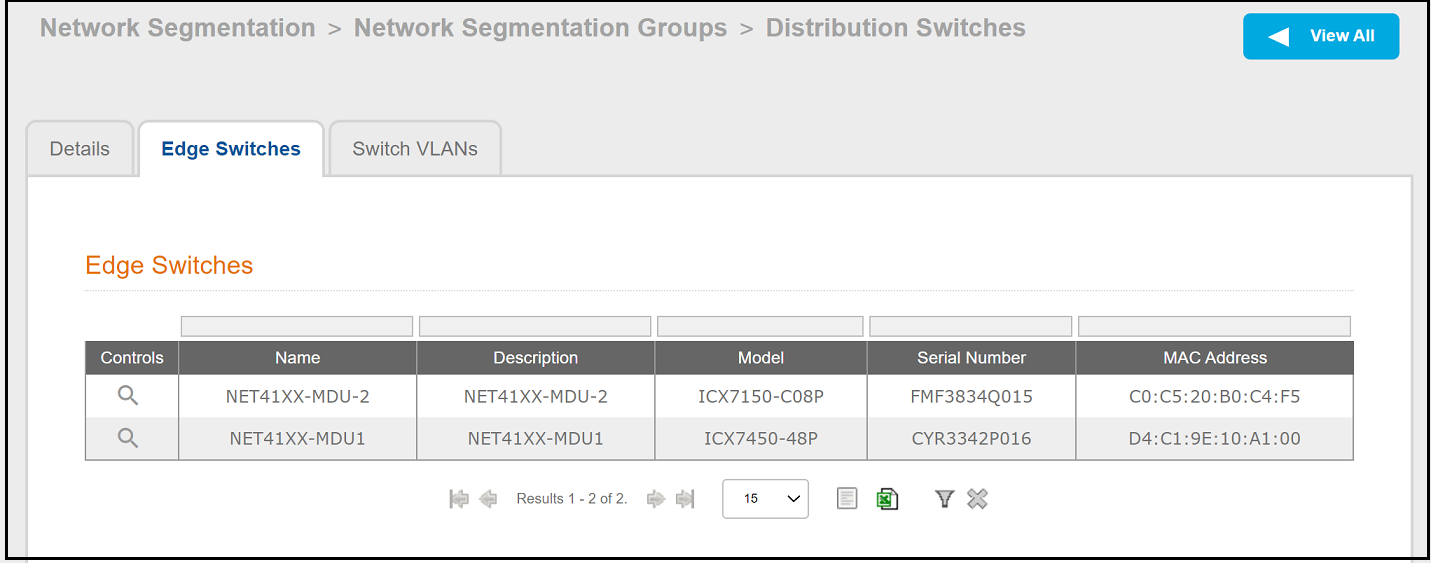
Network Segmentation Group Distribution Switch - Edge Switches Tab

From the screen above, you can click the Switch VLANs tab to view VLANs assigned to units. (You can also click the magnifying glass for details of each edge switch. An edge switch is also referred to as an "access switch.") Initially, no Switch VLANs have been assigned yet, as shown in the example screen below.
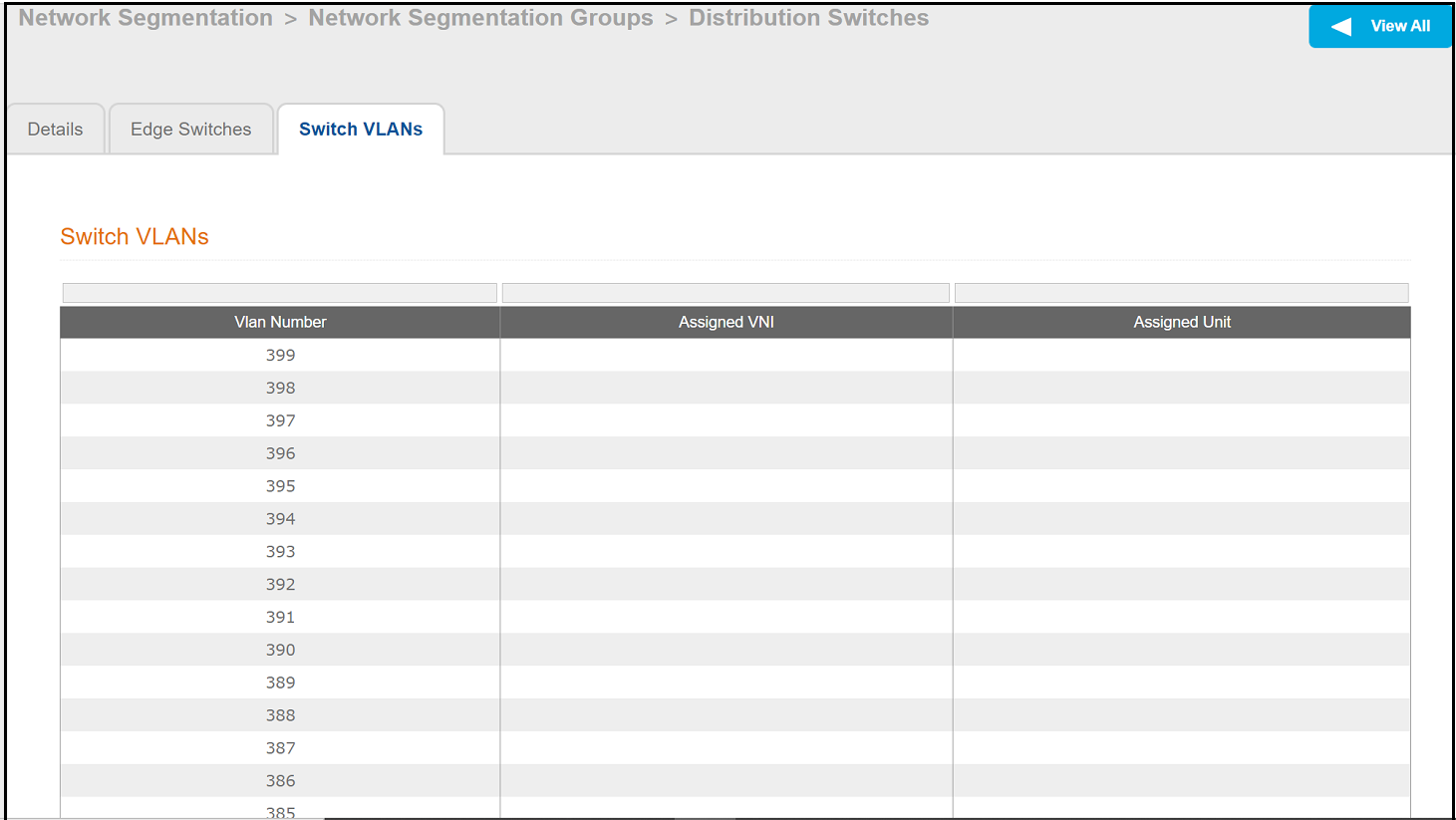
Note: For an example of the Switch VLANs table after VLANs have been assigned, see Switch VLANs Tab.

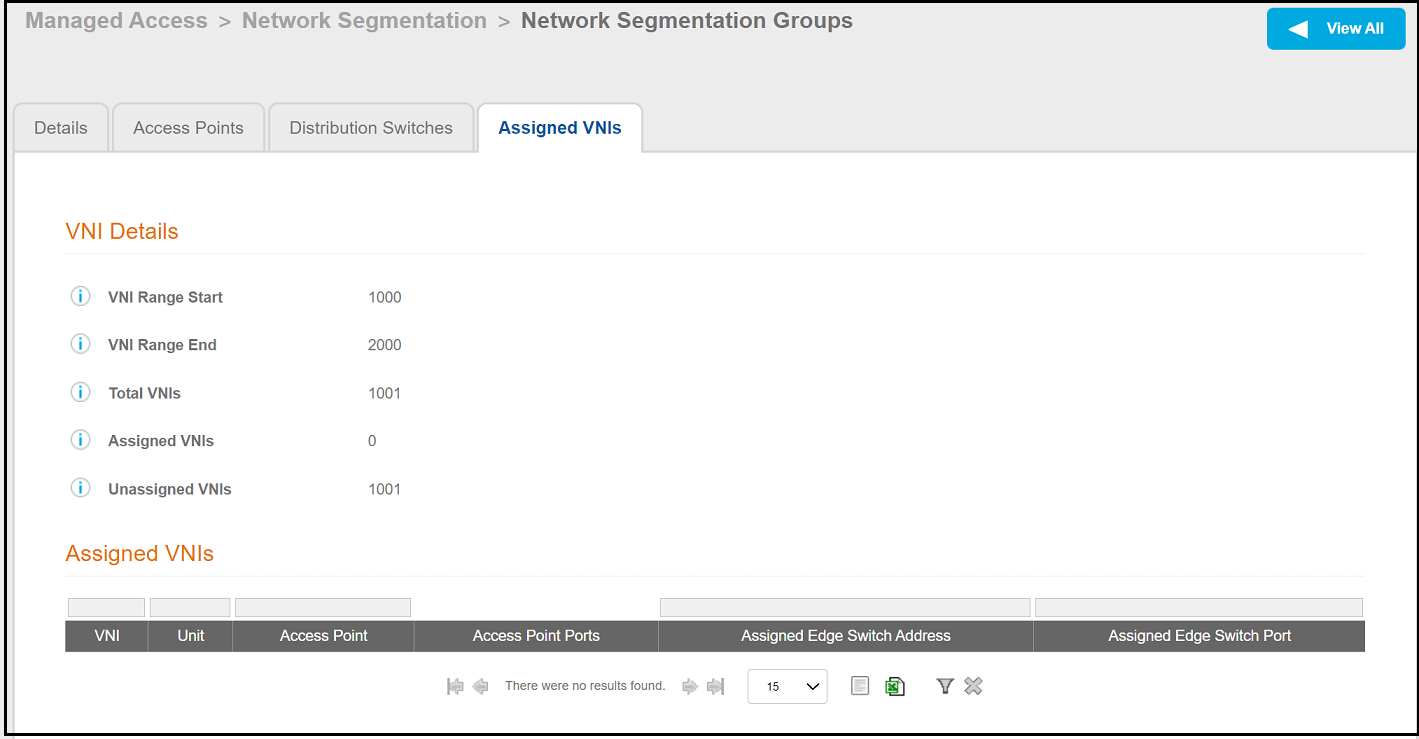
Assigned-VNIs-Tab View of the Network Segmentation Group

Note: A unique VNI is assigned to a unit once the unit is created. For an example of the Assigned VNIs tab after VNIs have been assigned, refer to Assigned VNIs Tab Example After Two VNIs Have Been Assigned and Example of Assigned VNIs After APs and Switches Have Been Added.

Next Steps:

Before you can create (and then assign) properties to a Network Segmentation group, you need to create an eDPSK pool for each property. Once you create one or more properties, assign the units to the properties and assign APs or switches to these units. You can assign multiple properties to a network segmentation group. Therefore, the remaining sequence to complete the Cloudpath portion of the Network Segmentation configuration is:

  1. Creating an eDPSK Pool for a Property
  2. Creating a Property for a Network Segmentation Group
  3. Adding Units to a Property of a Network Segmentation Group
  4. How an Access Point or Access Switch Gets Assigned to a Unit
  5. Creating a Policy to Assign to eDPSK Pools (Optional)