Configuring Dynamic Resource Allocation
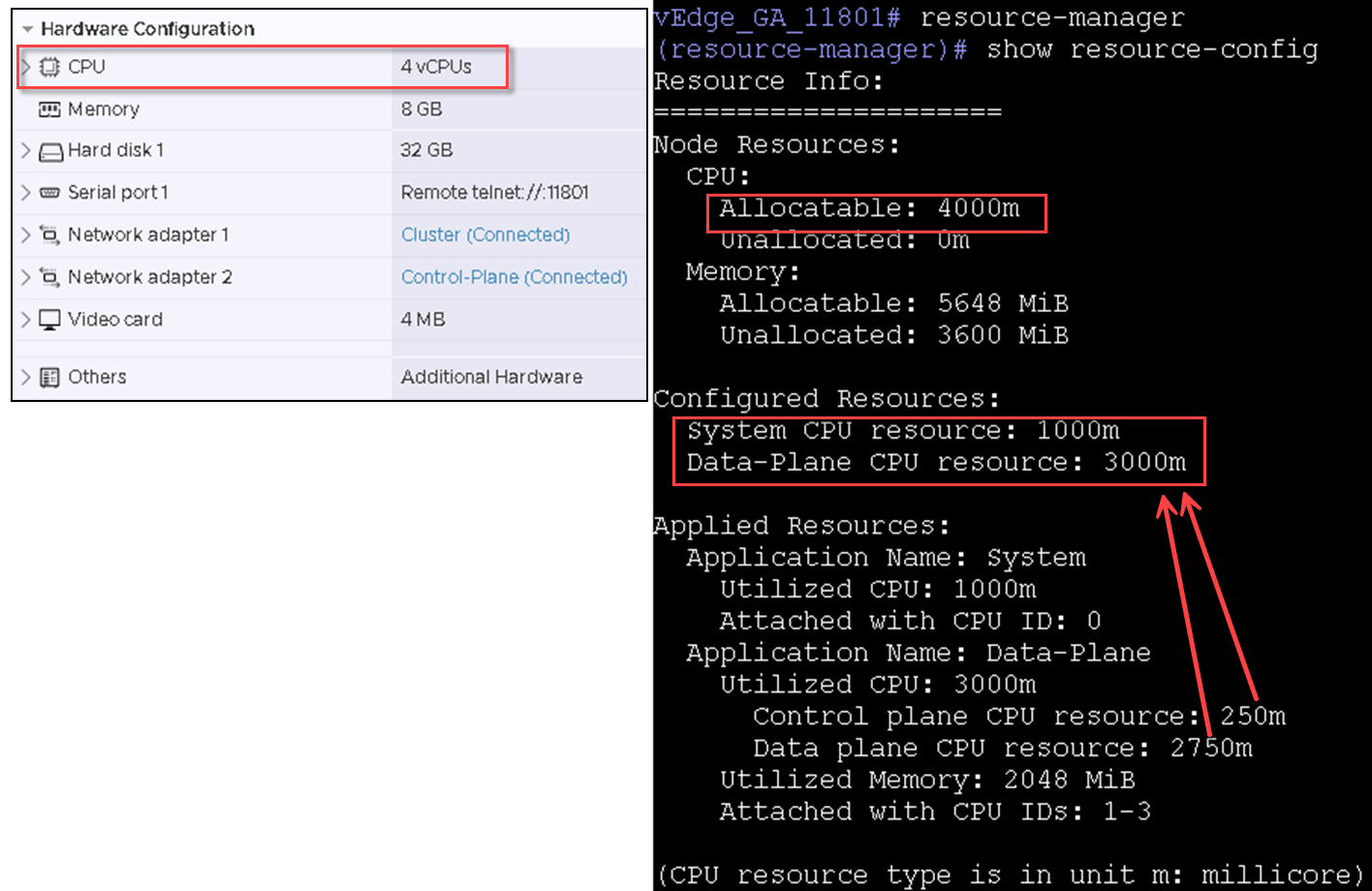
CPU resources are dynamically allocated
for RUCKUS Virtual Edge services and applications. You can
change the number of CPU resources available for allocation, which will result in
automatic
adjustments that facilitate optimal utilization of the available resources.
This adjustment process relies on three distinct criteria and selects the optimal combination based on the following factors:
- Network Throughput: Ensuring efficient data transfer rates.
- System Scalability: Adapting to varying system sizes.
- 3rd Party Application Compatibility: Meeting the demands of third-party applications.
The existing default hardware resources bundled with the OVA images consist of 4 CPU cores and 8 GB of memory.
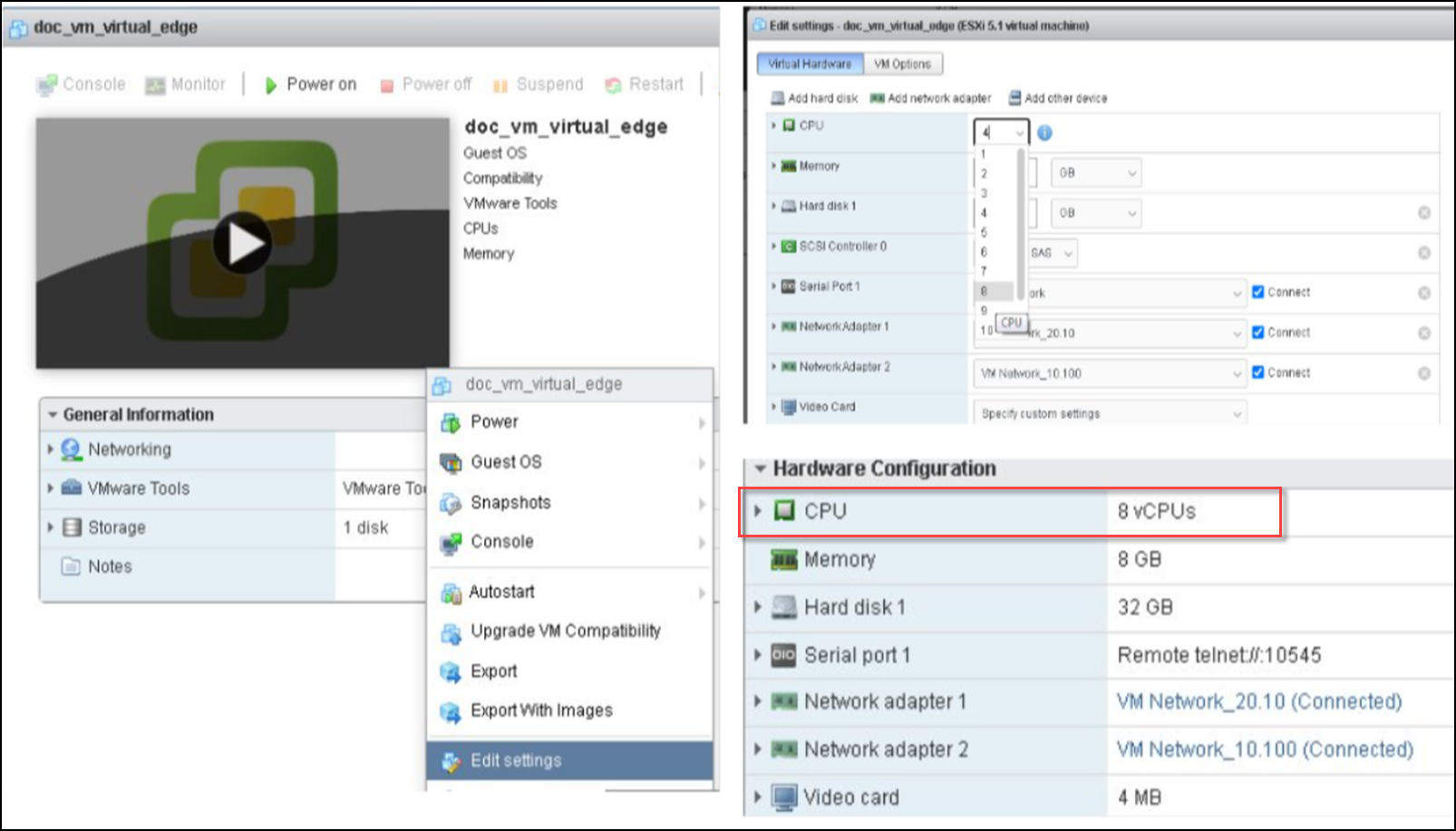
To change the hardware CPU core resource to user-defined cores, such as 8 cores, log in to ESXi and perform the following:
- In the ESXi Navigator menu, select Virtual Machines. Right-click on your RUCKUS Virtual Edge and select the Power option to power-down the RUCKUS Virtual Edge device.
- Right-click RUCKUS Virtual Edge and select the Edit settings option. In the Edit settings window, use the drop-down list to modify the CPU field. Click Save to save and apply the new configuration.
- Right-click RUCKUS Virtual Edge and select the Power option to power-on the Edge device.