Authenticating the RUCKUS Virtual Edge Using the OTP
The second step of the RUCKUS Virtual Edge onboarding process is to authenticate and
authorize your RUCKUS Virtual Edge device on RUCKUS One.
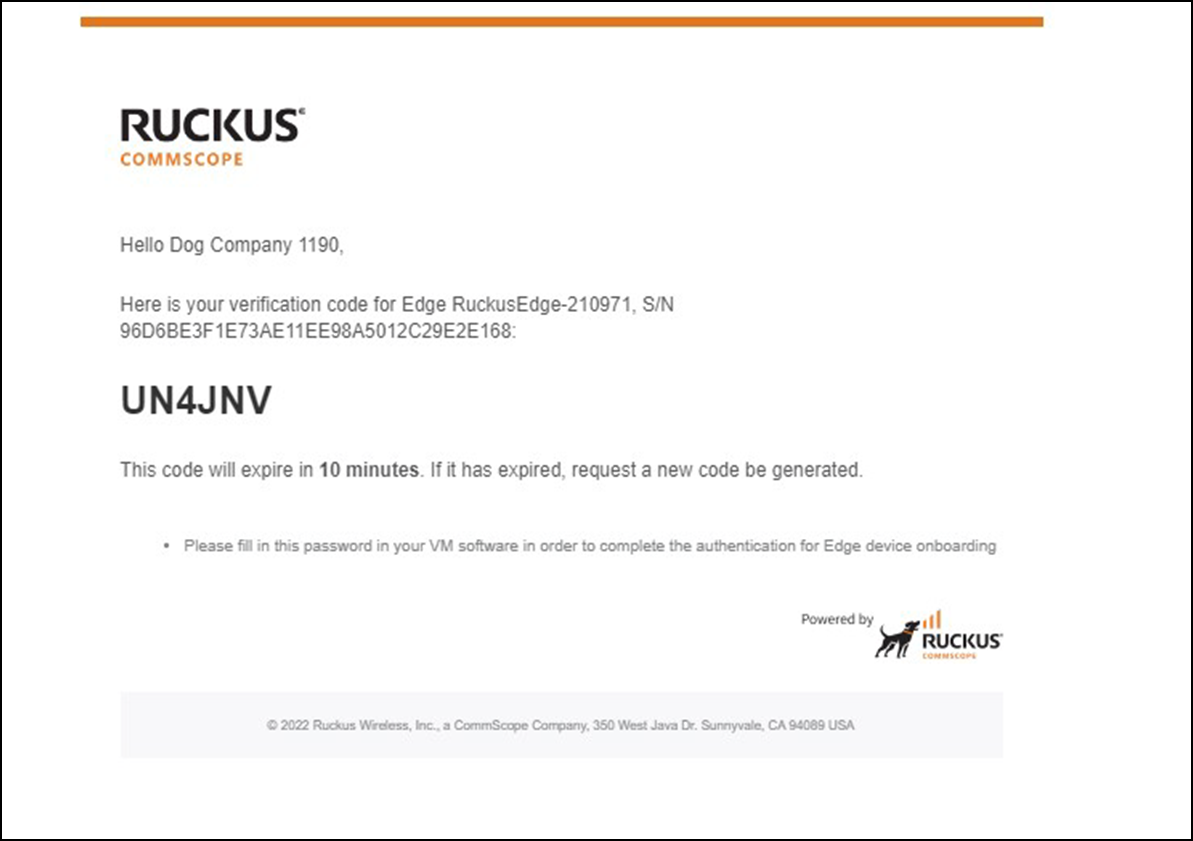
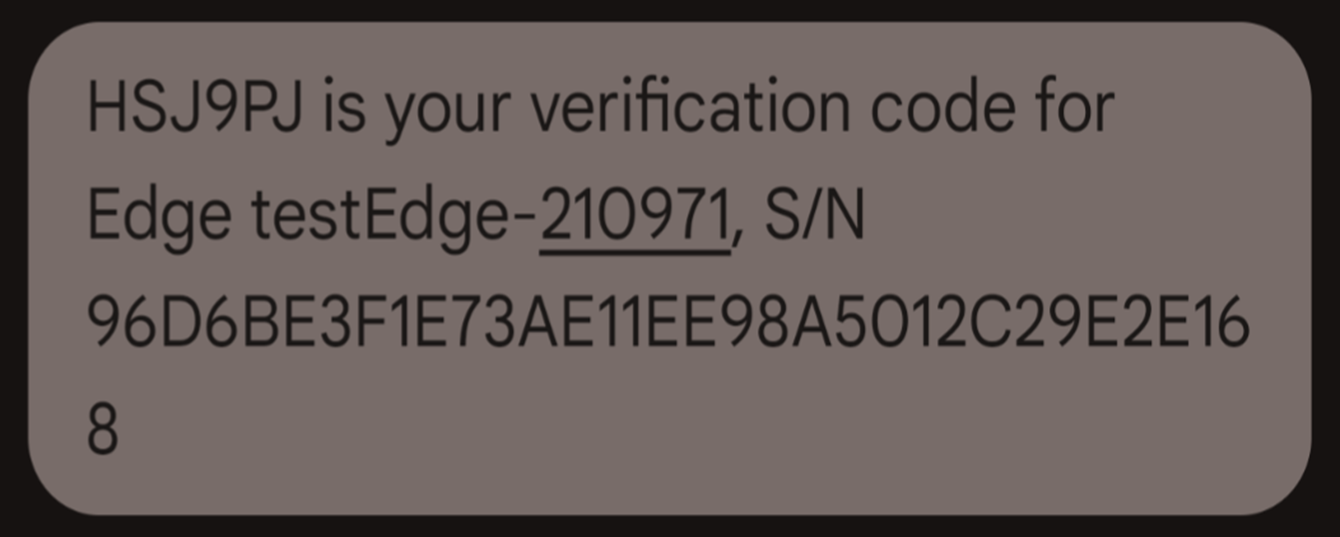
To complete the onboarding process, perform the following steps to authenticate and authorize the RUCKUS Virtual Edge device for RUCKUS One management.
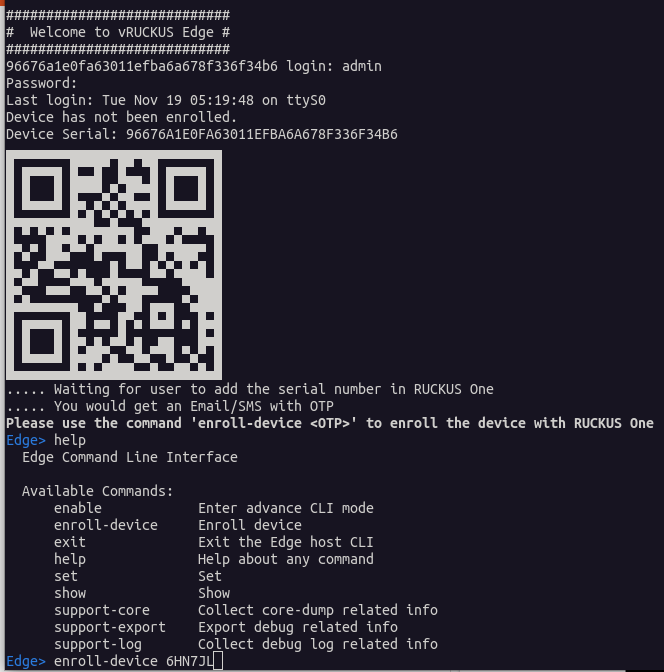
- After receiving the OTP for the specific device, log in to the RUCKUS Virtual Edge VMware ESXi Console using the credentials: Username: admin, Password: admin.
- Enter the
enroll-devicecommand to initiate the authentication process of the RUCKUS Virtual Edge device with RUCKUS One.After you enter theenroll-devicecommand, RUCKUS Virtual Edge goes through the following steps:- The RUCKUS Virtual Edge negotiates with RUCKUS One, acquires a valid device certificate and/or key, and installs it locally.
- Using this certificate and/or key, RUCKUS Virtual Edge authenticates and authorizes with RUCKUS One and is onboarded successfully.
- The RUCKUS Virtual Edge is displayed on RUCKUS One with the status as Needs Configuration.