Obtaining the RUCKUS Virtual Edge Serial Number and Interface IP Addresses
Refer to the RUCKUS Edge Command Reference Guide for syntax and usage of commands used for configuring and managing the Edge devices.
To access the CLI and use the applicable commands, perform the following on the hypervisor interface:
- Right-click on the RUCKUS Virtual Edge name and click Console.You can open the console in a new window.
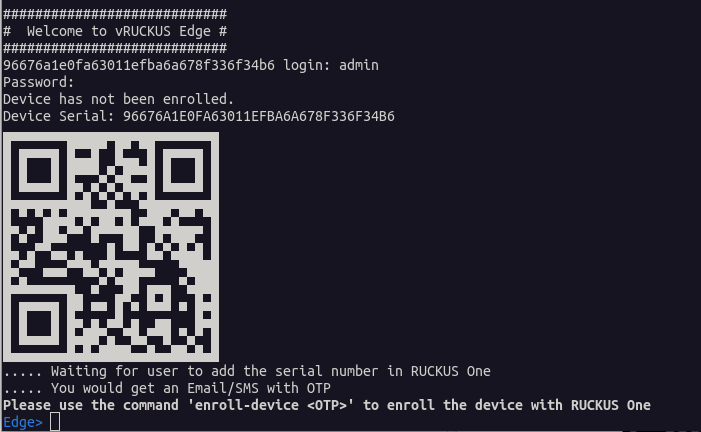
- Log in to the console using the credentials: Username: admin, Password: admin.
- Although the serial number is
displayed at log-on, at any time you may display the RUCKUS Virtual Edge device serial number by entering the
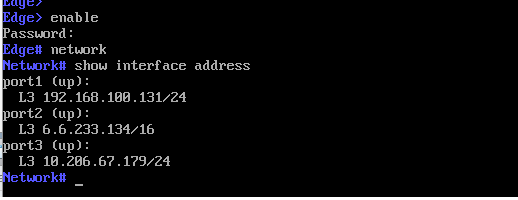
show serialcommand. - To view the interface IP
addresses for your RUCKUS Virtual Edge, enter
network mode, using the
enablecommand followed by thenetworkcommand. In network mode, enter theshow interface addresscommand. The IP addresses listed under port1, port2, and port3 correspond to the interface IP addresses.To configure static IP address, enter network mode, then enter theset interface ip addresscommand, as shown in the example below:RUCKUS Edge> enable Password: RUCKUS Edge# network Network # set interface ip address port1 192.168.1.1/24 192.168.1.254