Creating An Authorization Server
You must have at least one active directory authorization server for PEAP authentication
using the onboard RADIUS server, but you can configure as many authorization servers
as you want.
Note: It is strongly recommended to
not place the AD server on the other side of any type of NAT device because AD over NAT
has not been tested by Microsoft.
To set up an active directory for user with PEAP, follow these steps:
- In the Cloudpath UI, go to Configuration > Authentication Servers.
- Click Add Server.
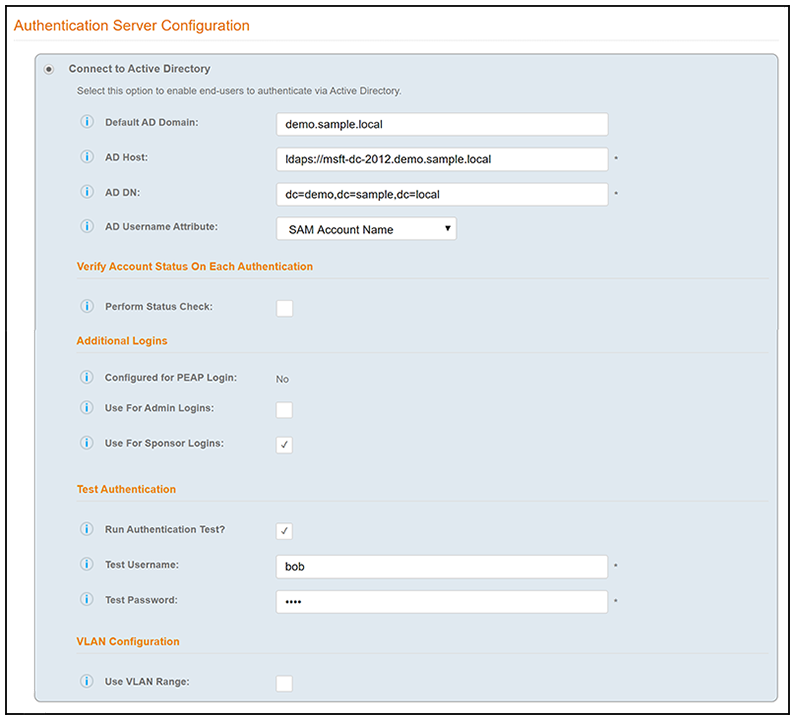
- On the ensuing Authentication Server Configuration screen, you can first click one of the "Sample data" options at the very bottom of the screen, then tweak the information as needed for your system. An example of this screen after the "AD using LDAPS" item has been clicked is shown below.
- In the AD Host field, enter the fully qualified domain name, which is
ldaps://msft-dc-2012.demo.sample.local in this example
Shannon - the IP address worked but not the FQDN - should i tell users to use the IP instead of the FQDN?.
- Click
Save.
Note: The "Configured for PEAP Login" will be set to No until you join the server to the PEAP domain (shown later).
- On the ensuing Server Certificate Information screen, Click Save.