Adding Policies to RADIUS Server Configuration
You can add as many policies as you want, but only one policy can be associated with
a given user. For a user to successfully connect to the network, the user must be
a match for at least one policy.
Steps to Add Policies
Follow these steps to add a policy:
- In the Cloudpath UI, go to Configuration > RADIUS Server.
- Click the PEAP tab.
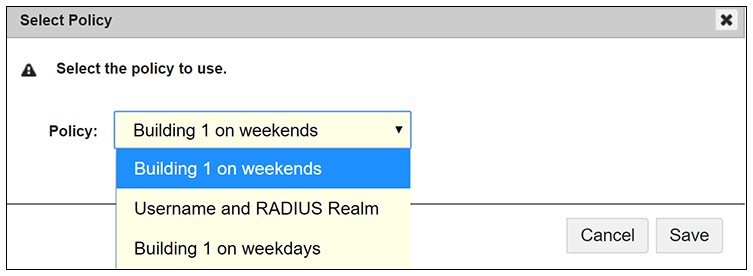
- Click Add Policy. The Select Policy Drop-down List appears, as shown in the following example list. The policies that you have already configured are available for you to add:
- Select the policy you wish to add, then click Save.
- Continue to add policies as you desire. If you have added all available policies, you will receive the message: " All Defined Policies have been assigned."
Policy Rules
The following illustration shows an example of how the page appears after three policies have been added:
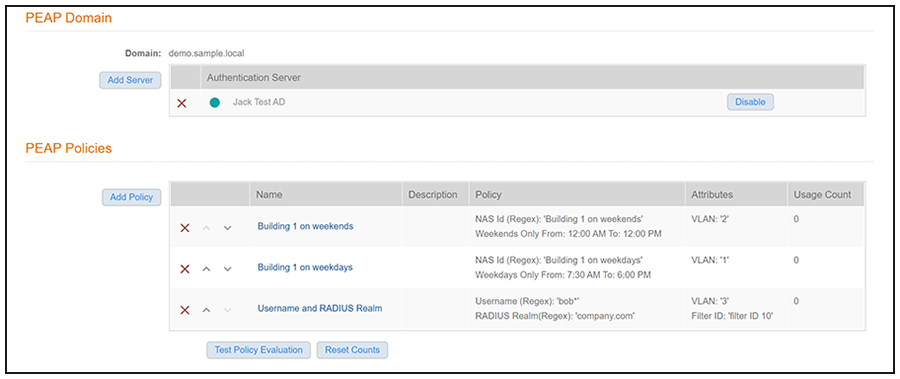
- There may be many policies whose criteria are matched by a user, but the first policy
that is a match is the one that gets applied. For example, if you have three policies,
as shown above, the order in which you have them listed is the order in which they
will be tested for matches with an enrolling user.
Note: You can use the arrows in the screen show above to list the policies in the desired order. If you want to remove a policy from being used with PEAP, click the X next to the policy, then confirm the removal of the policy when prompted.
- Because the "Building 1 on weekends" policy is listed first, the matching criteria
in that policy (listed in the Policy column) will first be checked against an enrolling
user. If there is a match, the policy is applied to the user (meaning that the attributes
listen in the Attributes column are applied to the user). If there is no match, the
next policy ("Building 1 on weekdays") is checked against the enrolling user, and
so on.
Note: Even though this example shows only three policies for simplicity sake, you must configure policies so that all users will be a match for at least one policy. If a user matches at least once policy, the user will be given network access because all policies are "allow only." However, if a user does not match any policy, the user is denied network access.