Adding an Active Directory Authentication Server
You need to add at least one authentication server to the PEAP realm.
Follow the steps below:
- In the Cloudpath UI, go to Configuration > RADIUS Server.
- Click the PEAP tab.
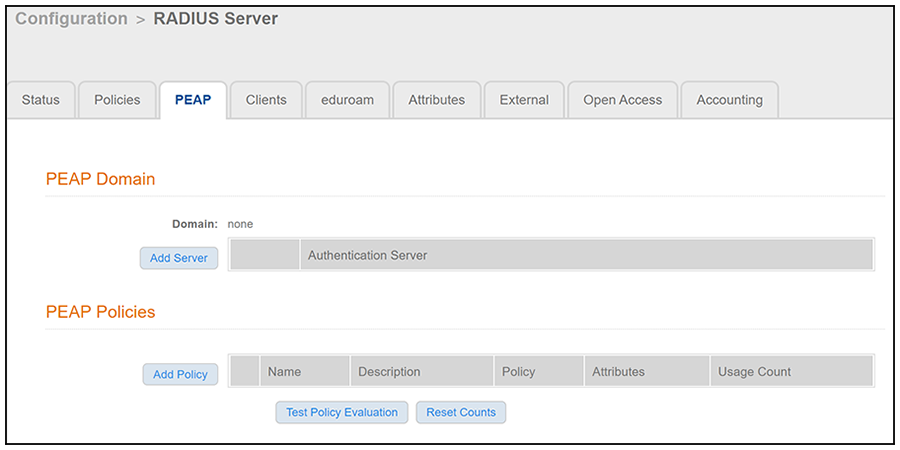
- The first time you go here, you may be presented with a button called ENABLE PEAP. Click this button to proceed. You should then arrive at the following screen :
- In the PEAP Domain section of the screen, click Add Server.
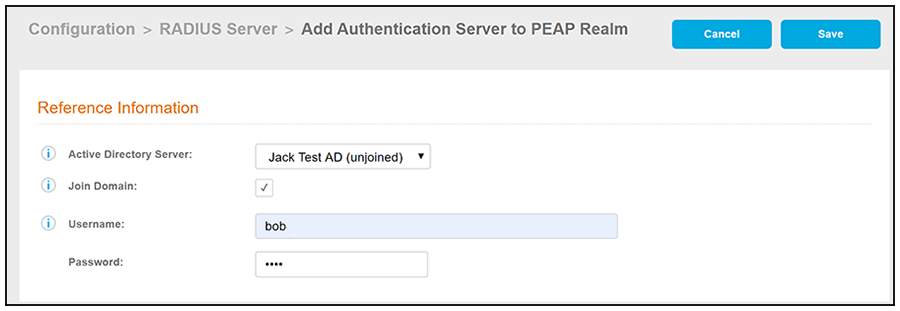
- On the ensuing Add Authentication Server to PEAP Realm screen (see the completed example
figure below), do the following:
Shannon - I had to change AD Host Name back to the FQDN to add the Server here. Should that have to be the case?
- Click Save.
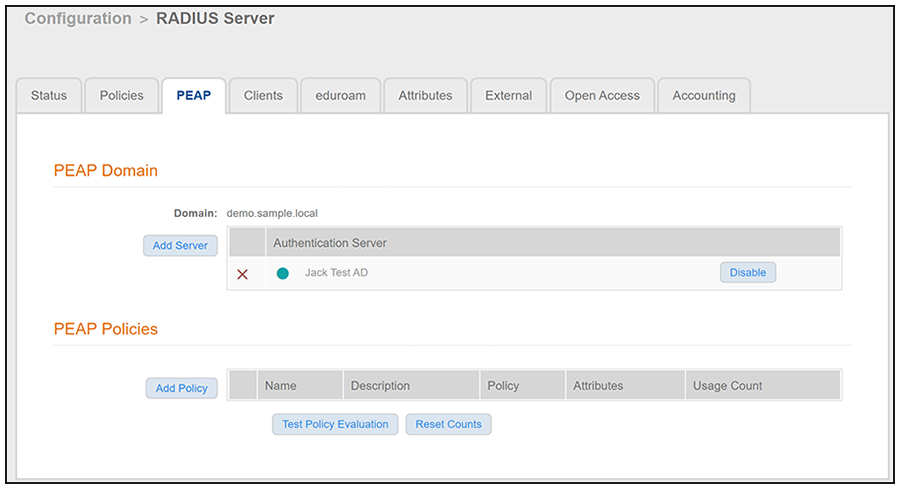
- The PEAP Domain portion of the screen should now indicate the realm (domain), as shown in the example below :
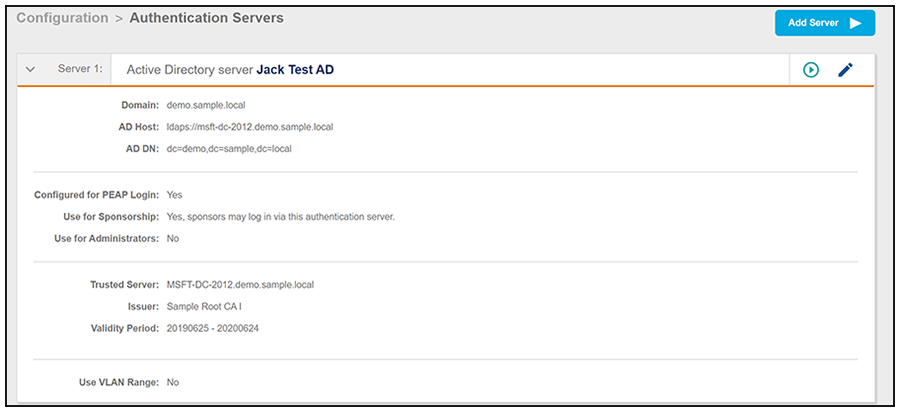
- You can now go back to the Authentication Server configuration (Configuration > Authentication Servers), and the "Configured for PEAP Login" field should now have the "yes" value, as shown below: