Checking a User Record
You can check the record of a user for various information, including the PEAP policy
that has been applied to the user upon a successful enrolment.
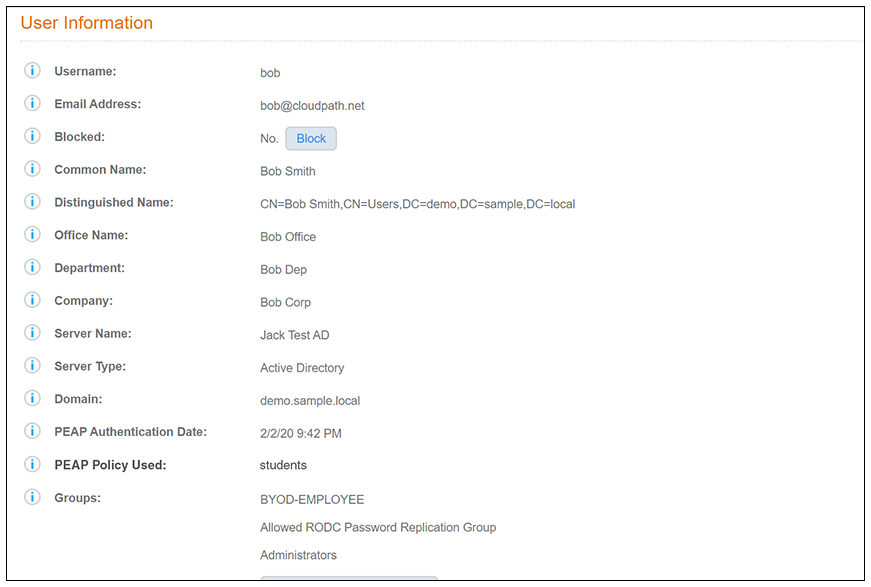
To view a user's record, go to Dashboard > Users & Devices in the UI, then click the magnifying glass icon for the user whose information you wish to view. An example of the record for a user named bob is shown in the figure below. Toward the bottom of the record, the PEAP authentication date and PEAP policy used are shown.
Note: If there was no policy applied to a user, the PEAP Policy Used column will indicate:
"no match," denoting that the user has not been allowed into the Cloudpath system.
You must configure your policies so that at least one policy will be a match for any
given user who needs access.
Shannon - Do I need a new screen shot for 5.7?