Find Technical Content
  • Home
  • Ruckus Support Portal
  • Ruckus Networks
  • Table of Contents
  • Dark Mode

Powered by Titania Delivery

⚠ This cached page may be outdated. Click refresh to get the latest content.
Cached Version You are Offline

You are viewing a cached version of this page.

You are currently offline. This page was loaded from cache.

Cloudpath Enrollment System End-User Experience Guide For Supported Devices, 5.5 800-72403-001 Rev A

  • Preface
    • 3 Preface
      • 3.1 Document Conventions
      • 3.2 Command Syntax Conventions
      • 3.3 Document Feedback
      • 3.4 Ruckus Product Documentation Resources
      • 3.5 Online Training Resources
      • 3.6 Contacting Ruckus Customer Services and Support
    • 4 Overview
  • 5 End-User Experience for Windows Phones
    • 5.1 Supported Windows Phones Versions
    • 5.2 User Prompts
      • 5.2.1 Welcome Screen With AUP
      • 5.2.2 User Type
      • 5.2.3 Device Type
      • 5.2.4 Voucher Code
      • 5.2.5 BYOD Policy
      • 5.2.6 Windows Phone Configuration Instructions
      • 5.2.7 Download CA Certificates
      • 5.2.8 Start CA Certificate Installation
      • 5.2.9 Install CA Certificate
      • 5.2.10 CA Certificates installed
      • 5.2.11 Download Your Certificates
      • 5.2.12 Enter User Certificate Password
      • 5.2.13 Install User Certificates
      • 5.2.14 Certificates installed
      • 5.2.15 Wi-Fi Configuration
      • 5.2.16 Access Device Menu
      • 5.2.17 Access Device Settings
      • 5.2.18 Locate Wi-Fi Settings
      • 5.2.19 Configure Wi-Fi Settings
      • 5.2.20 Connected to Secure Network
    • 5.3 Common Windows Phone Issues
  • 6 End-User Experience for Windows Devices
    • 6.1 Supported Windows versions
    • 6.2 User Experience
      • 6.2.1 Enrollment User Prompts
        • 6.2.1.1 Welcome Screen With AUP
        • 6.2.1.2 User Type
        • 6.2.1.3 User Credentials
        • 6.2.1.4 Device Type
        • 6.2.1.5 Voucher Code
        • 6.2.1.6 BYOD Policy
      • 6.2.2 Configuration Wizard
      • 6.2.3 Wizard Application User Experience
      • 6.2.4 Other Methods for Launching Application
  • 7 End-User Experience for iOS Devices
    • 7.1 Supported iOS Versions
    • 7.2 User Prompts
      • 7.2.1 Welcome Screen With AUP
      • 7.2.2 User Type
      • 7.2.3 User Credentials
      • 7.2.4 Device Type
      • 7.2.5 Install Profile
      • 7.2.6 Connect to Secure Network
  • 8 End-User Experience for MAC Devices
    • 8.1 Supported MAC OS Versions
    • 8.2 User Experience
      • 8.2.1 Enrollment User Prompts
        • 8.2.1.1 Welcome Screen With AUP
        • 8.2.1.2 User Type
        • 8.2.1.3 User Credentials
        • 8.2.1.4 Device Type
        • 8.2.1.5 Voucher Code
        • 8.2.1.6 BYOD Policy
      • 8.2.2 Configuration Wizard
        • 8.2.2.1 Download and Run Application
      • 8.2.3 Wizard Application User Experience
        • 8.2.3.1 Administrator Credentials
        • 8.2.3.2 Attempting to Connect to Secure Network
        • 8.2.3.3 Validating Connectivity
        • 8.2.3.4 Connected to Secure Network
        • 8.2.3.5 Verify Network Connection
      • 8.2.4 Install Network Profile to Configure Wi-Fi
        • 8.2.4.1 Download Page
        • 8.2.4.2 Install Profile
        • 8.2.4.3 Install Profile Confirmation
        • 8.2.4.4 Profile installed
        • 8.2.4.5 Join Wireless Network
  • 9 End-User Experience for Linux Devices
    • 9.1 Supported Linux Versions
    • 9.2 Cloudpath User Experience
      • 9.2.1 Enrollment User Prompts
        • 9.2.1.1 Welcome Screen With AUP
        • 9.2.1.2 User Type
        • 9.2.1.3 User Credentials
        • 9.2.1.4 Device Type
        • 9.2.1.5 Voucher Code
        • 9.2.1.6 BYOD Policy
        • 9.2.1.7 Linux Download Page
        • 9.2.1.8 Open Downloaded Files
        • 9.2.1.9 Extract Downloaded Files
        • 9.2.1.10 Open Application File
    • 9.3 Wizard Application User Experience
      • 9.3.1 Configuring the Device
      • 9.3.2 Connected to Secure Network
      • 9.3.3 View Network Connection
  • 10 End-User Experience for Blackberry Devices
    • 10.1 Supported BlackBerry Versions
    • 10.2 Cloudpath User Experience
      • 10.2.1 Enrollment Steps
        • 10.2.1.1 Welcome Screen With AUP
        • 10.2.1.2 User Type
        • 10.2.1.3 User Credentials
        • 10.2.1.4 Device Type
        • 10.2.1.5 BYOD Policy
      • 10.2.2 BlackBerry Configuration Instructions
      • 10.2.3 Download Certificates
      • 10.2.4 Import Certificates
      • 10.2.5 Configure Wi-Fi Settings
  • 11 End-User Experience for Chromebook Devices
    • 11.1 Overview
    • 11.2 Supported Chrome OS Devices
    • 11.3 Cloudpath User Experience
      • 11.3.1 Enrollment Workflow
        • 11.3.1.1 User Type
        • 11.3.1.2 User Credentials
        • 11.3.1.3 Device Type
      • 11.3.2 Managed or Unmanaged Chromebooks
        • 11.3.2.1 Unmanaged Chromebook User Experience
        • 11.3.2.2 Managed Chromebooks With Extension User Experience
  • 12 End-User Experience for Android Devices
    • 12.1 Supported Android Versions
    • 12.2 Cloudpath User Experience
      • 12.2.1 Welcome Screen With AUP
      • 12.2.2 User Type
      • 12.2.3 User Credentials
      • 12.2.4 Device Type
      • 12.2.5 BYOD Policy
      • 12.2.6 Android-Specific Configuration Instructions
      • 12.2.7 Download and Install Application
        • 12.2.7.1 Install from Google Play
          • 12.2.7.1.1 Accept Access Request
          • 12.2.7.1.2 Next Step After Application is Installed on Device
          • 12.2.7.1.3 Close Download Options (Android version 5.0)
        • 12.2.7.2 Install from Amazon Market
          • 12.2.7.2.1 Return to Configuration Screen
        • 12.2.7.3 Local Download
          • 12.2.7.3.1 Accept Access Request
          • 12.2.7.3.2 Return to Configuration Screen
      • 12.2.8 Configure Application
      • 12.2.9 Cloudpath Wizard User Experience
        • 12.2.9.1 Introduction
        • 12.2.9.2 User Experience Example for Android Version 5.0 and Later
          • 12.2.9.2.1 Network Monitored Message
          • 12.2.9.2.2 Attempting to Connect to the Network
          • 12.2.9.2.3 Connected
    • 12.3 Troubleshooting
      • 12.3.1 Common Android Issues
      • 12.3.2 Retrieve Log Files
      • 12.3.3 Passwords and Lock Screen PINs
      • 12.3.4 Blank Certificate Field
      • 12.3.5 Certificate Passwords
      • 12.3.6 Android .netconfig File
      • 12.3.7 Memory Card
      • 12.3.8 Uninstalling the Application
        • 12.3.8.1 Remove Device Administrator
        • 12.3.8.2 Remove Certificates
        • 12.3.8.3 Remove SSID
        • 12.3.8.4 Remove Log Files

Install from Google Play

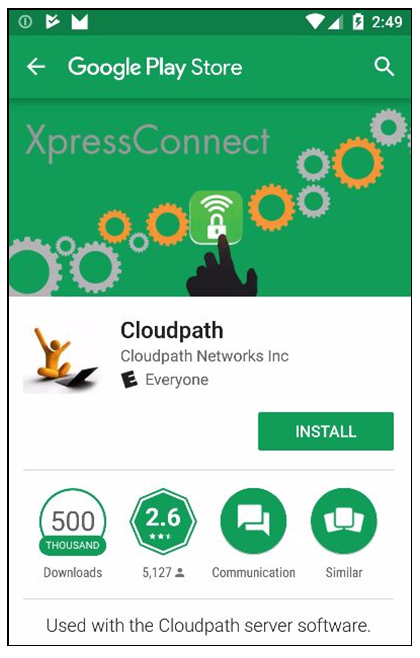
If permitted by the network configuration, the application can be installed from the Google Play Store.

Install from Google Play Store

Tap Install to continue.

In this section:

  1. Accept Access Request
  2. Next Step After Application is Installed on Device
  3. Close Download Options (Android version 5.0)
Parent topic: Download and Install Application
Did you find what you were looking for?

Thanks!

Ruckus Wireless

© 2026 Ruckus Wireless LLC All rights reserved.

  • Accessibility
  • Privacy & Cookies
  • Do Not Sell My Information
  • Trademarks
  • Terms
  • Feedback