Download and Run Application
The default user experience setting for Mac OS X is to download the application to the user device, run the application to configure the wireless settings, and migrate the device to the secure network.
Download Page
The application detects the device user agent and displays the appropriate Mac OS X-specific download and configuration instructions.
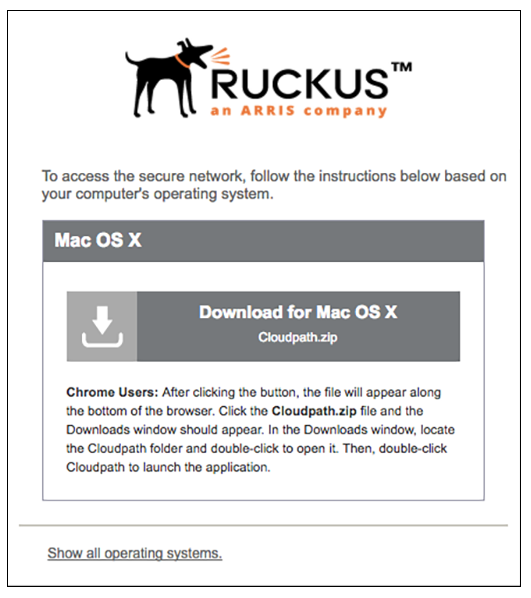
Click the down arrow to download the zip file, which contains the application files.
Open Downloaded Files
Browse to the Downloads folder, open the Cloudpath/config folder to locate the Cloudpath application file.
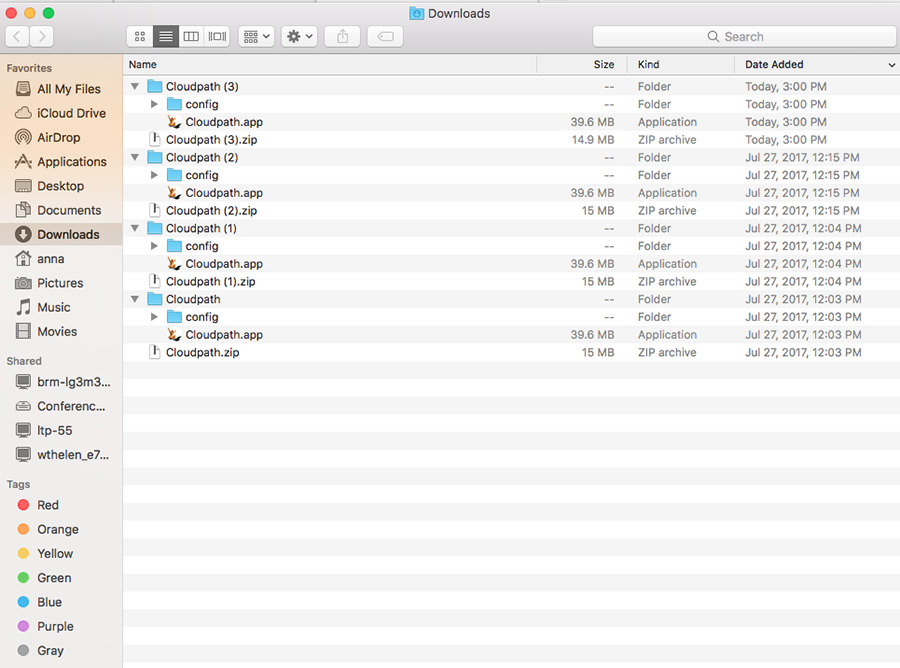
Double-click the Cloudpath application to start the Wizard, which runs through the configuration and migration process.
Confirm Open File
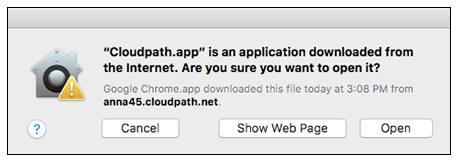
Your browser or operating system may prompt you to confirm that you want to open the application file.