Configuring an Authentication Backend
Configuration Steps
Follow these steps to configure an LDAP server:
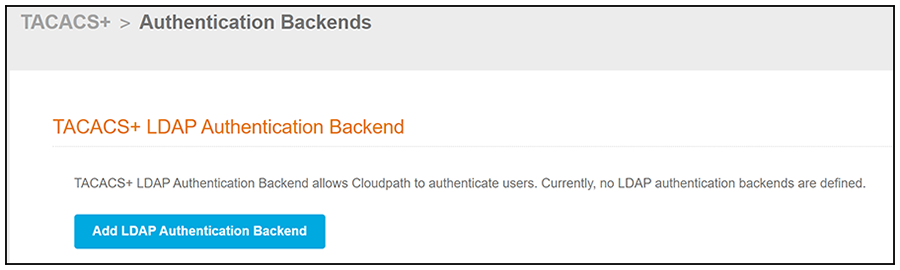
- In the Cloudpath UI, go to TACACS+ > Authentication Backends The following screen is displayed.
- Click the Add LDAP Authentication Backend button.
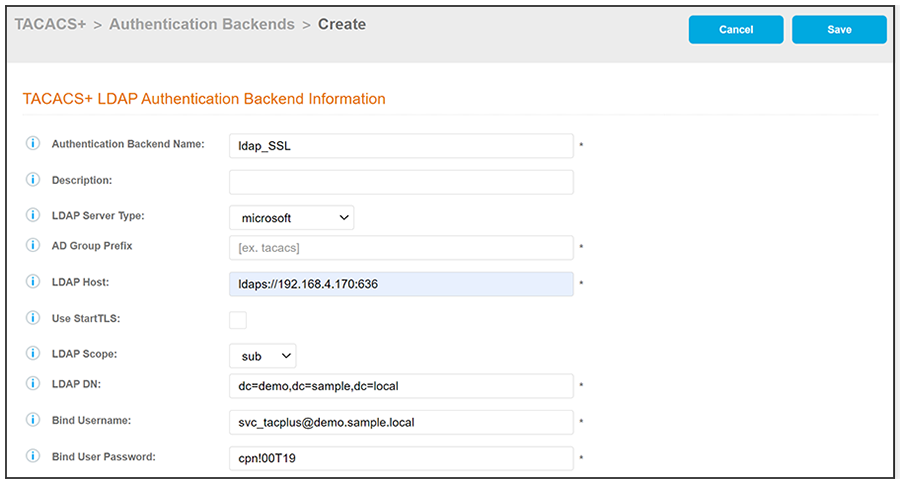
- Configure the values to create
the TACACS+ LDAP authentication backend, as shown in the following example.
- Authentication Backend Name: A descriptive name for the LDAP server; this name will be used when you build the configuration profile.
- Description: (Optional) Description of the LDAP server.
- LDAP Server Type: Choose
one of the following from the drop-down list:
- microsoft - for Active Directory
- generic - for a generic LDAP where the user gets authenticated.
- tacacs_schema - for a TACACS+ LDAP Schema.
Note: The TACACS+ LDAP schema is not supported. -
New field for 5.9AD Group Prefix (applicable only to AD Microsoft servers): An AD group name that contains this prefix is used to determine a user's TACACS+ group membership, and the prefix is stripped from the TACACS+ group name. Example: If the AD Group Prefix is set to "tacacs", members of the AD group called "TacacsNOC" get assigned to the TACACS+ group called "NOC".Note: TACACS+ group names are case-sensitive.
- LDAP Host:
Space-separated list of LDAP URLs, IP addresses, or hostnames, with the
following guidelines:
- For LDAP over SSL
(LDAPS), always use ldaps://
Example: ldaps://192.168.4.170:636
Port 636 is the default for LDAPS.
- For secure TLS, do not use ldaps:// in front of the IP address or hostname. If no port is specified, the default port 389 is used.
updated since last draft - For LDAP over SSL
(LDAPS), always use ldaps://
- Use StartTLS: Check this box only if you are using TLS. If checked, the server is required to support STARTTLS. An LDAP connection on port 389 will be an encrypted connection.
- LDAP DN: Base DN of the LDAP server.
- LDAP Scope: Choose one of the following from the drop-down list:
- Bind Username: Username for LDAP bind.
- Bind User Password: Password for the Bind Username.
- Click Save.
Adding the Certificate to Secure LDAP SSL or LDAP TLS Backend
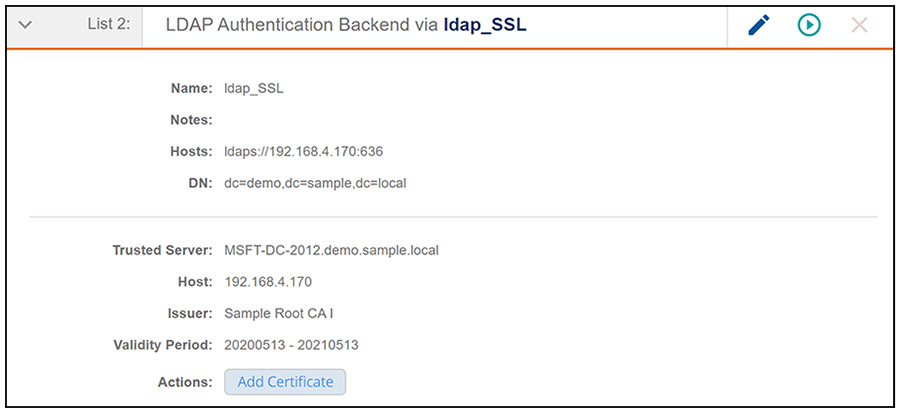
Once you save the LDAP backend, you
are returned to the main Authentication Backends screen. If you configured a secure
backend (as shown in the SSL example in Creating the LDAP
Authentication Backend
Testing the LDAP Authentication
After you have added an LDAP backend (and the certificate if applicable), you can test the interaction with the backend by following the steps below:
- Click the green arrow for the LDAP backend you wish to test.
- In the ensuing screen, enter credentials for a user to verify interaction with the LDAP authentication backend, then click Continue.
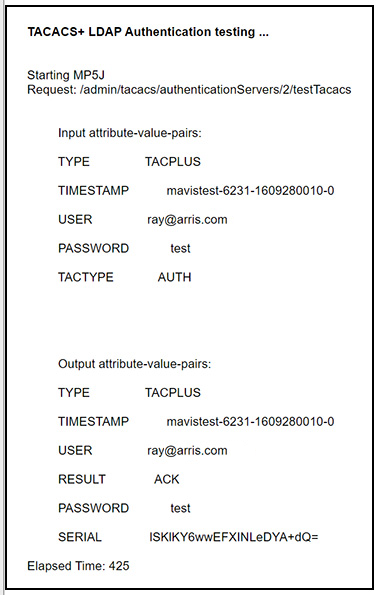
- Check the results on the
ensuing screen, an example of which is shown below.
The "Result" field near the bottom of the screen can yield the following values: