Configuring TACACS+ Services
Configuration Steps
Follow these steps to add a service to your TACACS+ configuration:
- In the Cloudpath UI, go to TACACS+ > TACACS+ Services.
- Click Add Service.
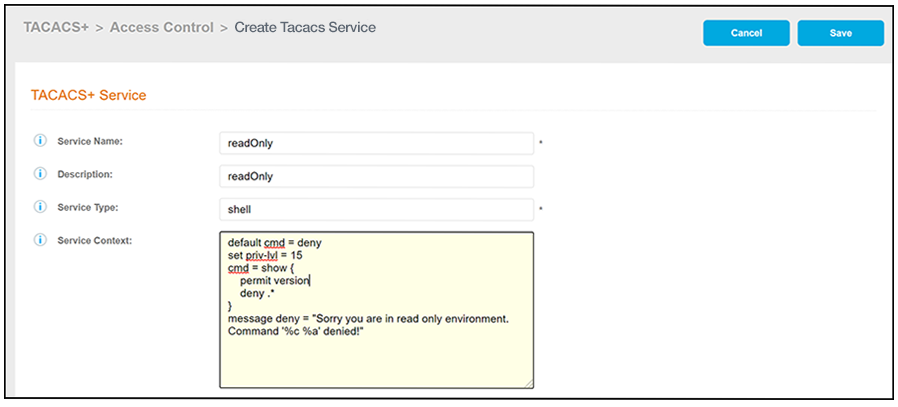
- Configure the values to create a
TACACS+ service, as shown in the following example.
- Service Name: A descriptive name for the service; this is used for reference when building the configuration profile. No spaces are allowed in the name.
- Description: (Optional) Description of the service.
- Service Type: The default is "shell," which gives EXEC service. Other allowed values include "ppp" for PPP, and "junos-exec" for a Juniper Networks-specific authorization service.
- Service Context: You can
add the entries you desire to build the service. The following list
describes the entries that are shown in the example screen above:
- default cmd: A default cmd statement is used specify whether or not to accept or reject commands that are not explicitly permitted. In the example, commands will be denied by default.
- set priv-lvl: A
set priv-lvl statement is used to set the privilege
level for the EXEC commands. In this example, the privilege
level is set to 15. The allowed range for the privilege level is
0-15; Level 1 is for normal user EXEC mode privileges.
The statement for setting a privilege level for a RUCKUS ICX switch is set foundry-privlvl instead of set priv-lvl. However, if you use the set priv-lvl statement for a RUCKUS ICX switch, Cloudpath automatically translates the privilege value to the corresponding level for an ICX switch, as shown in the table below.
Privilege Level Translation for RUCKUS ICX Switches
Value for "set priv-lvl" for Connecting to ICX RUCKUS Privilege Level (ICX) 15 0 (super-user) 14-1 4 (port-config) 0 5 (read-only) Christopher - Plz check, thanks.- The statement set priv-lvl 15 for a user who connects to an ICX switch will be given a privilege level of 0 (super user) on the ICX switch.
- The statement set priv-lvl 0 for a user who connects to an ICX switch will be given a privilege level of 5 (read-only) on the ICX switch.
- The statement set foundry-privlvl 0 for a user who connects to an ICX switch will be given a privilege level of 0 (super user) on the ICX switch, but in this case Cloudpath would not need to translate the value because the ICX syntax was used to set the privilege level.
- cmd: A cmd
statement can be used to explicitly list commands that this
service will allow the user to run. In the example, the
statement shown is:
cmd = show { permit version deny .* } - message deny:
This statement can be used to provide a message to the user when
a command is denied. In the example, the user will be presented
with the following message:
Sorry you are in read only environment. Command '%c %a' denied!
Note: '%c %a' are variables that will be expanded within the device.
- Click Save.
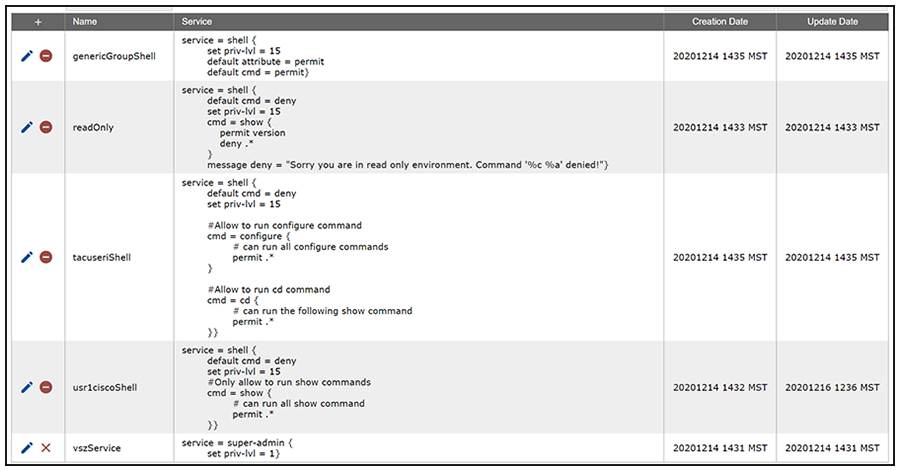
- Add and configure any additional
services. The following screen is an example of the main Services configuration
screen and its information after several services have been configured.
Note: You can reference one or more configured services when you configure user groups or individual users. The group and user configuration screens have a drop-down menu from which you can select configured services.
Other Actions You Can Perform From Main Services Configuration Screen
Some of the actions you can take from the main Services Configuration screen (Services Screen Example After Adding Several Services) include:
- Deleting a services
configuration: Click the X
in the column to the left of the name of the configuration, then confirm the
deletion when prompted.
Note: A minus sign indicates that the services configuration cannot be deleted because it is being referenced by from the Services drop-down list in either a group or user configuration. You would have to first remove the reference from the applicable group or user configuration if you want to be able to delete it from the main Services Configuration screen.
- Editing a service configuration: Click the pencil icon in the column to the left of the name of the configuration, then make and save any edits in the ensuing screen.