Modifying an Existing Insights User
When modifying a RUCKUS IoT Insights user, ensure that the user account is in the correct state (enabled or disabled). To do so, ensure that the User Name field correctly shows the desired state for the user.
Complete the following steps to modify the Insights user details.- From the main menu, go to .
- Username: From the User Name list, select the name of the user you want to modify.
- E-Mail Address: In the E-Mail Address field, enter the email address of the user.
- User Role: From the User Role list, select the role of the user.
- Password: In the Password field, enter a password for the user. Ensure the password strength is strong.
- Site: From the Site list, select the site of the user.
- Click Update to modify the user details.
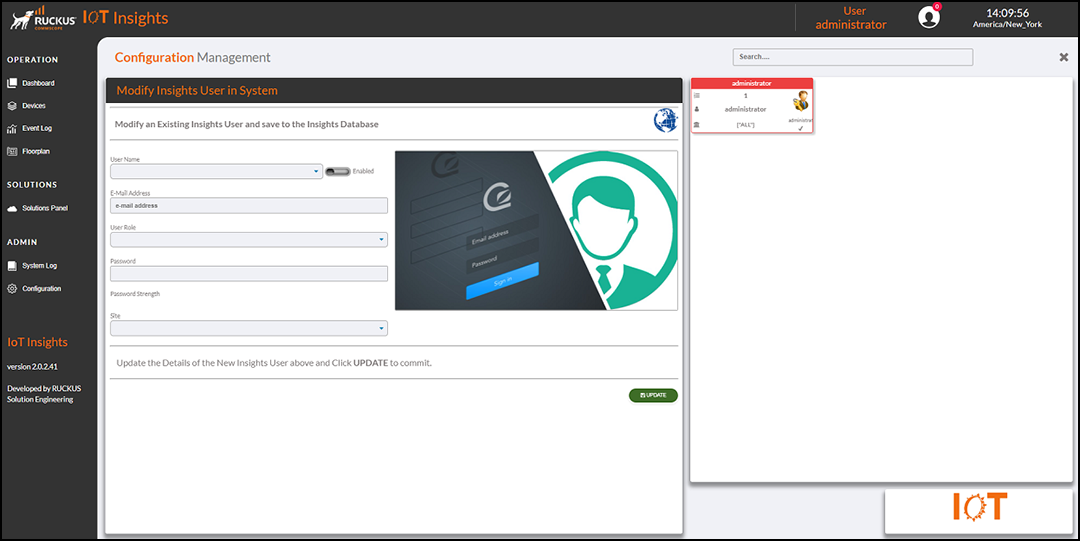
The Current Users table lists the user details, including the ID, role, name, sites, and whether the user is enabled.
You can enter search criteria in the Search field to search the Current Users table for information.