Adding a New Secondary Node

This feature allows administrators to add a new secondary node to the HA cluster when the existing secondary node becomes permanently unreachable and the health of HA system is in critical state. It helps restore the cluster's health, ensuring redundancy and reducing the risk of data loss or network outages.

You will need the static IP address and the license file name (.bin) for the controller node that you intend to designate as the new secondary node.

To add a new secondary node to the HA setup, perform the following steps.
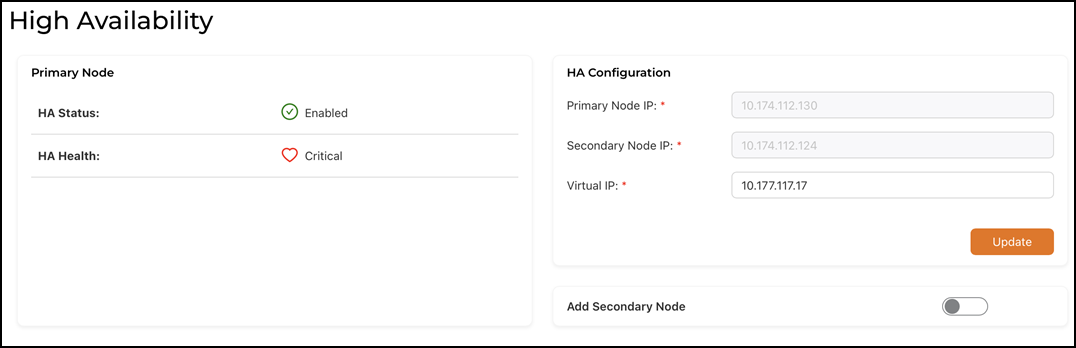
  1. From the main menu, select Admin > HA.
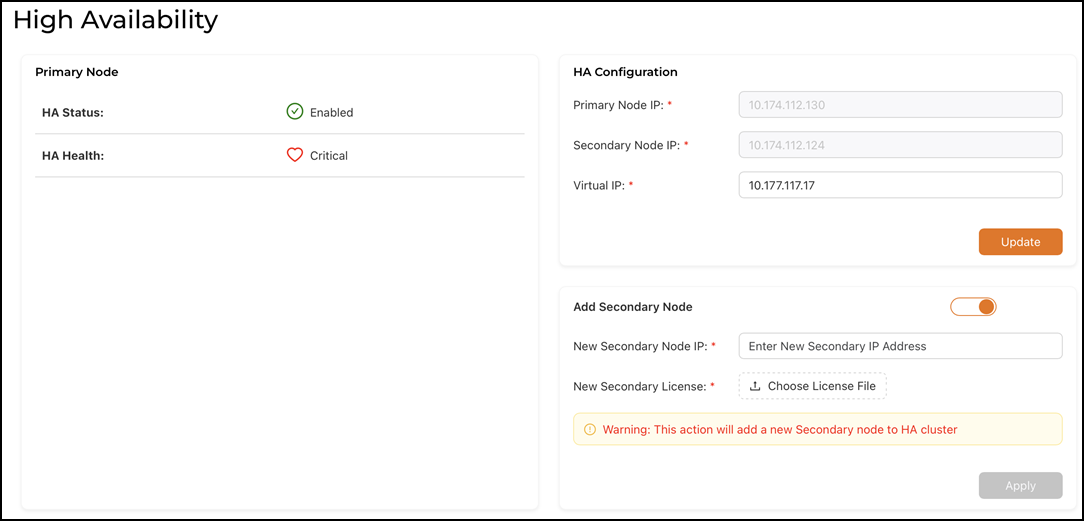
  2. In the PRIMARY NODE section, click the Add Secondary Node toggle button.

    Adding the New Secondary Node

    Configuring New Secondary Node Parameters

  3. Configure the parameters for the new secondary node.
    1. New Secondary Node IP: Enter the static IP address of the new secondary node.
    2. New Secondary License: Click Choose License file. This action opens a file picker so you can upload the secondary node’s license file.
  4. Click Apply.

    A dialog box displays the message Replaced secondary with new secondary node confirming the addition. The new secondary node will automatically sync with the primary node and transition into a healthy HA state.