Use these settings to ensure optimal
performance and compatibility when deploying vSZ-D on a KVM hypervisor.
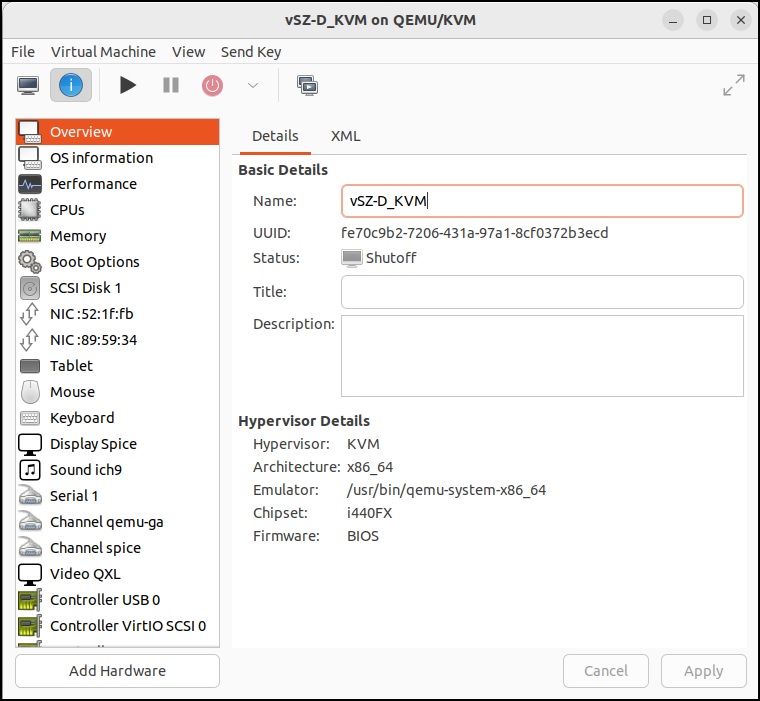
Hypervisor Details:
Verify the hypervisor configuration before deployment.
Note: Ensure that the Chipset is set to
i440FX.
Viewing the
Hypervisor Details
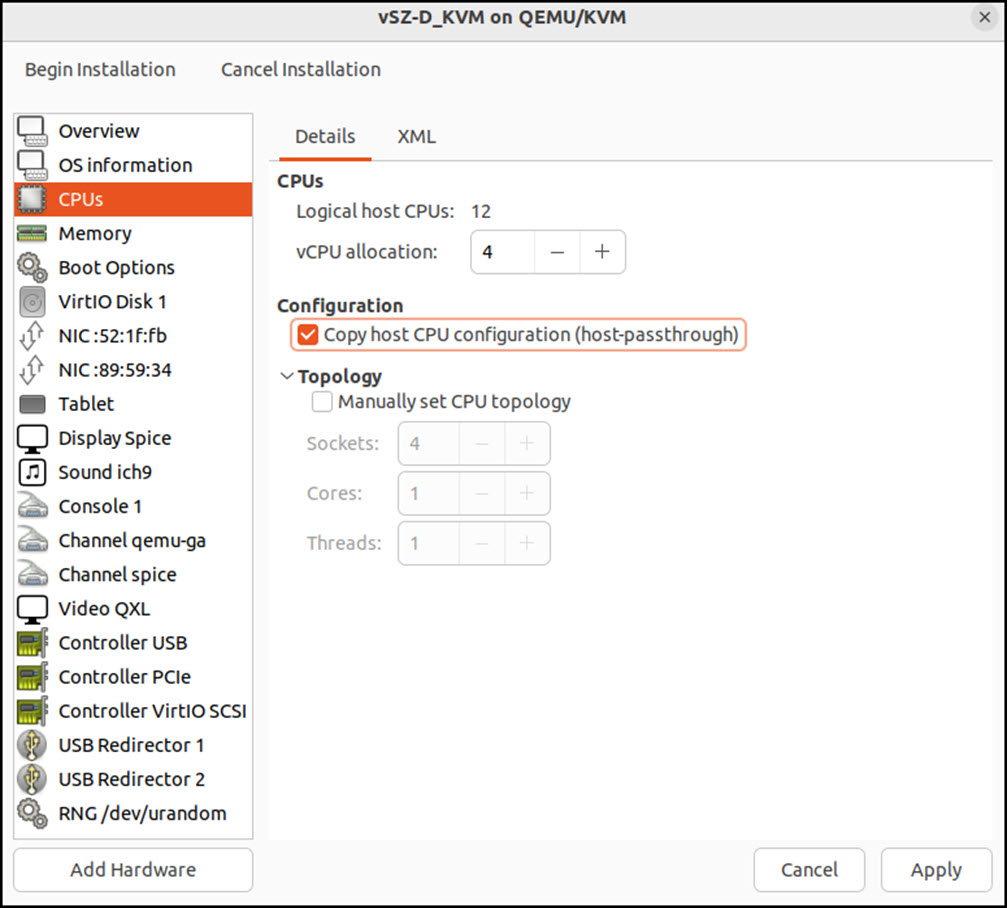
CPUs: Select the
Copy host CPU configuration (host-passthrough)
configuration.
Selecting the
CPU
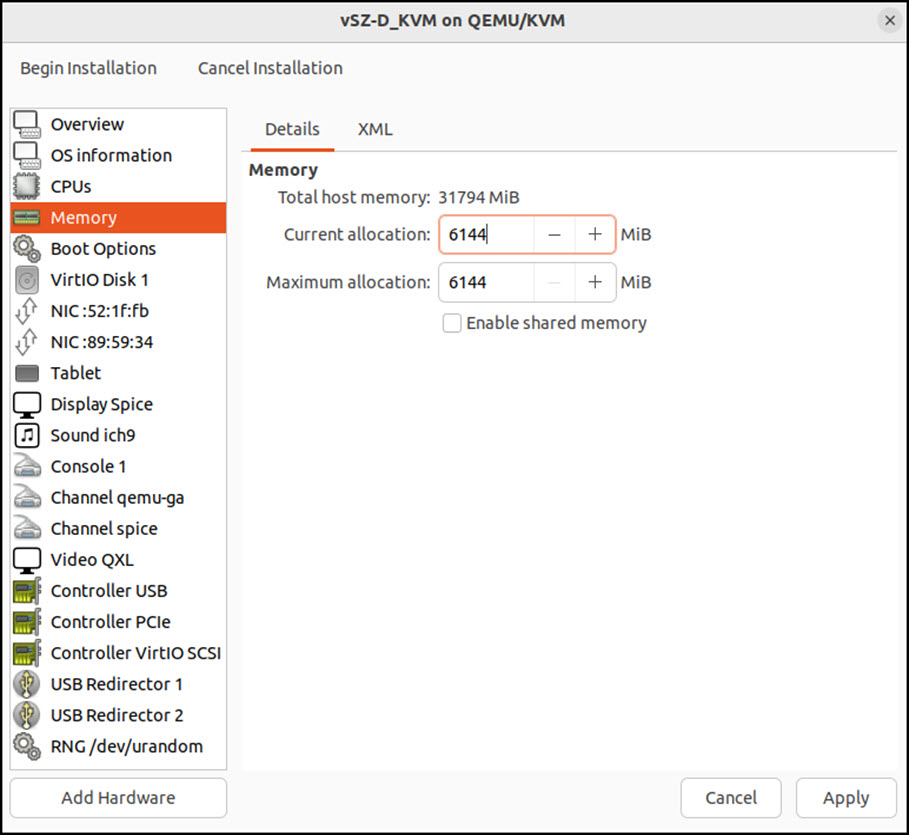
Memory Allocation:
Allocate at least 6 GB (6144 MB) of memory for vSZ-D.
Allocating the Memory
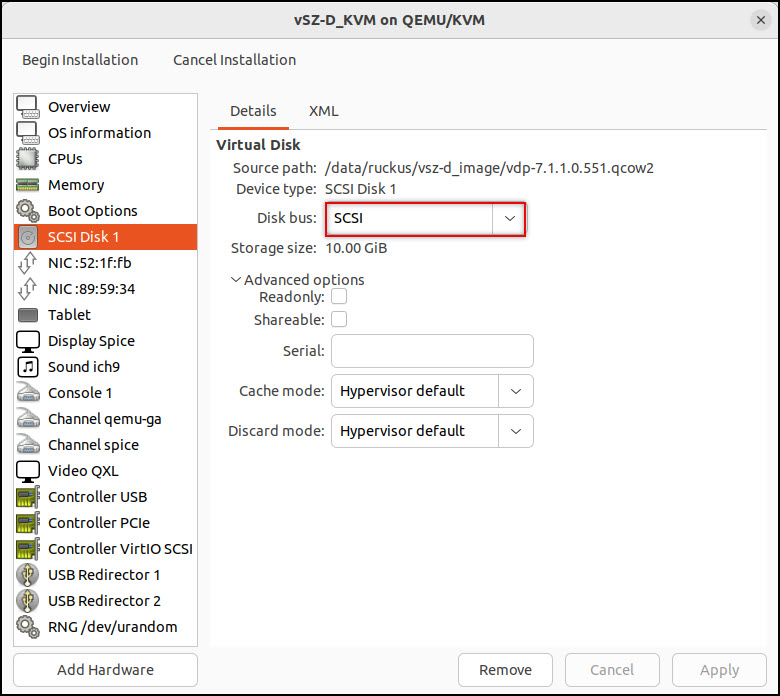
Disk Configuration:
Select SCSI
as the disk bus and qcow2 as the
storage format.
Selecting the Disk Configuration
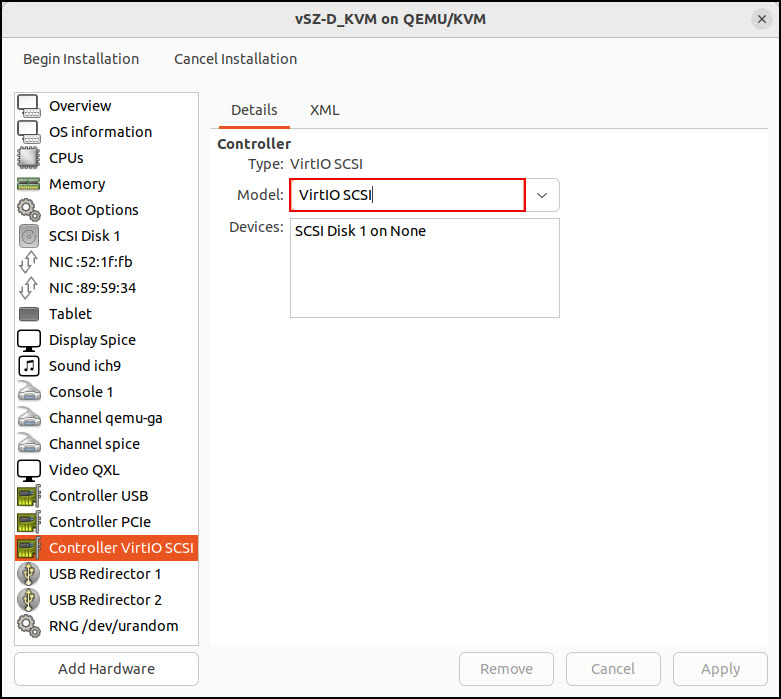
Controller VirtIO SCSI:
Select VirtIO SCSI
as the controller.
Selecting the
Controller
Note: If the Watchdog tab appears, verify that
the correct operating system was selected in the previous step. The Watchdog
tab typically does not appear when the correct operating system is selected.
If a Watchdog device is present, either delete it or select No
action.
NIC Configuration for Direct
I/O Mode
Use Direct I/O mode to assign a physical NIC directly to the VM, bypassing the
virtual switch. This setup reduces latency and improves throughput for data
traffic.
Note: Only the data interface needs to be
configured to direct PCI passthrough (Direct I/O Mode).
Before adding a PCI device to the KVM
hypervisor, you need to complete the following steps:
Enable VT-d in the system BIOS (Intel
Virtualization Technology for Directed I/O).
Restart the server and enter the BIOS/UEFI setup (usually by pressing
Del, F2, or Esc during boot).
Navigate to the CPU or Advanced settings section.
Locate Intel Virtualization Technology for Directed I/O (VT-d).
Use the following examples only for lab testing. These distributions are not
validated for production.
Debian or Ubuntu:
Edit the GRUB
template:
sudo vi /etc/default/grub
Add the IOMMU
parameter:
GRUB_CMDLINE_LINUX_DEFAULT="... intel_iommu=on"
Update GRUB:
sudo update-grub
If needed, install GRUB
tools:
sudo apt-get install grub2-common
Fedora:
Edit the GRUB
template:
sudo vi /etc/default/grub
Add the IOMMU
parameter:
GRUB_CMDLINE_LINUX="... intel_iommu=on"
Regenerate GRUB
configuration:
sudo grub2-mkconfig -o /boot/grub2/grub.cfg
NIC Configuration in vSwitch
Mode
Use vSwitch mode to connect virtual NICs to the host network through a software
switch. This configuration supports flexible traffic routing and is suitable for
most virtualized environments.
Note: Configure two network interfaces: one for
management and one for data traffic.
Management Interface Settings
Setting
Value
Device Model
Virtio
Source Mode
Bridge or Passthrough (if using macvtap
as the device type)
Note: Use Bridge mode for
general connectivity. Use Passthrough mode with macvtap for direct host access.
Data Interface Settings
Setting
Value
Device Model
Virtio
Source Mode
Passthrough (required
if using macvtap)
Note: Passthrough mode
is required to allow UE traffic to flow through the VM NIC when
using macvtap.
Assigning a PCI Device to a VM in
Virt-Manager
Use PCI passthrough to connect a
physical device directly to a guest VM. This configuration improves performance
by
allowing the VM to access hardware without virtualization overhead.
Note:
Ensure IOMMU is enabled on the host system before assigning PCI
devices.
Use Virt-Manager with VNC Viewer to configure hardware settings.
Open the guest VM in Virt-Manager using VNC Viewer.
Click Add Hardware and select PCI Host Device.
Choose the desired PCI device from the list.
Click Finish to confirm the selection.
Power on the guest VM. The assigned PCI device will appear in the guest
system.