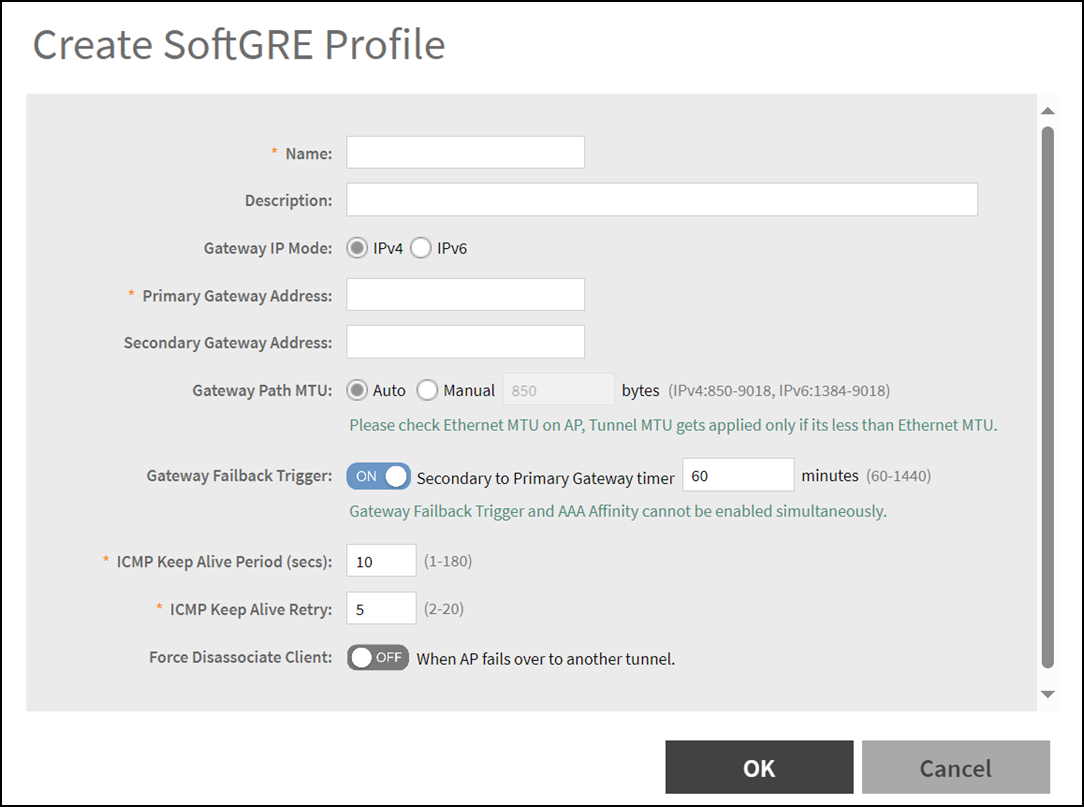
Creating a SoftGRE Profile
You can configure a SoftGRE tunnel profile
that, when applied at the network level for a venue, directs all encapsulated data
traffic
to a third-party, centralized gateway.
Topic reused in SZ
and R1 prj.
-
SZFrom the main menu, click .
-
SZClick Create.
-
SZProfile Name: Enter a name for the profile.
-
SZDescription: (Optional) Enter the description for the SoftGRE profile.
-
SZGateway IP Mode: Select either IPv4 or IPv6 option as the addressing mode.
-
SZPrimary Gateway Address: Enter the IP address or fully qualified domain name (FQDN) of the primary gateway server.
-
SZSecondary Gateway Address: Enter the IP address or fully qualified domain name (FQDN) of the secondary gateway server.Note: If the controller cannot reach the primary gateway server, it automatically connects to the secondary gateway at the IP address you specified.
-
SZGateway Path MTU: Set the maximum transmission unit (MTU) for the gateway path.
-
SZGateway Failback Trigger: Toggle the switch to ON to allow the AP to automatically revert from the secondary gateway server to primary gateway server when the primary is restored. When enabled, the Secondary to Primary Gateway Timer text box becomes interactive, letting you set a timer between 60 and 1440 minutes; when the gateway address has been reachable for the configured amount of time, the AP reverts to the primary SoftGRE gateway.
- Note:
- The Gateway Failback Trigger and the AAA Affinity options cannot be enabled together.
- By default, the Gateway Failback Trigger option is disabled. The AP will continue using the secondary SoftGRE to which it failed over, even after the primary server is restored, until either the AP reboots or connectivity to the secondary SoftGRE is lost.
- By default, the Secondary to Primary Gateway Timer value is set to 60 minutes.
-
SZICMP Keep Alive Period (secs): Enter the time interval in seconds.Note: The time interval refers to how often APs send a keep-alive message to the active third-party WLAN gateway. The range is 1 to 180 seconds, with a default value of 10 seconds.
-
SZICMP Keep Alive Retry: Enter the number of keep-alive attempts.Note: Keep-alive attempts refer to the number of times APs wait for a response from the active third-party WLAN gateway before failing over to the standby gateway. The range is 2 to 10 attempts, with a default value of 5 attempts.
-
SZForce Disassociate Client: Enable this option to disassociate the client when the AP fails over to another tunnel.
-
SZClick OK.