Activating an RCAP License
A minimum of one RCAP license is required for each Access Point or IoT Gateway connected to the RUCKUS IoT Controller. The RCAP license is offered on a subscription basis, which includes Watch Dog support.
Complete the following steps to activate an RCAP license.
- Click the activation code in the activation email message. You are redirected to the RUCKUS Support website (harp://6a7214064c282d8ad6c44b90/pr/ORIGINAL/RUCKUS%20IoT%20Controller%20Instllation%20Guide,%202.4.0.0%20GA_v1_GUID-ADF8402A-6B5E-436F-A538-AF2B2646A116/support.ruckuswireless.com). Log in to the website using your credentials.
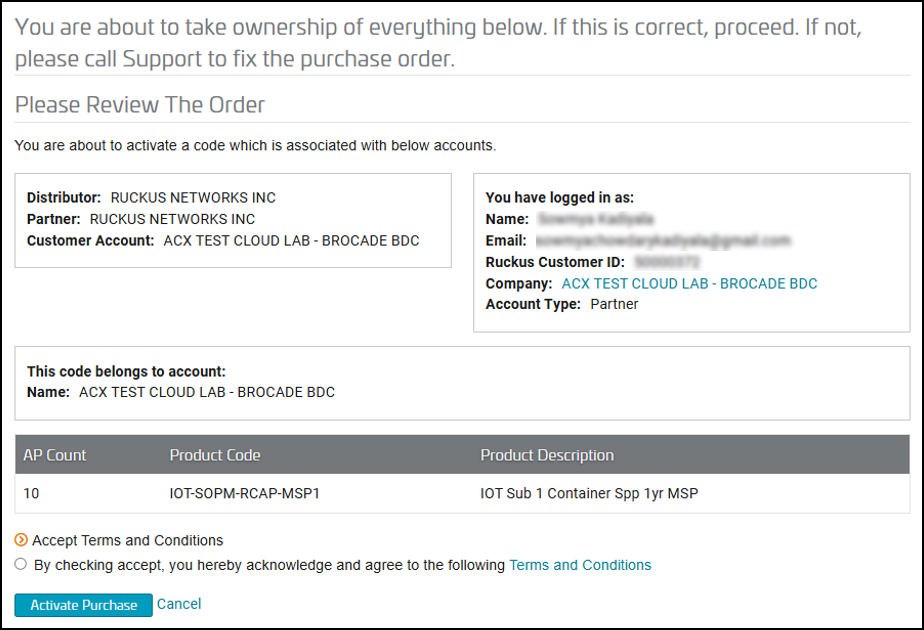
- After the successful validation of the license code, accept the Terms and Conditions, and click Activate Purchase.
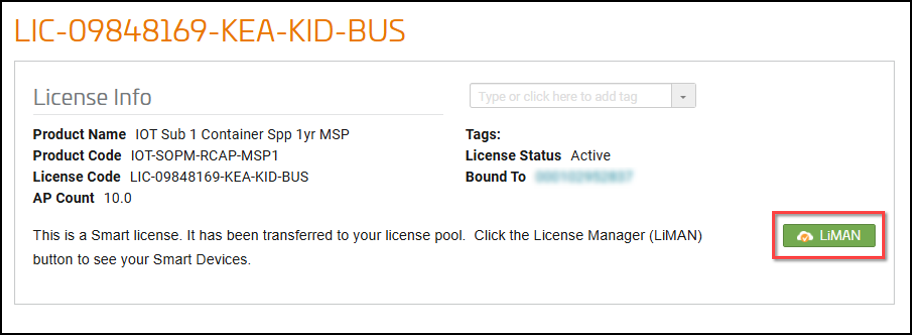
- The license information page is displayed. Click LiMAN.
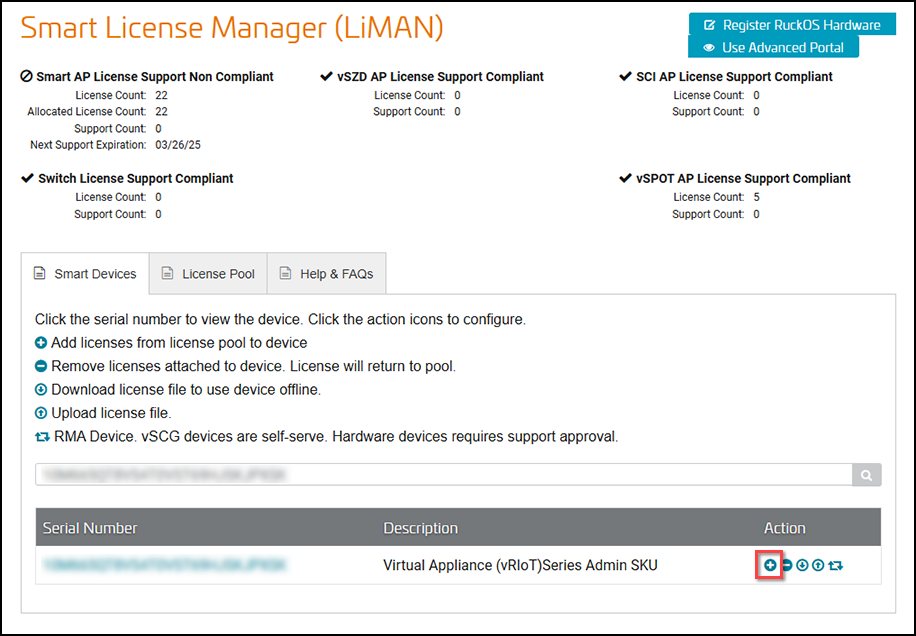
- In the Smart License Manager (LiMAN) page, enter the
serial number of the controller, and click the
 icon in the Action column to add the license.
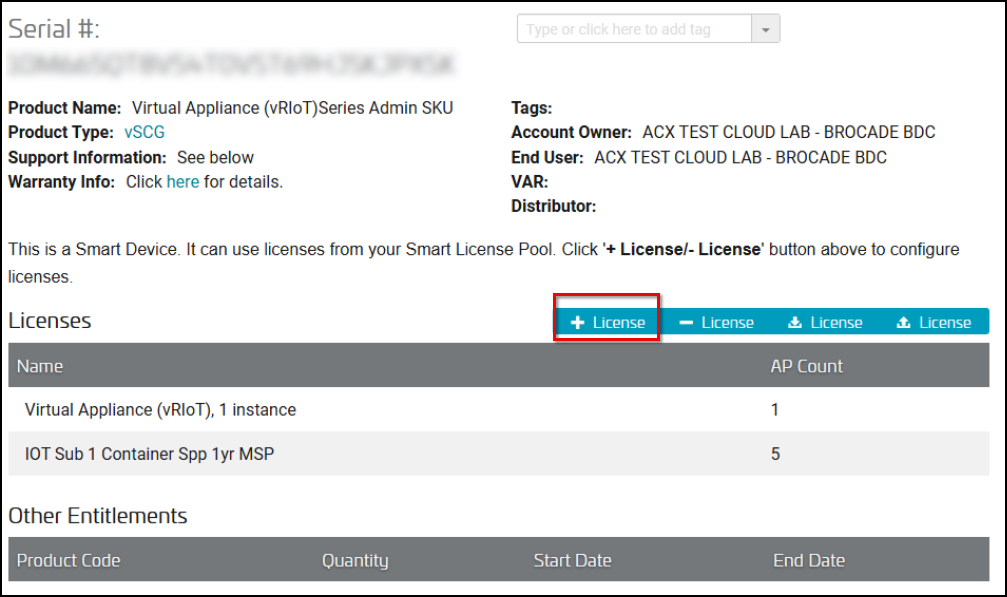
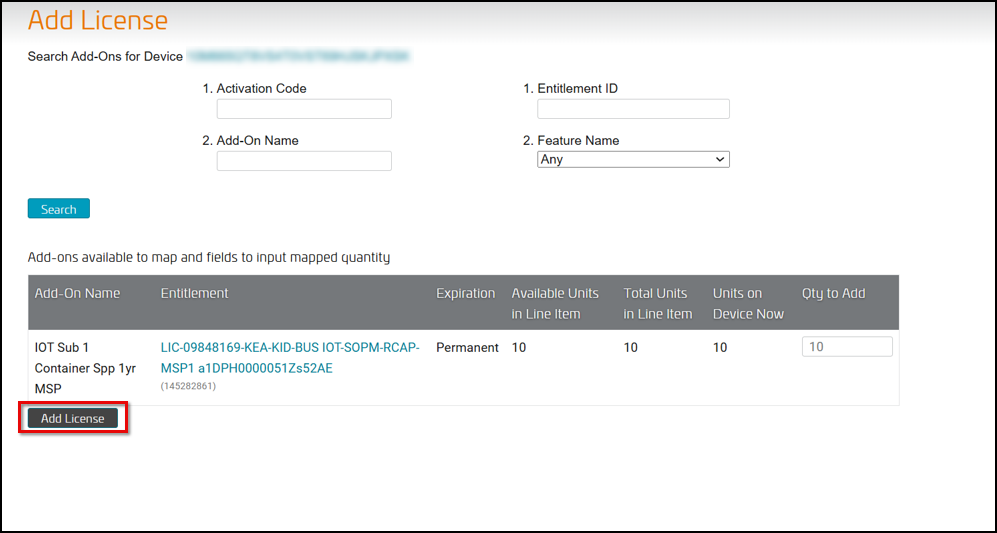
- Click the License button to add one or more licenses to the controller.
- On the Add License page, you can view product information such as Add-On-Name, Entitlement ID, Expiration, Available Units in Line Item, Total Units in Line Item, and Units on Device Now. In the Qty to Add field enter the quantity of licenses you want to purchase. If you want to add feature-specific licenses in bulk, click the Feature Name drop-down list, select the desired license, and enter the quantity for each in the Qty to Add field. Click Add License.
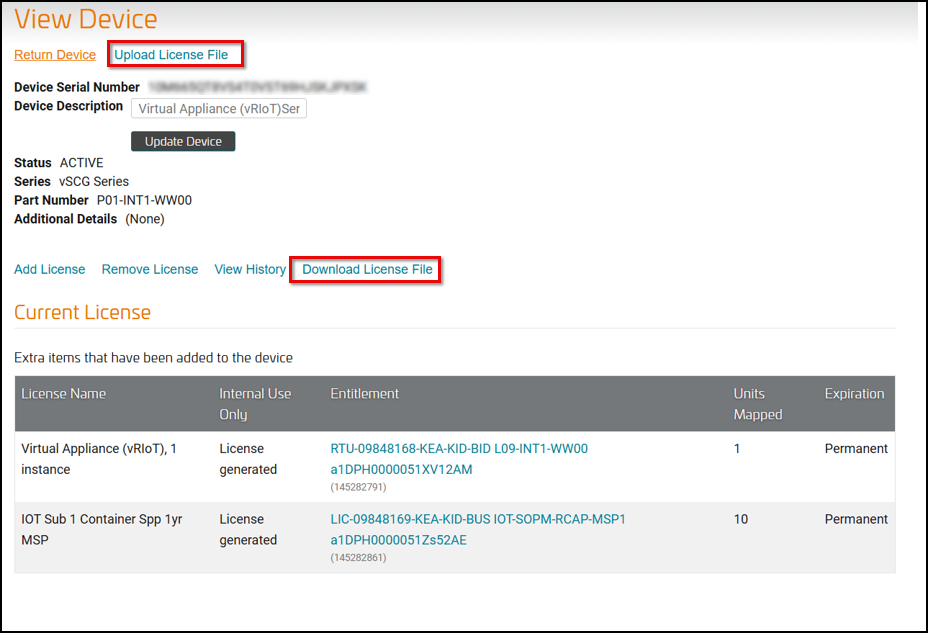
- On the View Device page, you can see the device information and its associated licenses. Click Download License File to download the license file, then click Upload License File to upload it to the RUCKUS IoT Controller.