Upgrade

Th Upgrade is an online service. The RUCKUS IoT Insights system periodically checks online against our upgrade server and identifies if a newer version of RUCKUS IoT Insights is posted and made available on the RUCKUS website.

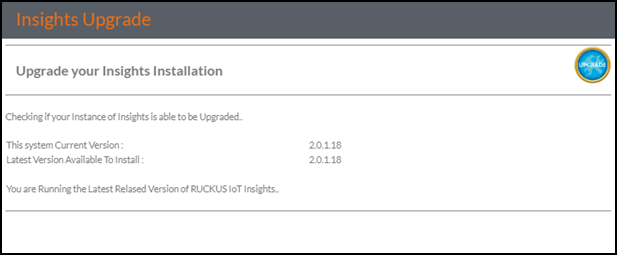
The upgrade is notifed to the administrator by means of the notice counter on the banner and the details of the upgrade are available in the Upgrade panel. If no upgrade is available, the upgrade panel shows the following.

  1. From the main menu, go to Configuration > Admin > System > Upgrade.
    If no upgrade is available, the upgrade panel shows the following.

    No Upgrade

    No Upgrade
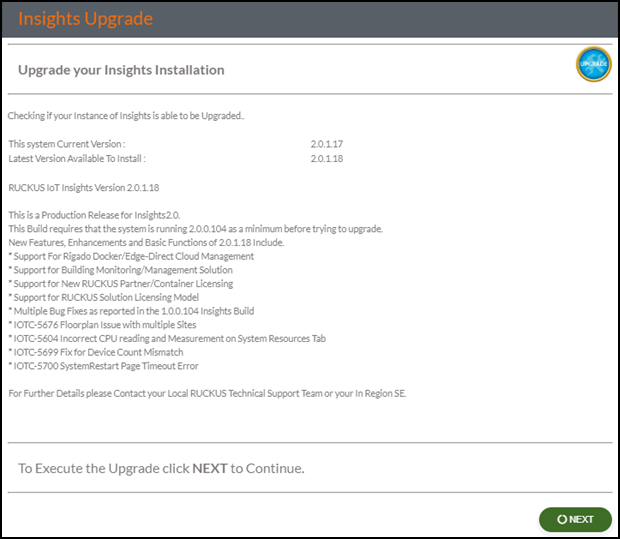
  2. If a newer version of RUCKUS IoT Insights is available the panel shows the following.

    Upgrading to Newer Version

    Upgrading to Newer Version
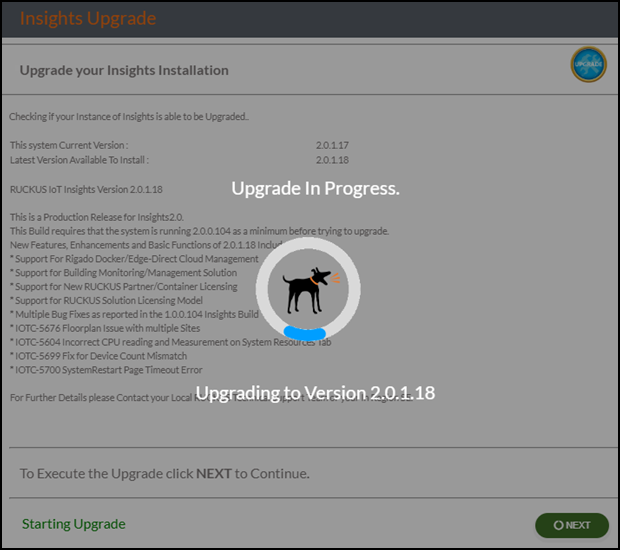
  3. Click Next to start the upgrade process.

    Starting the Upgrade Process

    Starting the Upgrade Process
    Note: Do not navigate from this page during the upgrade process. The system is unable to monitor the upgrade process if you leave this page.

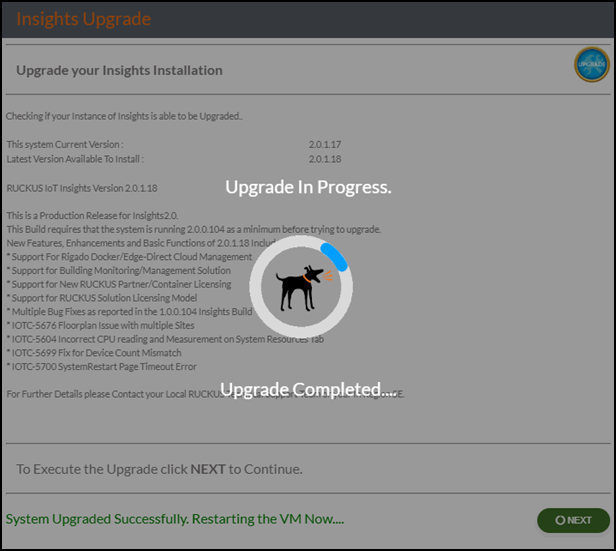
    After the upgrade is completed, the page indicates "Upgrade Completed".

    Completing the Upgrade Process

    Completing the Upgrade Process
  4. Click Next.

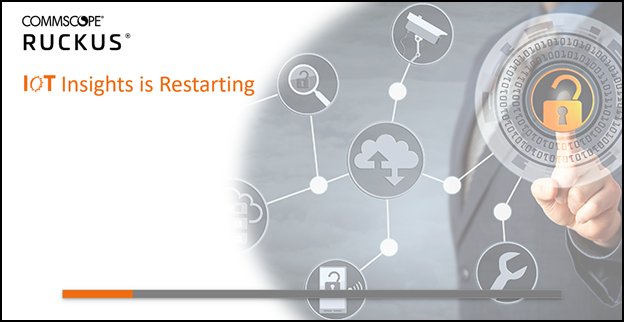
    The IoT Insights system restarts automatically.

    Restarting the System

    Restarting the System
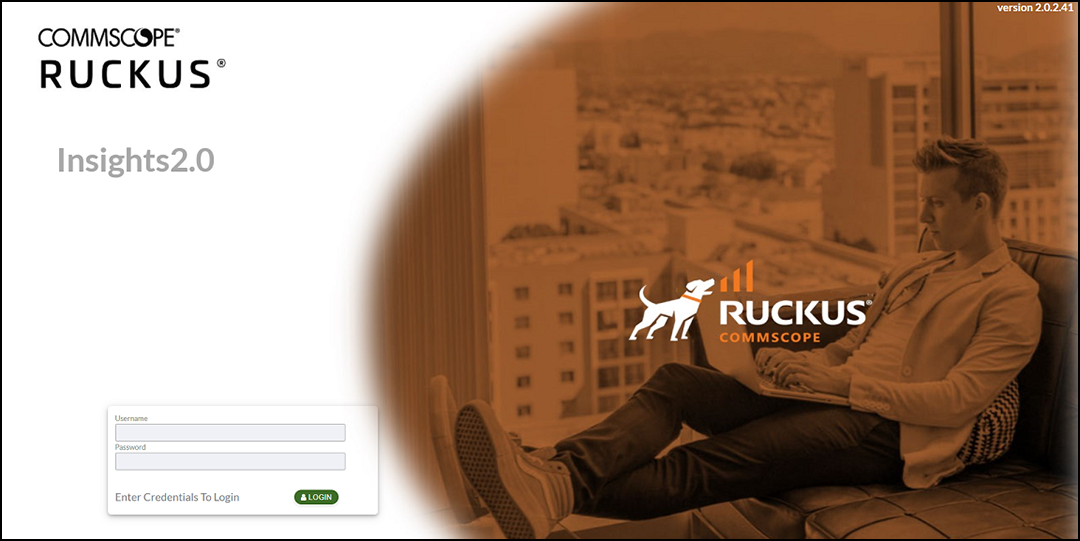
  5. After the restart is complete, the login page is displayed. Enter the username and password, and click Login.

    Logging into System

    Logging into System
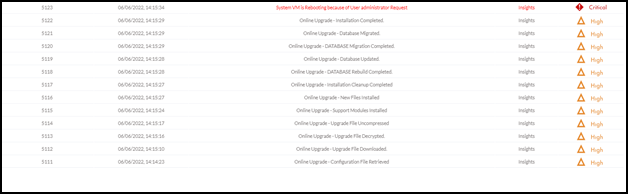
  6. After logging in to the system, click System Log to view the status of the upgrade.
    Viewing the System Log

    Viewing the System Log
The system is now successfully upgraded to the latest version of RUCKUS IoT Insights.