Adding Device
- From the main menu, go to
- Device: From the Device list, select a device. You can assign a new name to the selected device in the New Device Name field.
- Manufacturer: In the Manufacturer field, enter the name of the device manufacturer if it is not already displayed.
- Model: In the Model field, enter the model name of the device if it is not already displayed.
- Type: In the Type field, enter the type of the device if it is not already displayed.
- Enablemennt: Under Enablement, select Device Enabled if you want to enable the device at the site location. Select Video Enabled if you want to capture video at the site location.
- Realm: Displays the configured Realm name.
- Site ID: From the Site ID list, select the ID of the site.
- Country: In the Country field, enter the name of the country where the device is located.
- Building: From the Building list, select the number of the building.
- Floor: From the Floor list, select the floor number.
- Location: From the Location list, select the location where the device must be enabled.
- Click Save to store the device details in the RUCKUS IoT Insights database.
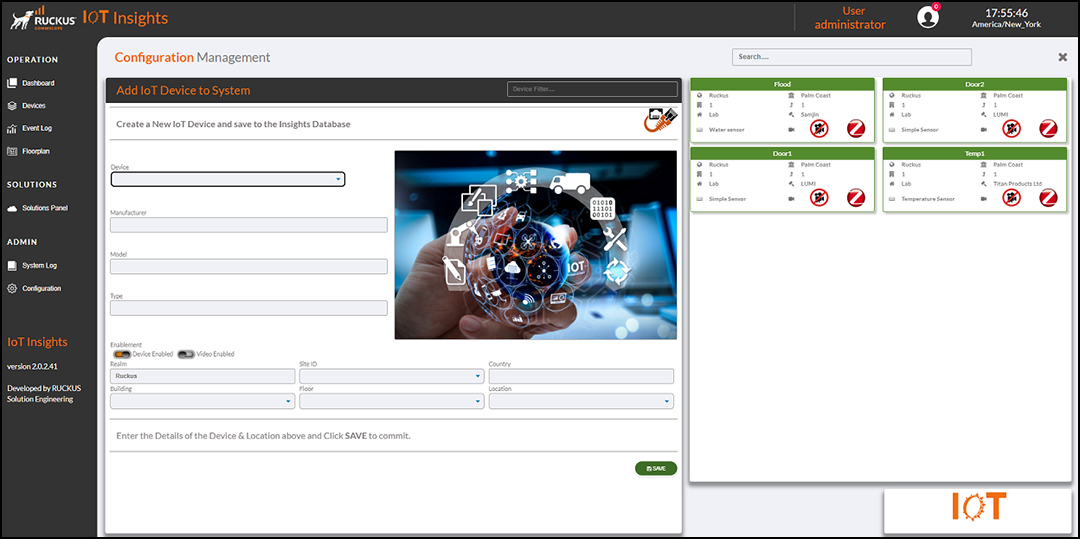=GUID-11F7794A-50F9-4BE2-9A75-63FD37C57E37=1=en-US=Low.png "Adding an IoT Device")
The Current Devices table lists the device details, including the location, device name, type, model name, vendor name, and network name.
You can enter search criteria in the Search field to search the Current Devices table for information.