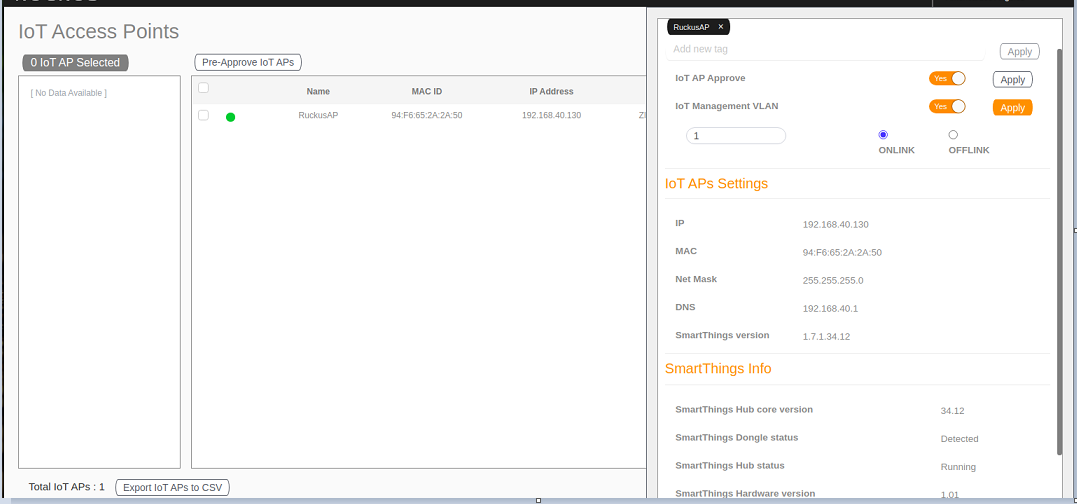
Enabling Samsung SmartThings
You can connect the Samsung Smart Hub
dongle through the USB port in RUCKUS AP. The Samsung Smart Hub dongle has two radios:
Zigbee and Z-Wave. The Samsung SmartThings mobile app displays the configurations,
status,
information, device list, and device status of the Samsung Smart Hub.
- From the main menu, click Admin.
- In the left navigation pane, click Services.
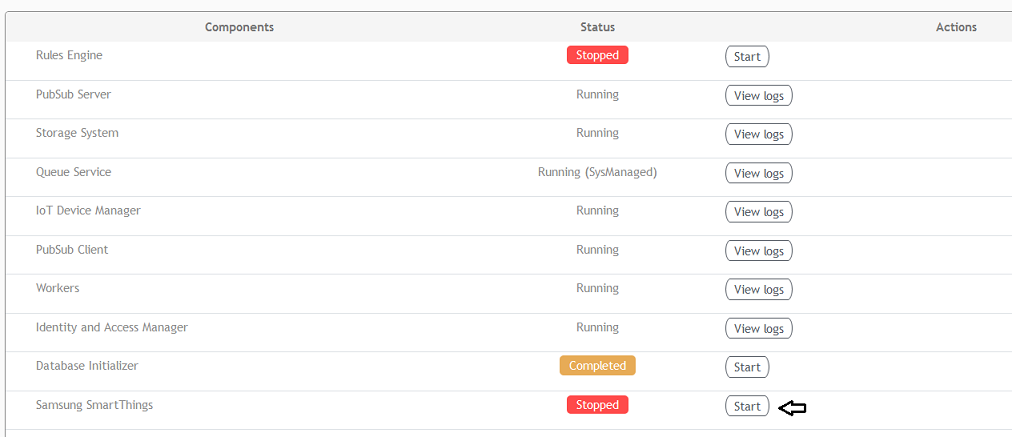
- Click Start to activate the service.
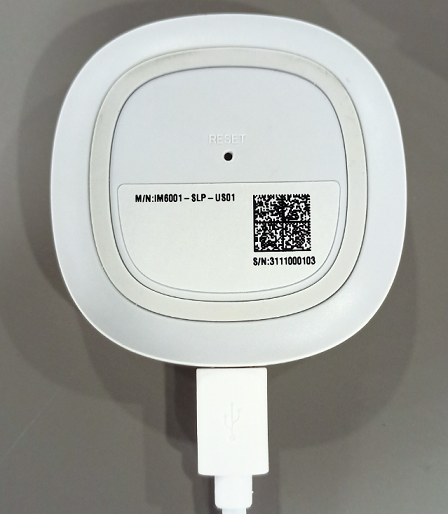
- After receiving an Upgrade Success message for the ST Upgrade event on the IoT Controller Events page, press and hold the reset button on the Smart Hub for 10 seconds.
- Download the SmartThings app and enter your login credentials.
- Connect your mobile and AP in the same network or connect the mobile to the SSID of the AP.
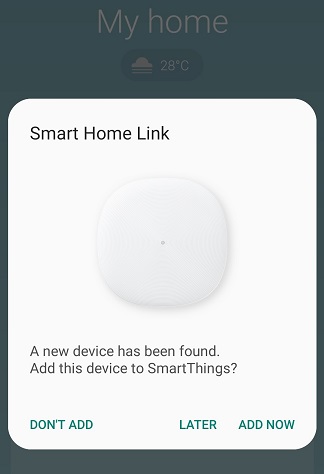
- After the mobile device connects to Wi-Fi, click ADD NOW in the SmartThings device pop-up.
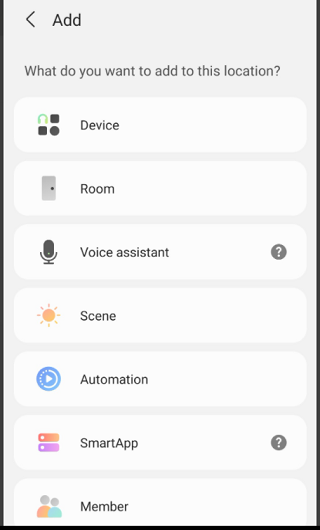
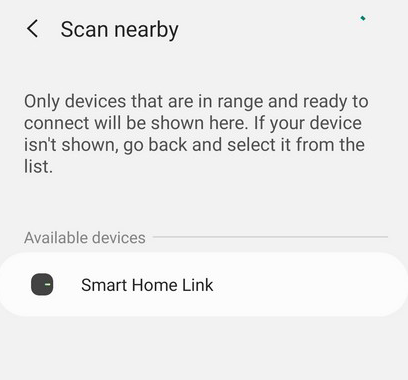
- If the pop-up does not display, perform the following steps to add your mobile device to SmartThings.
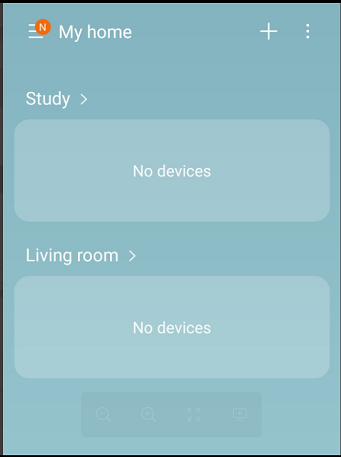
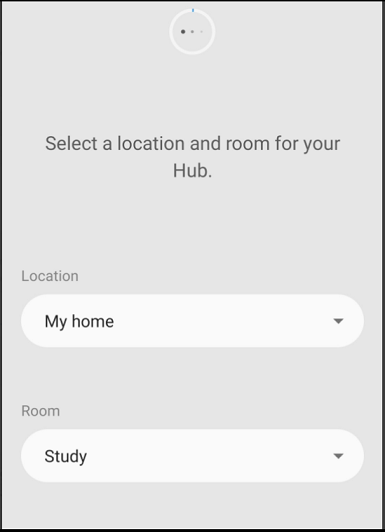
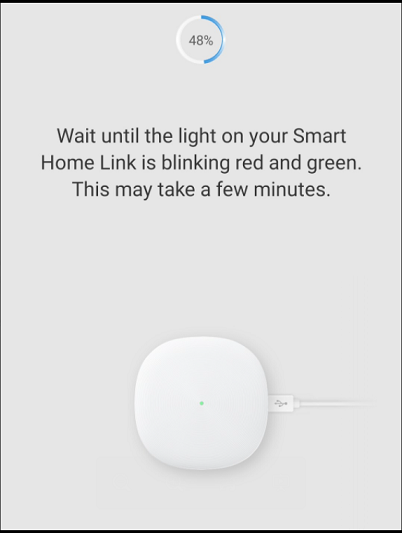
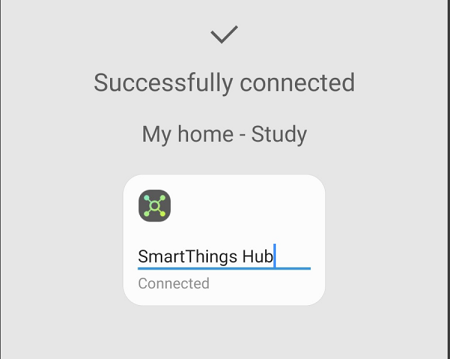
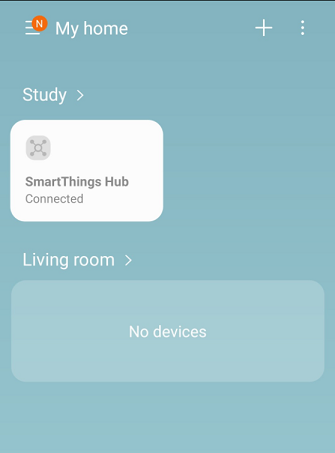
- Add the SmartThings hub to the app.
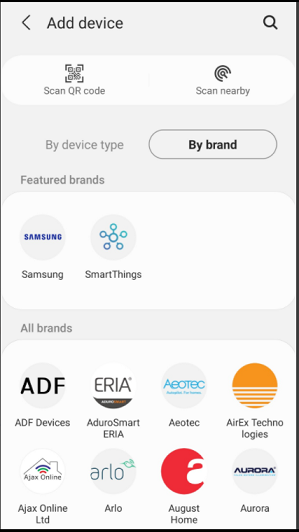
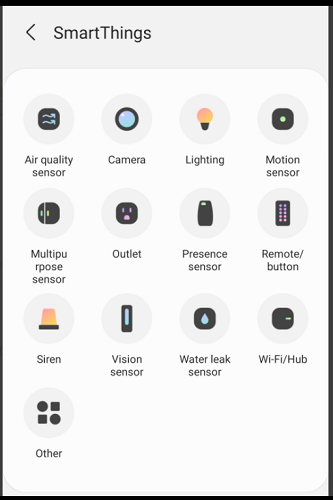
- Click the + icon in the app and go to the Devices page to add the hub.
- From the main menu, click
IoT APs.The IoT Access Points page is displayed.
- Select an AP from the list. The sidebar on the right displays the SmartThings information for the selected AP, such as the hub version, dongle status, hub status, hardware version, and serial number.