How to Add Onboard Sponsors
- From the Cloudpath Admin UI, go to Managed Access > Sponsored Access >, then click the wrench icon for the list you want.
- Click the Sponsors tab.
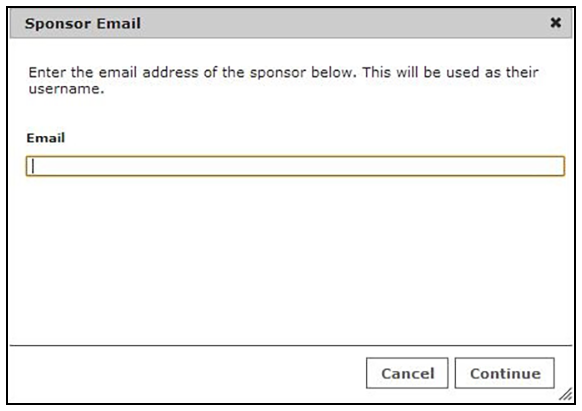
- Click Add Sponsor to invoke the Sponsor Email screen.
- Enter the email address of the sponsor for this voucher list and click Continue. The email address becomes their Name.
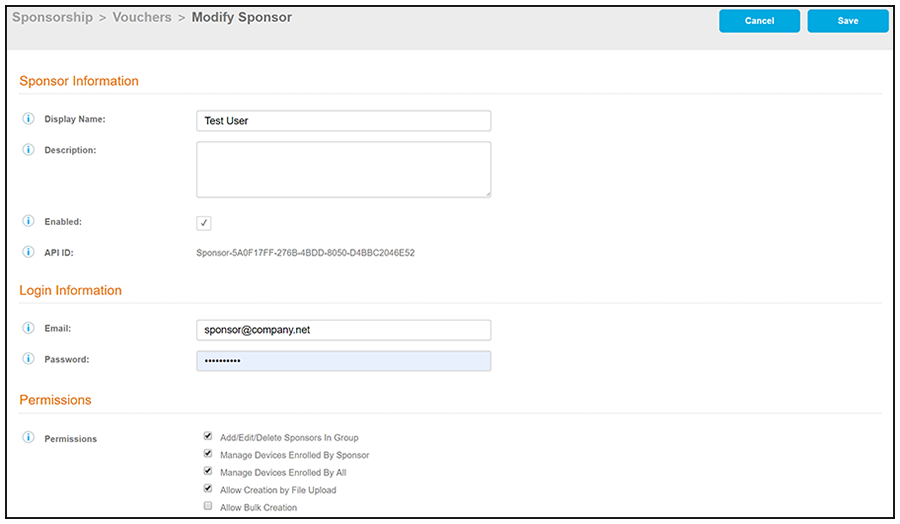
- On the Create Sponsor screen, enter the sponsor Name, Description, and Enable the sponsor.
- In the
Login Information section, enter the sponsor’s
Email address and
Password.
Note: The sponsor is prompted to change their password during the first login.
- In the
Permissions section, check the box for the appropriate sponsor permissions.
- Add/Edit/Delete Sponsors In Group - If checked, the sponsor can add, edit, and delete other sponsors within the group.
- Manage Devices Enrolled By Sponsor - If checked, the sponsor can review and revoke devices enrolled via vouchers issued by that sponsor.
- Manage Devices Enrolled By All - If checked, the sponsor can review and revoke devices enrolled via vouchers issued by any sponsor (within the Voucher List).
- Allow Creation by File Upload - If checked, the sponsor can create multiple vouchers at the same time through a file upload.
- Allow Bulk Creation - If checked, the sponsor can create vouchers in bulk by importing a spreadsheet of vouchers. A default template is provided.
- Save the sponsor information. Note: The sponsor will receive a notification, such as the following email, when they have been designated as a sponsor.
You have been setup as a sponsor. To login as a sponsor, use the information below.

URL: https://jeff245.cloudpath.net/portal/sponsor/JackTest/
Username: jeff@commscope.com
Password: test

On your first login, you will be prompted to change your password.