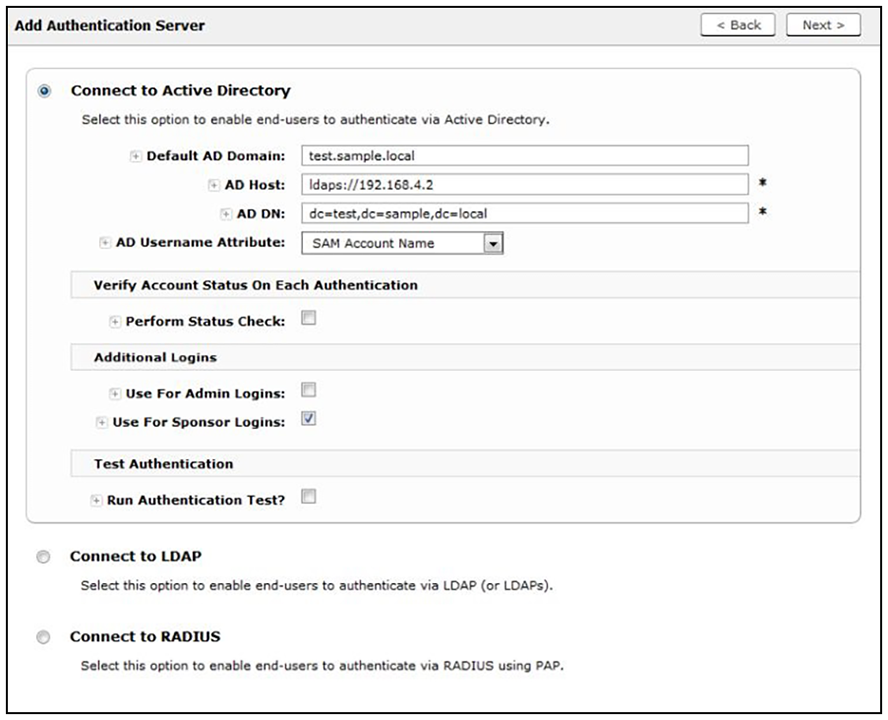
Authentication Server Configuration for Sponsorship
This task is needed if you want to allow "external sponsors" (which are sponsors that you do not need to add via the Managed Access > Sponsored Access portion of the Cloudpath UI) to be able to generate vouchers. To configure the sponsored access feature for external sponsors, the Cloudpath administrator must set up a sponsor group in the Corporate AD or LDAP server for employees that can be authorized as sponsors. For example, create a group named Manager or Wireless Sponsors.
This group name is used in Cloudpath when configuring which users are able to log into the sponsorship portal and sponsor guest users.
To set up your Active Directory or LDAP server to support sponsorship, follow these steps:- From the ES Admin UI, go to Configuration > Authentication Servers.
- On the Authentication Servers page, edit the AD or LDAP server you will be using to authenticate sponsors and guest users.
- Select the User For Sponsor Logins box to allow sponsors to log into the sponsorship portal using credentials from this authentication server.