Troubleshooting
You may troubleshoot issues on your own
using the procedures provided or you may obtain open ticket with RUCKUS Support (refer
to
Contacting RUCKUS Customer Services and Support for further information).
Test Network Connectivity
How to Expand the MySQL Partition Size
Enter the following commands as root.
- (Optional) View the amount
of free disk space
available.
[root@localhost cpn_service]# df -h
- Signal to the OS that there
has been a hardware change to the
disk.
[root@localhost cpn_service]# echo ‘1’ > /sys/class/scsi_disk/2\:0\:1\:0/device/ rescan
- Expand the physical
volume.
[root@localhost cpn_service]# pvresize /dev/sdb -v
- Extend the size of the
logical volume for MySQL operations. The following example shows that we are
extending the size of the logical volume by adding
25GB.
[root@localhost cpn_service]# lvextend -L +25G /dev/mapper/application_vg-mysql
- Resize the file system. The
following example writes your changes to disk and completes the partition
expansion.
process.
[root@localhost cpn_service]# resize2fs /dev/mapper/application_vg-mysql
- Verify the amount of free
disk space available. The output should indicate the increased partition
size.
[root@localhost cpn_service]# df -h
Password Recovery
-
If you are locked out of the Cloudpath Admin UI, log in via SSH and use the
support
                        activate-ui-recovery
command from the service account. This activates a temporary password for a short time period, which allows you to log into the Cloudpath Admin UI and set up a new Administrator account, or reset a password for an existing account. - Service Password: If you are locked out of the service account, you can log in via SSH to a Recovery account.
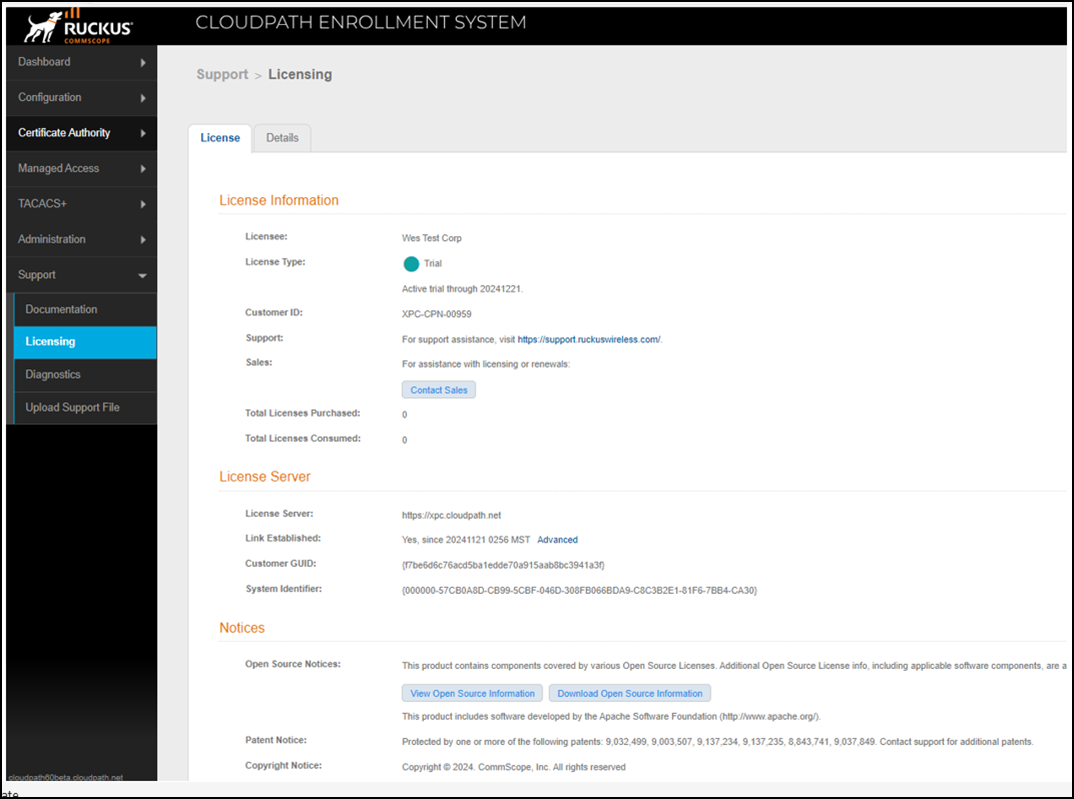
To receive a recovery password for the service account, you must provide the System Identifier and current Version on your system.
- Log into the Cloudpath Admin UI.
- Go to .
- Review the System Identifier that is listed in the License Server section.